
Integrate Constellation and UI-Kit using Pega APIs
Recently, I had an opportunity to design a solution for my client where a new Constellation application would integrate with an existing UI-Kit (traditional UI) application via Pega APIs (out-of-the-box) to implement case management / routing / approval workflow between the two very different UI design systems (i.e. Constellation=React based vs. UI-Kit=traditional server based).
This article introduces a common design pattern, which can be leveraged when two independent Pega applications with the two very different UI design systems need to work with each other seamlessly.
Pega Infinity version used: 24.1.3 (but should also work in '25 and above)
Client use case
Client has an existing UI-Kit application that has been running in Production for more than five years. They're considering to onboard a group of new users to Pega who will be assigned with a questionnaire to complete. Their submitted answers will be reviewed by the existing UI-Kit users who will then either approve or reject them. If rejected, the questionnaire will be routed back to the responsible user. This reject & rework process can be repeated until the answers are approved by the UI-Kit users. Once approved, the UI-Kit application will continue with additional processing based on the answers captured.
Design approach
Our proposed approach is to build a new Constellation application to onboard the new users and create/assign them questionnaire cases in Constellation (instead of onboarding them to the existing UI-Kit application and adding a new questionnaire case type to UI-Kit). This new Constellation application will focus on authoring, routing, and answering a questionnaire and use Pega APIs (OOTB) to integrate with the existing UI-Kit application that will manage the rest of the business process including the approval of the questionnaire submission.
Integration architecture
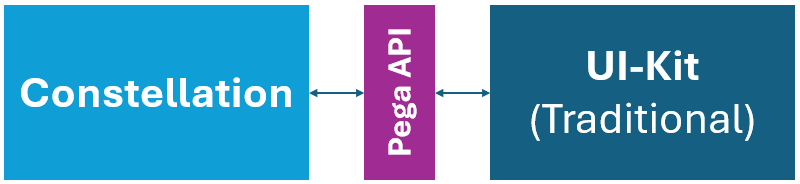
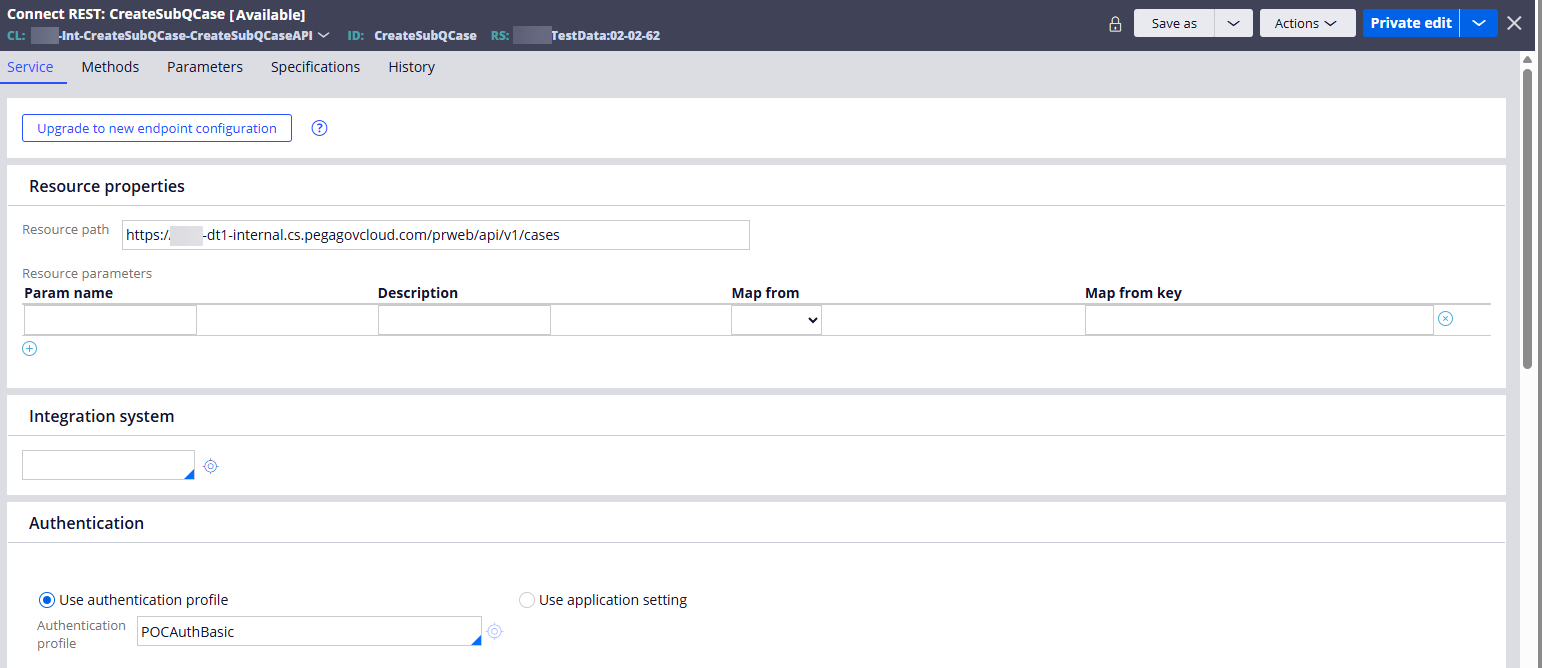
The integration architecture should be self-explanatory in the diagram below. This model requires to build REST connector rule to invoke Pega API. We used Create REST integration wizard in Pega Platform to auto generate the REST connector and other related integration rules (in Org-Int-** layer) and the data models including data page (in Org-Data-** layer), which handles the request/response mappings and the API invocation. Generating the rules in the Enterpriser Layer will promote a broader reuse.
High-level implementations
Step 1 (Constellation) - A questionnaire author creates a questionnaire case type in App Studio and configures the questions.
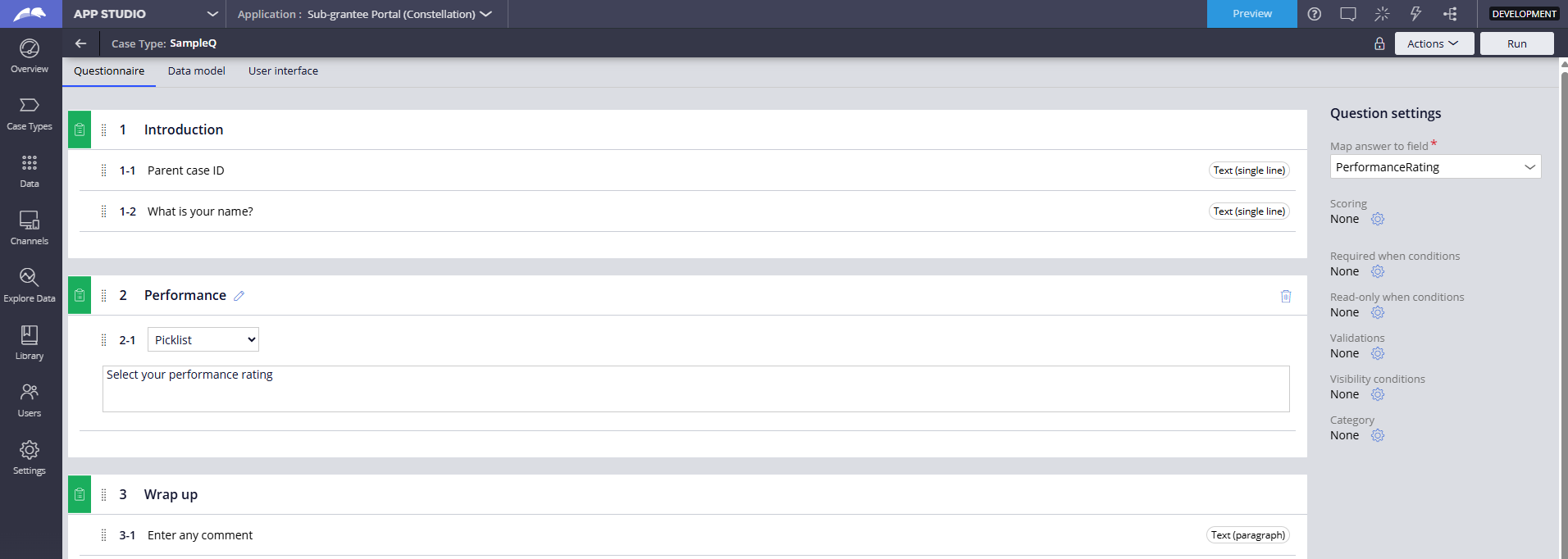
A sample questionnaire is configured in Constellation:
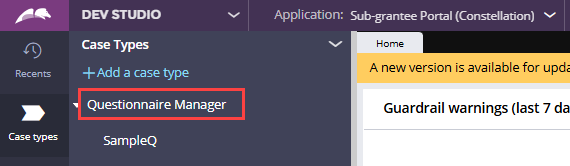
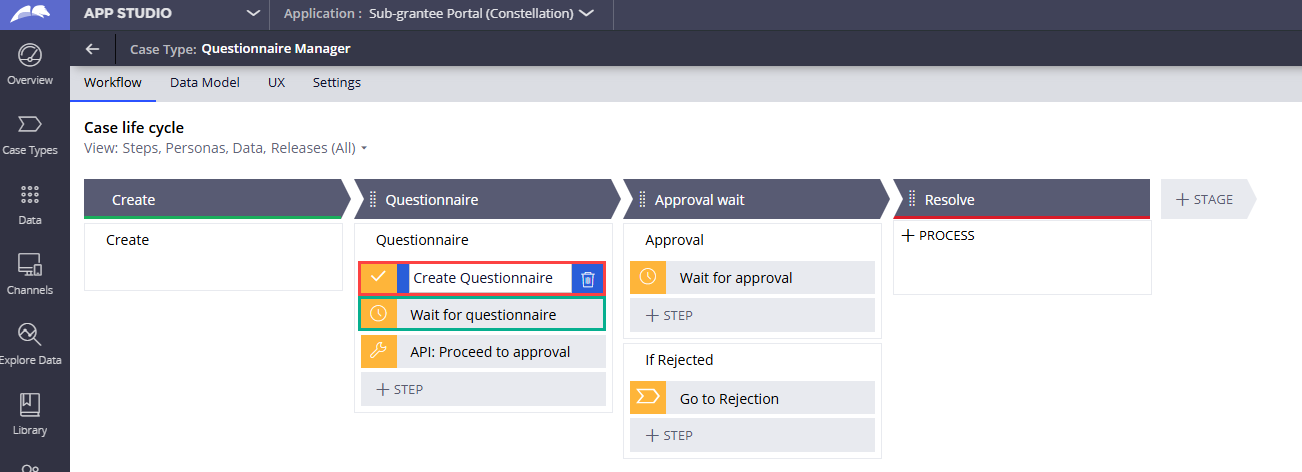
In Constellation, we created a parent case type (Questionnaire Manager) that will spawn the questionnaire as a child case and manage the routings of the questionnaire case.
Step 2 (UI-Kit) - The UI-Kit application initiates the overall business process and calls Pega API (POST /api/v1/cases) to create a new questionnaire case in Constellation.
Sub Manager (SUB-) is a standard case type created in the UI-Kit application to be responsible for initiating, reviewing and approving/rejecting the questionnaire.
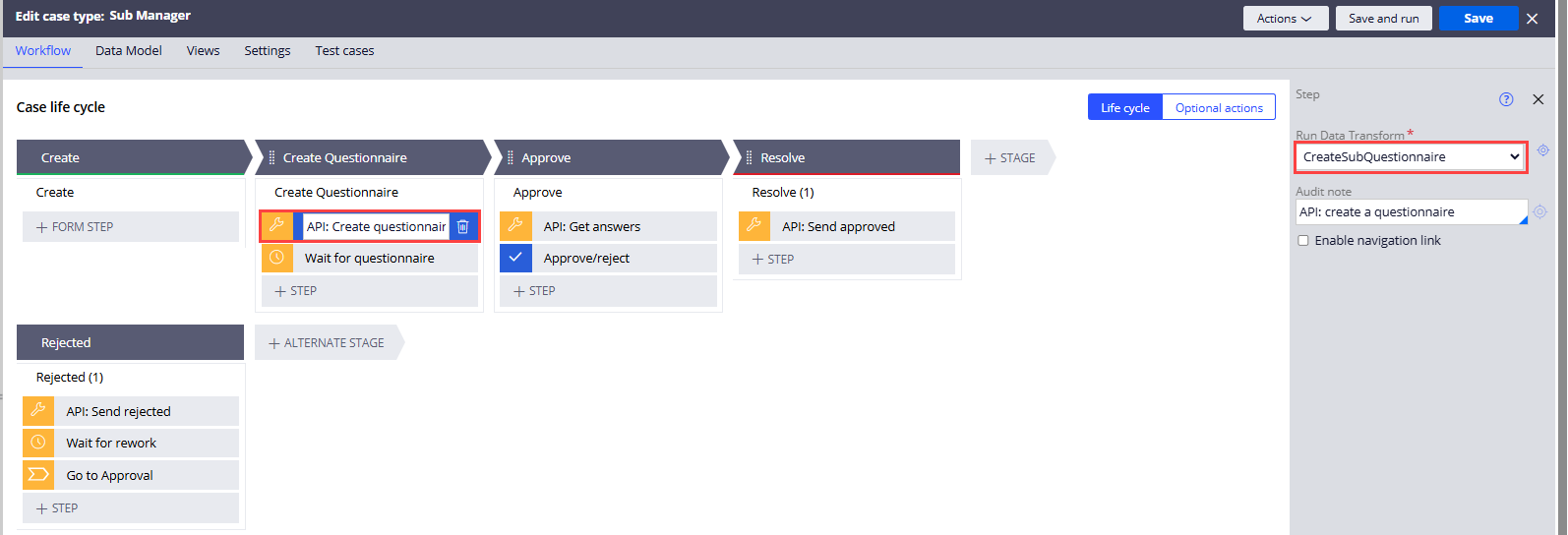
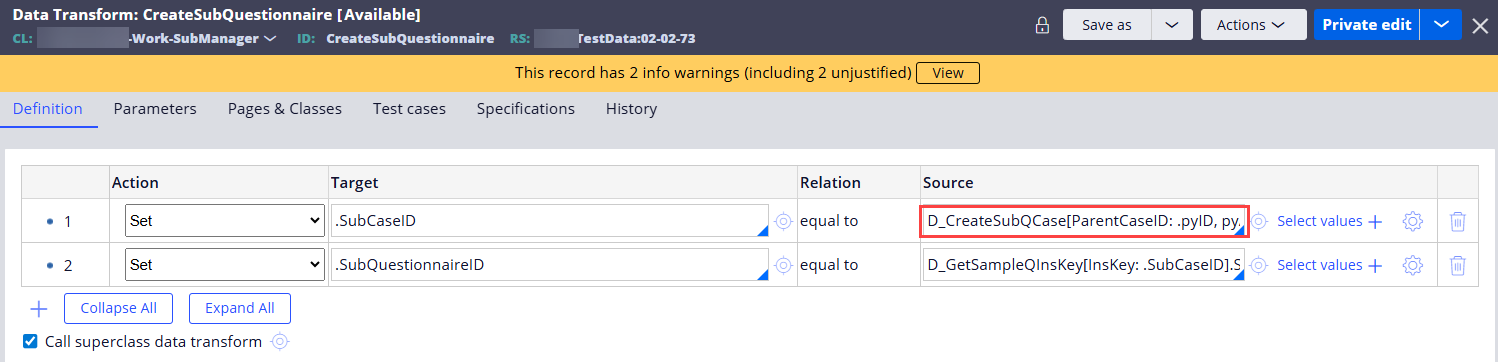
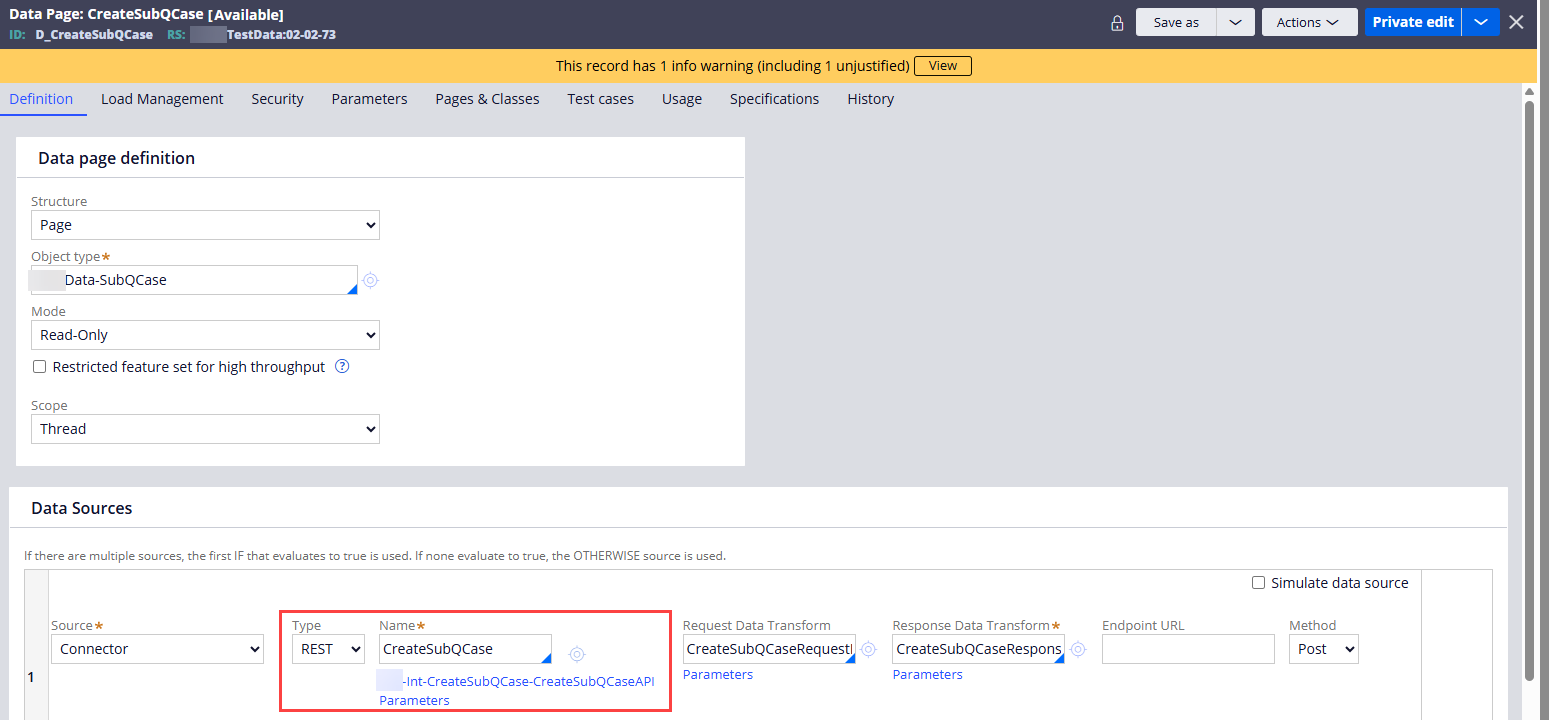
The 'Create Questionnaire > API: Create questionnaire' step is referencing a data transform, which in turn references a data page that invokes Pega API (POST /api/v1/cases) to create a new questionnaire case in Constellation.
Data transform:
Data page:
Connect REST:
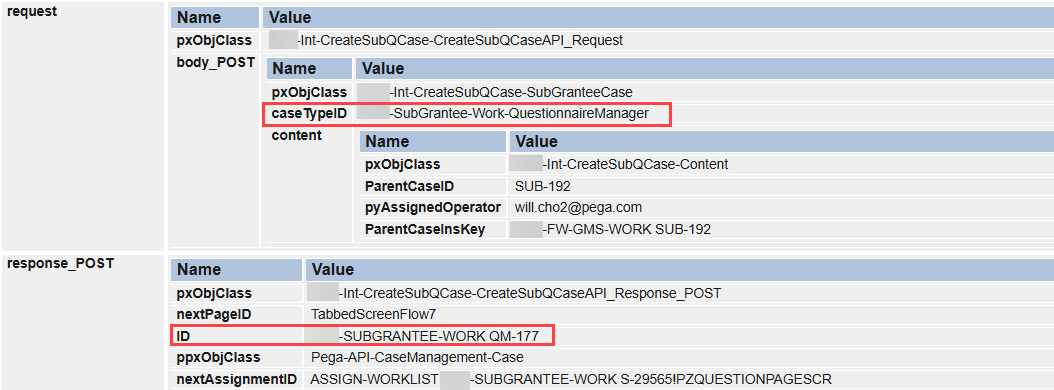
Here are the sample API request and response parameters. Notice that, in the request, we passed the case type class name (XXX-SubGrantee-Work-QuestionnaireManager) defined in the Constellation application, and in the response, we received the pzInsKey of the new Questionnaire Manager case (QM-177) created on the Constellation side. The new questionnaire case is created as a child case of QM-177.
Step 3 (Constellation) - Verify that the QM-177 case is created in the Constellation application and started its case life cycle.
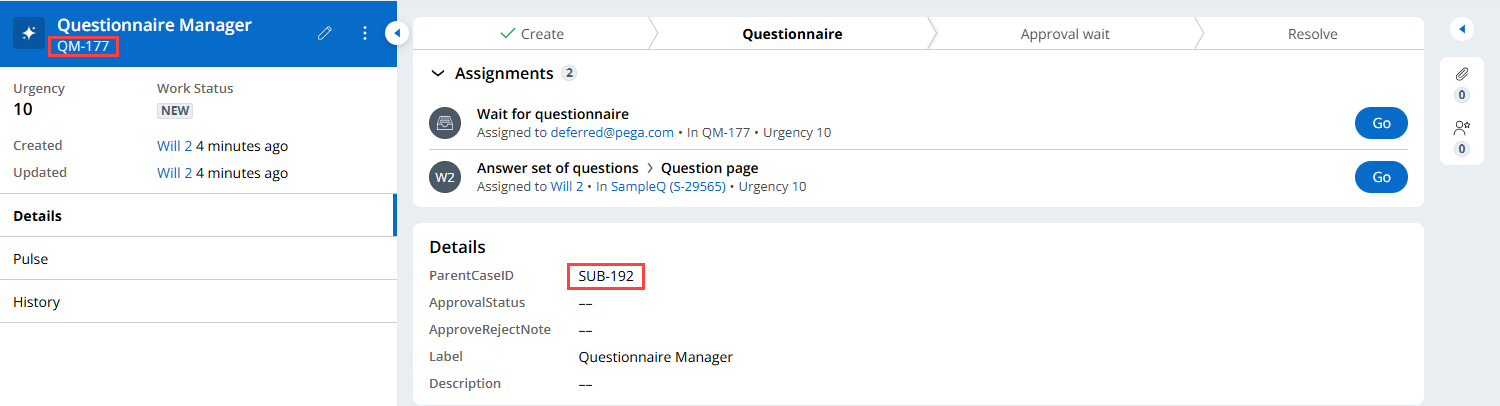
As shown below, QM-177 is successfully created. Also, notice that the UI-Kit Case ID (SUB-192) is passed from the UI-Kit application and displayed in the Constellation application. This proves that we can seamlessly exchange information between UI-Kit and Constellation via Pega API.
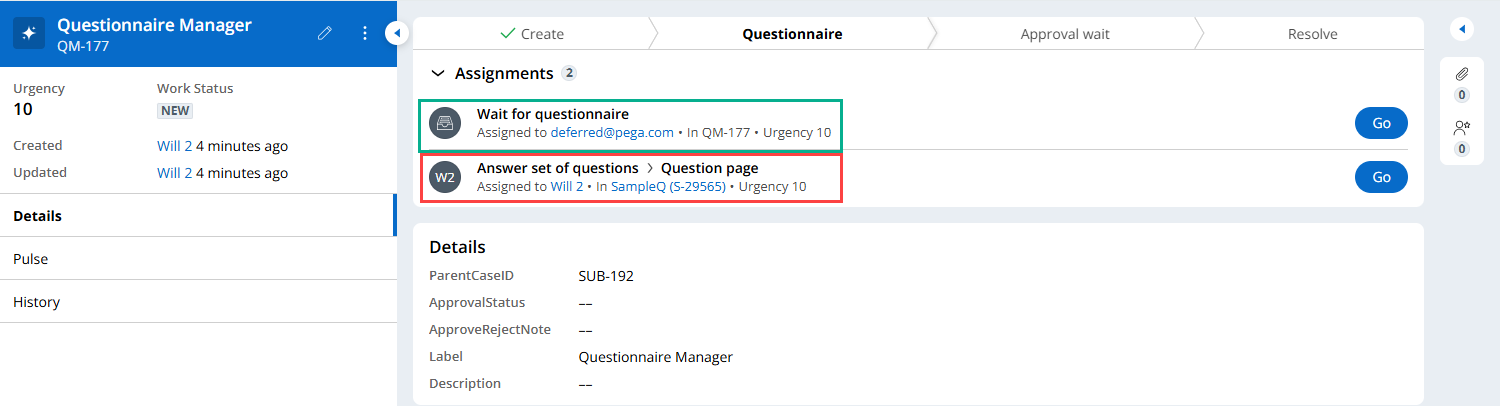
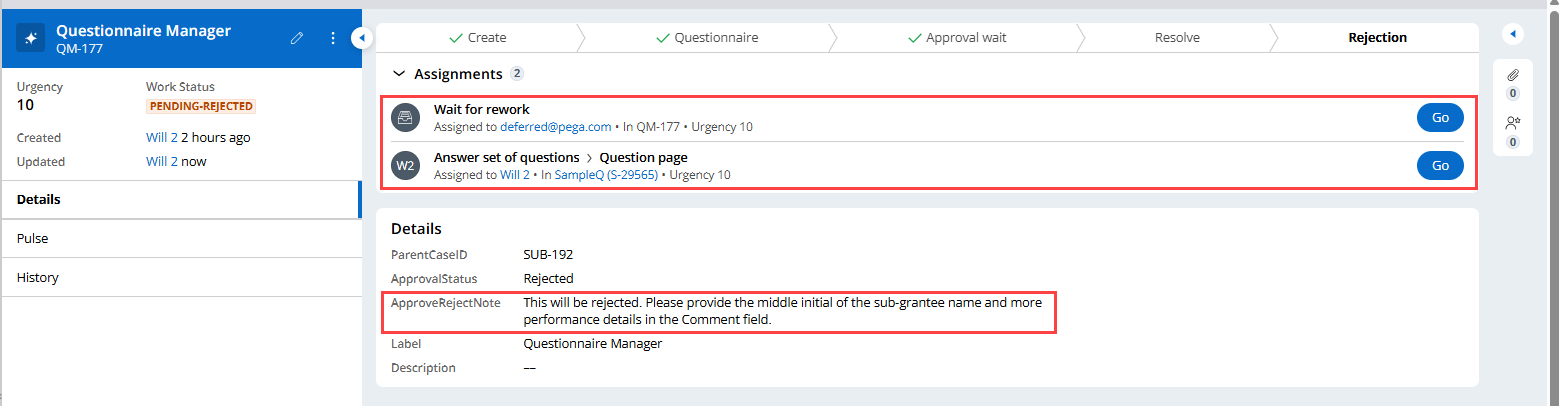
QM-177 case also started its case lifecycle successfully. As shown below, the new child questionnaire case (S-29565) is created and assigned to '[email protected]' (=pyAssignedOperator is also passed from UI-Kit) while the parent QM-177 case proceeded to pause on the Wait step (until the child questionnaire case is completed).
Step 4 (Constellation) - Login as '[email protected]' Operator ID and complete the questionnaire case assigned.
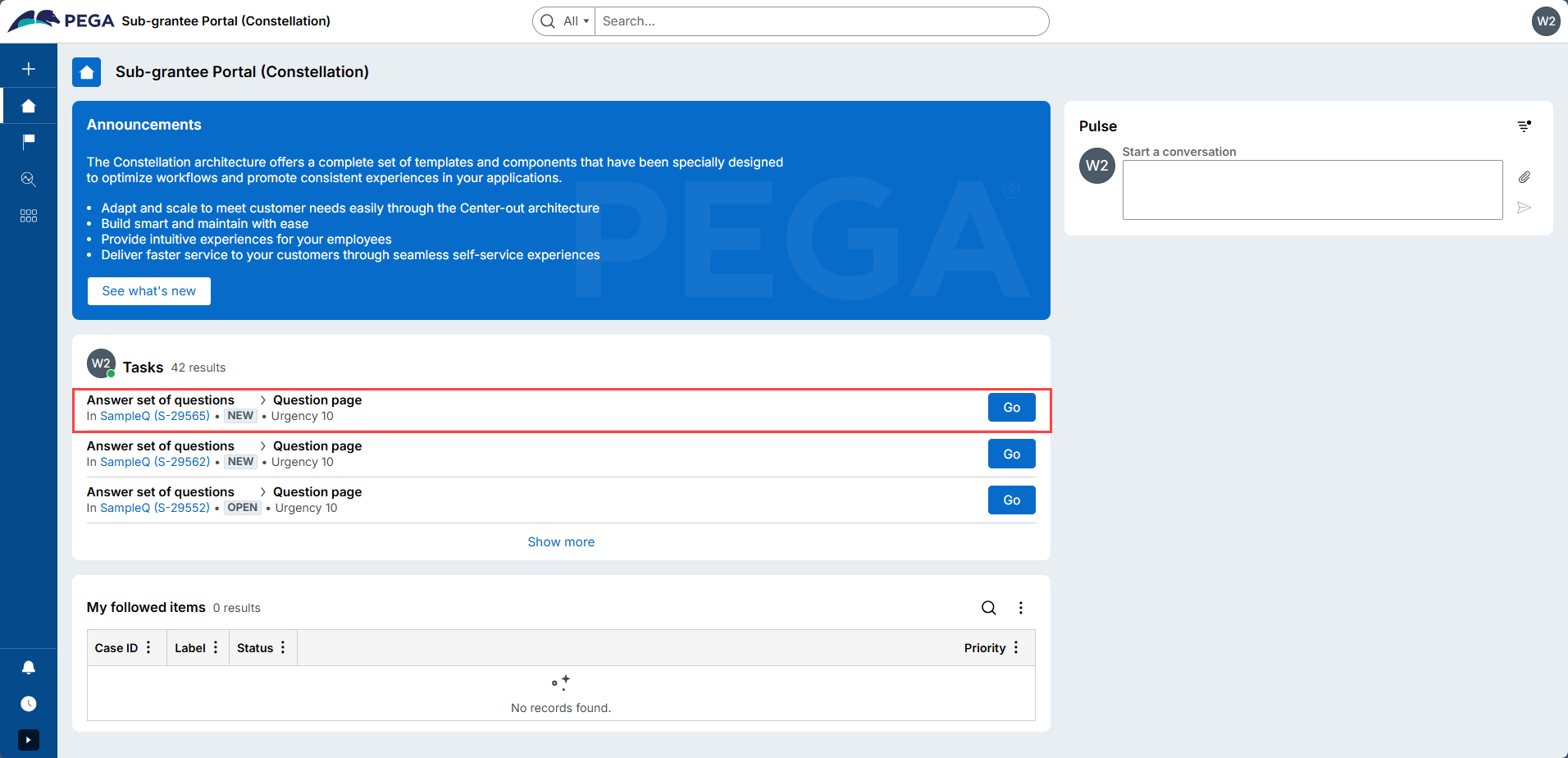
'[email protected]' logs in and finds the new questionnaire case assigned.
The user completes the questionnaire and submits it.
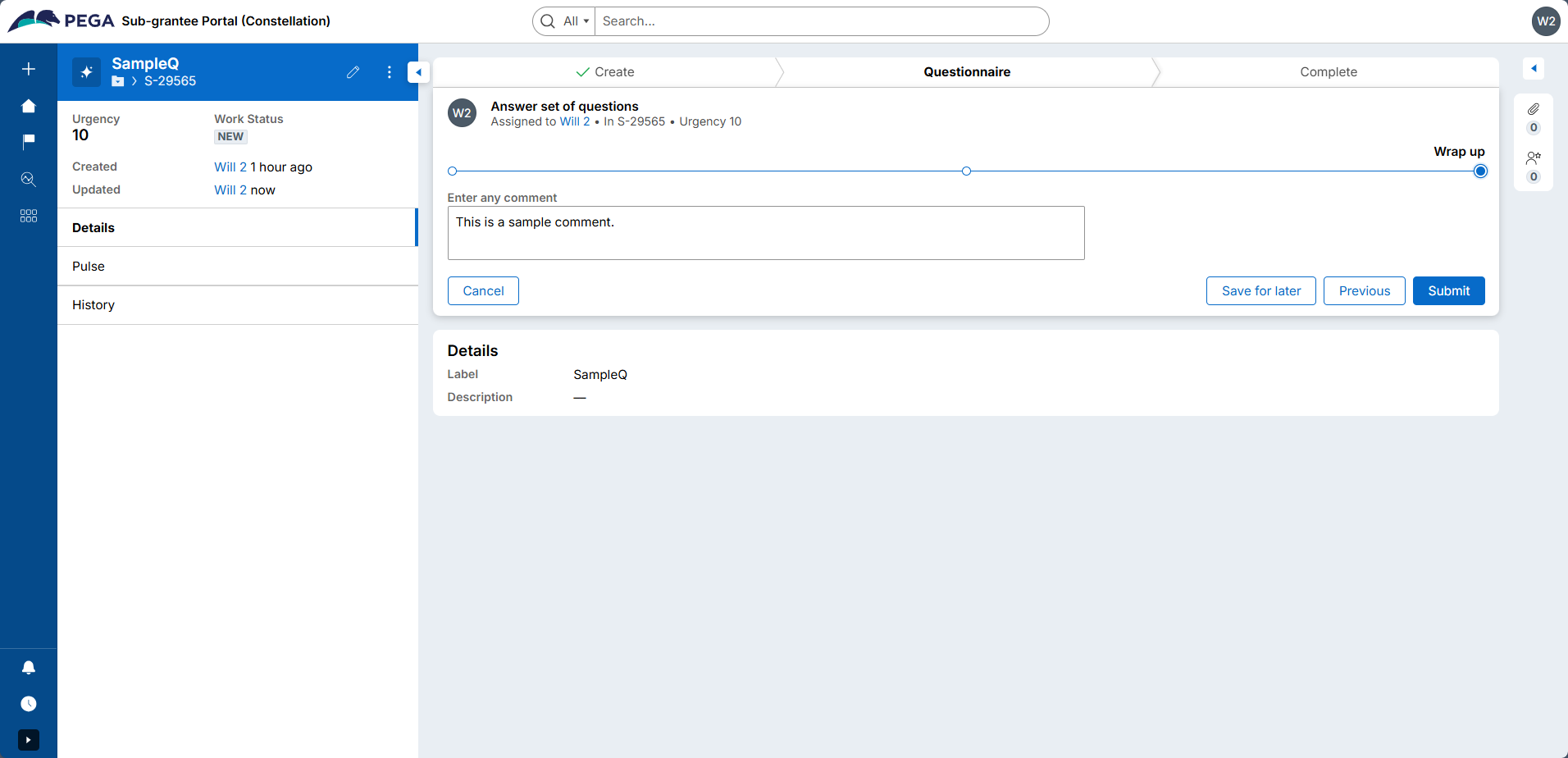
Step 5 (Constellation) - Once the questionnaire is completed, verify that QM-177 case proceeds to invoke Pega API (POST /api/v1/assignments/{ID}) to resume the waiting case (SUB-192) on the UI-Kit application. It then pauses on the 'Wait for approval' step.
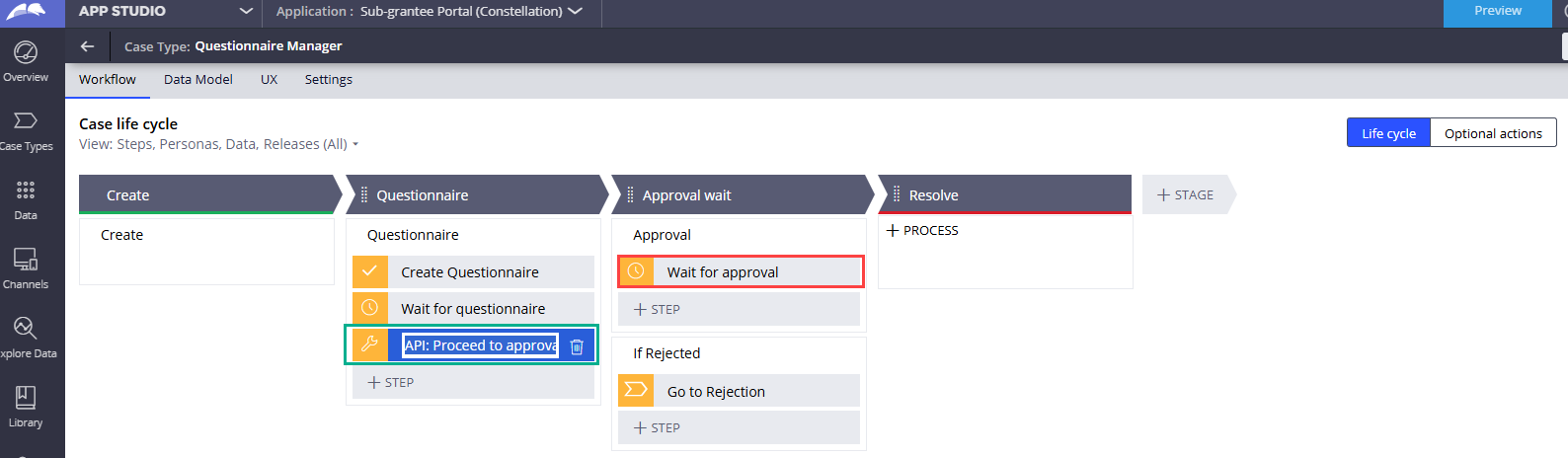
'Questionnaire > API: Proceed to approval' step references a data page to invoke the Pega API (POST /api/v1/assignments/{ID}), which will resume the SUB-192 case workflow on the UI-Kit side.
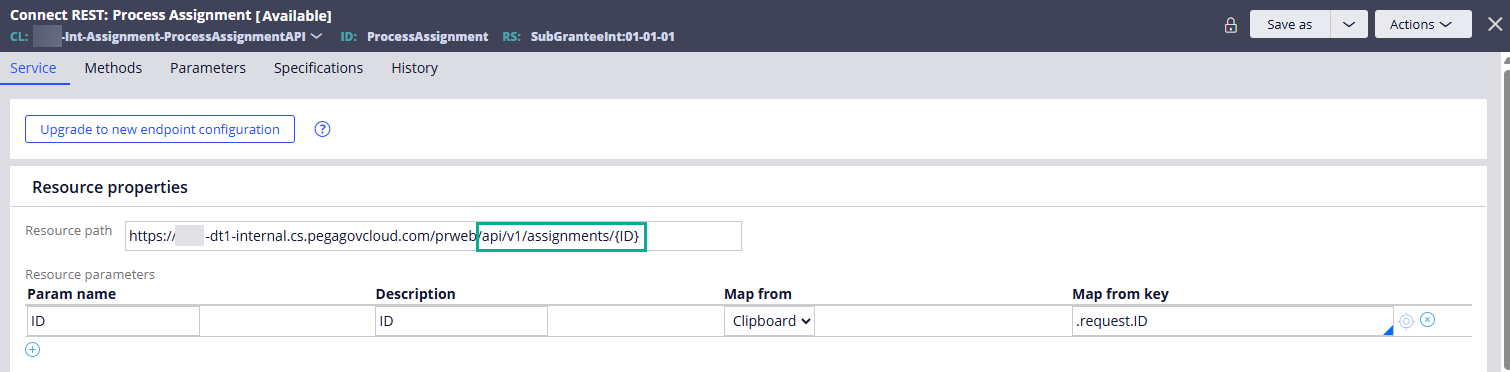
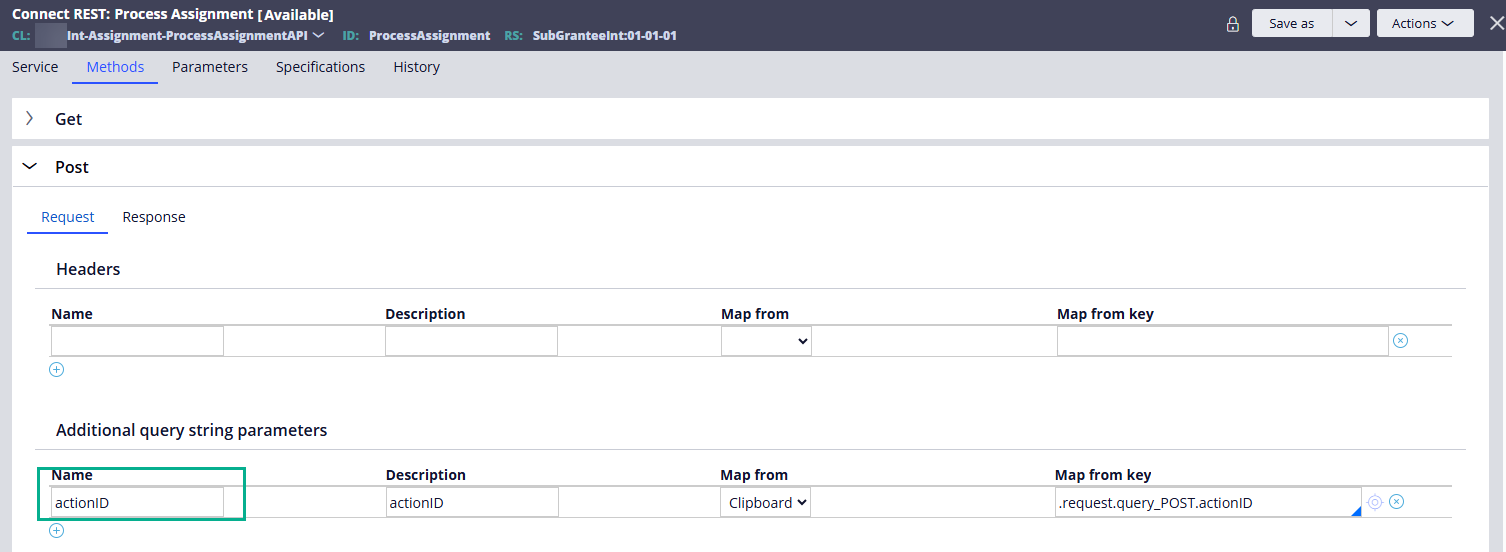
This API also requires a query string parameter (actionID), and we're passing "pyContinueAfterWait" in order to resume the flow of the SUB-192 case (UI-Kit) that has been paused on the Wait shape.
After invoking the Pega API, QM-177 case proceeds to the next Wait shape to wait for the approval by the UI-Kit user.
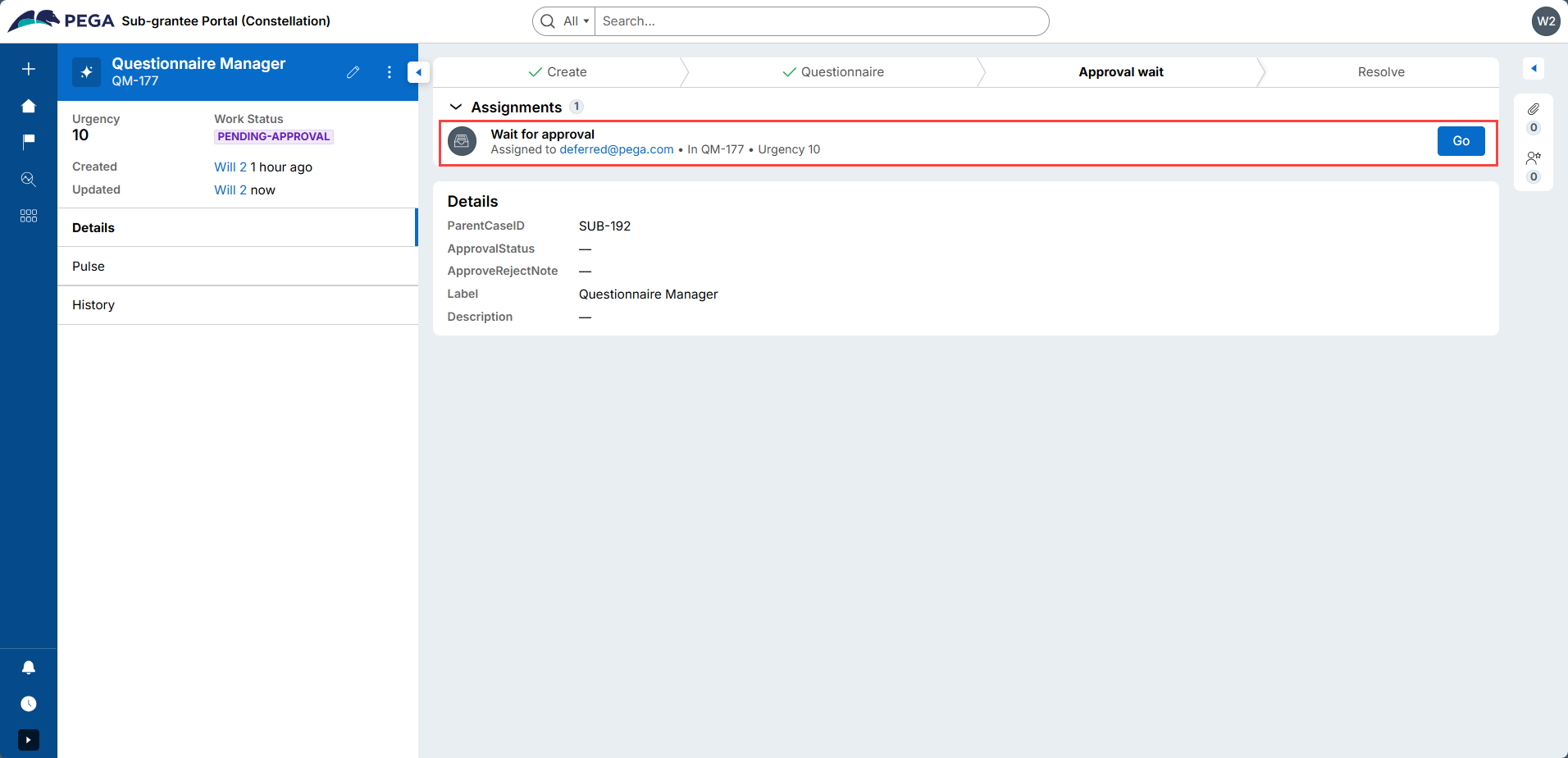
Step 6 (UI-Kit) - Verify that the SUB-192 case workflow resumed on the UI-Kit side and proceeded to the next step in its case lifecycle.
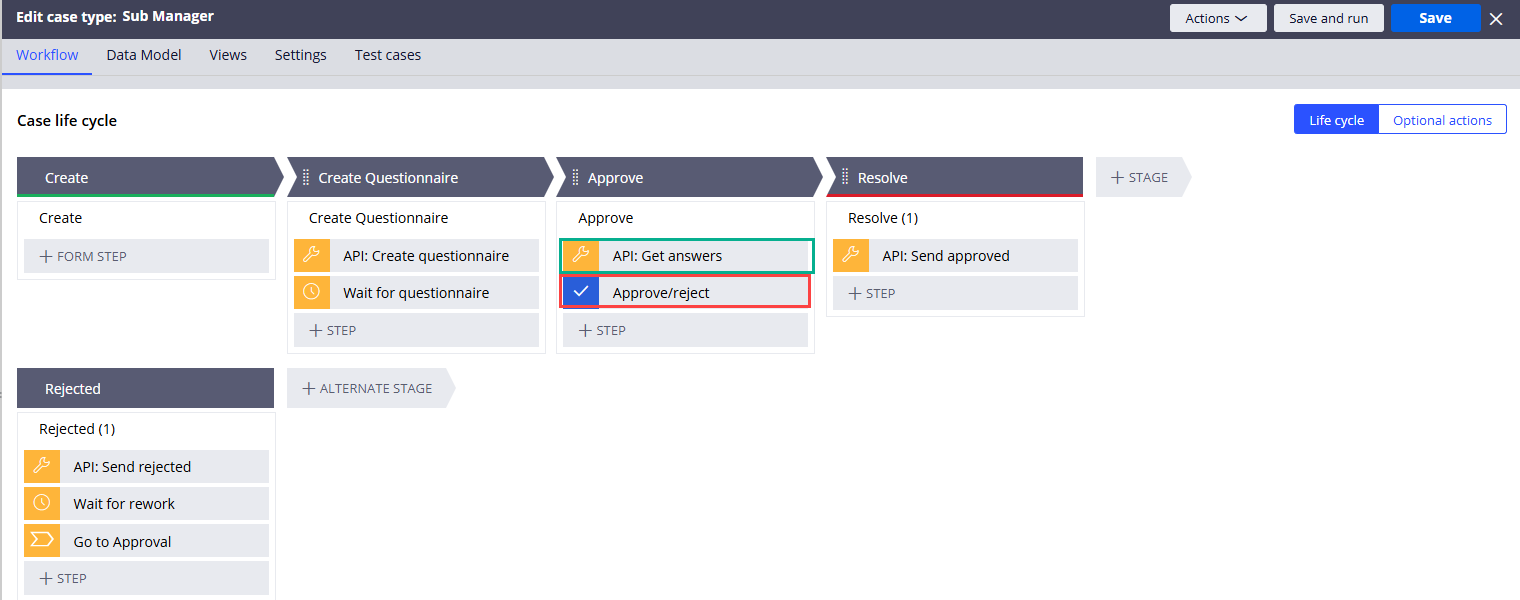
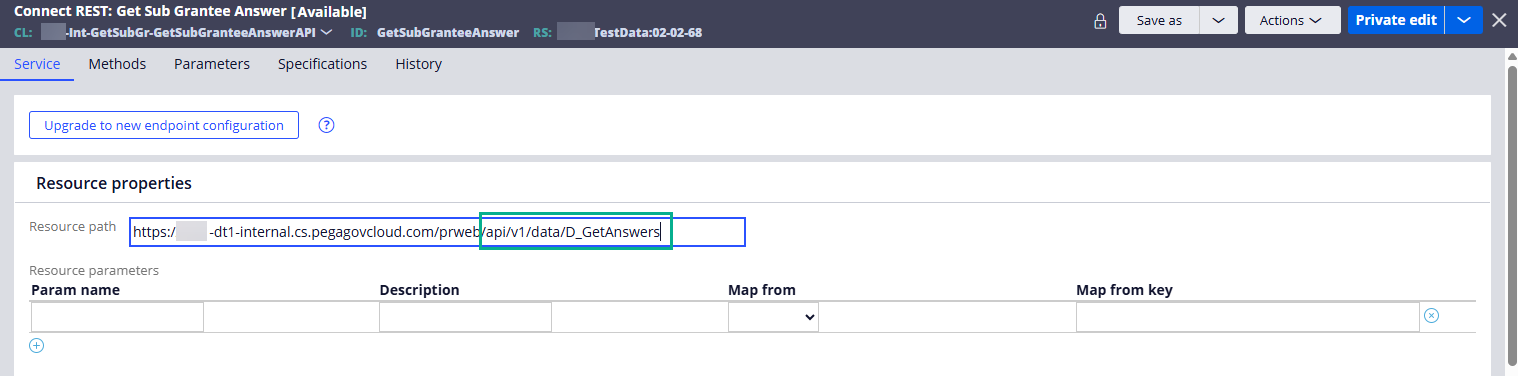
SUB-192 case first proceeded to the 'Approve > API: Get answers' step, which uses a data page to invoke Pega API (GET /api/v1/data/D_GetAnswers) to retrieve the answers captured in the S-29565 questionnaire case in Constellation.
D_GetAnswers is a data page provided by the Constellation application, which sources the questionnaire answers using a report definition.
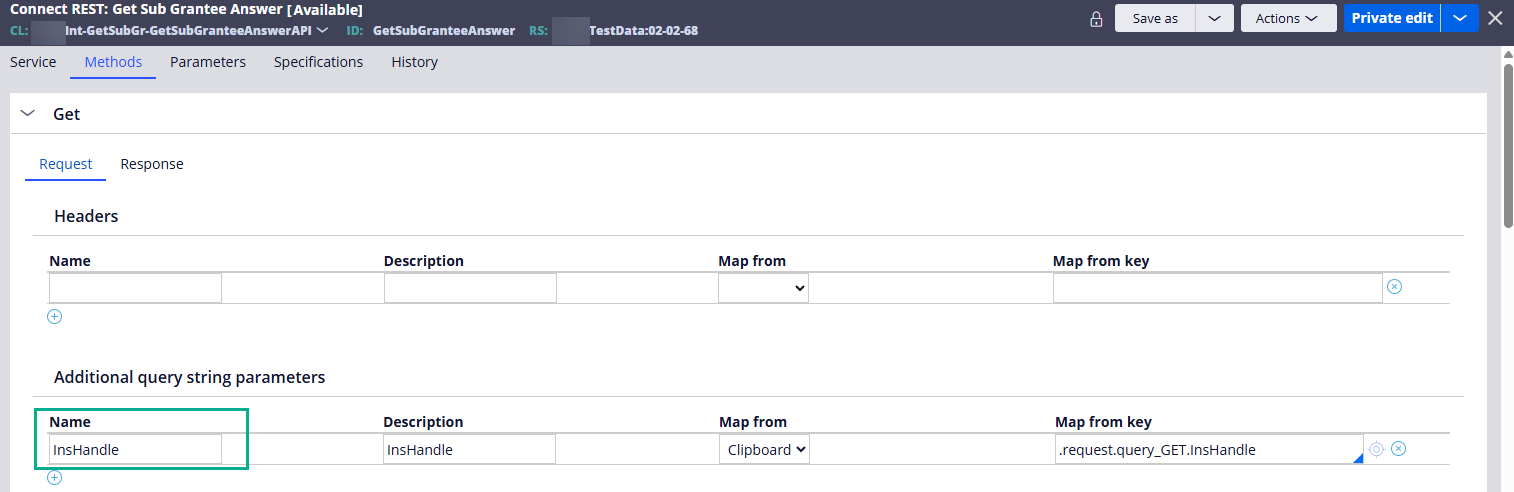
The data page requires one parameter (InsHandle, which is the questionnaire case pzInsKey).
After retrieving the answers from Constellation, SUB-192 case proceeds to the Approve/Reject step that also displays the questionnaire answers for review.
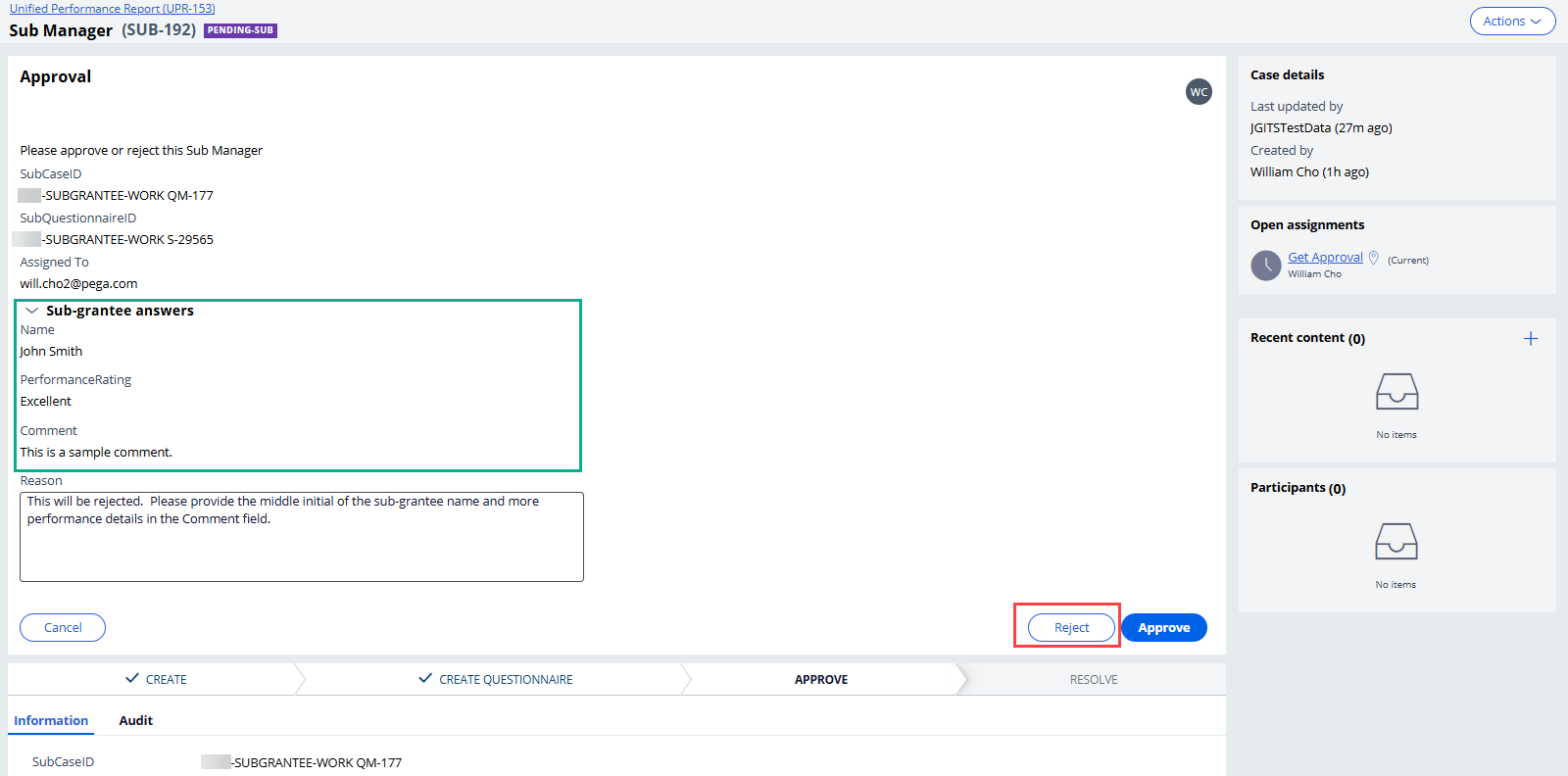
The UI-Kit user enters a reason and clicks the 'Reject' button.
SUB-192 case will now jump to the Rejected alternate stage, invoke the Pega API (POST /api/v1/assignments/{ID}) to resume the waiting QM-177 case on the Constellation side, and pause on the Wait step (until the rework is done by the questionnaire user in Constellation and get notified via Pega API).
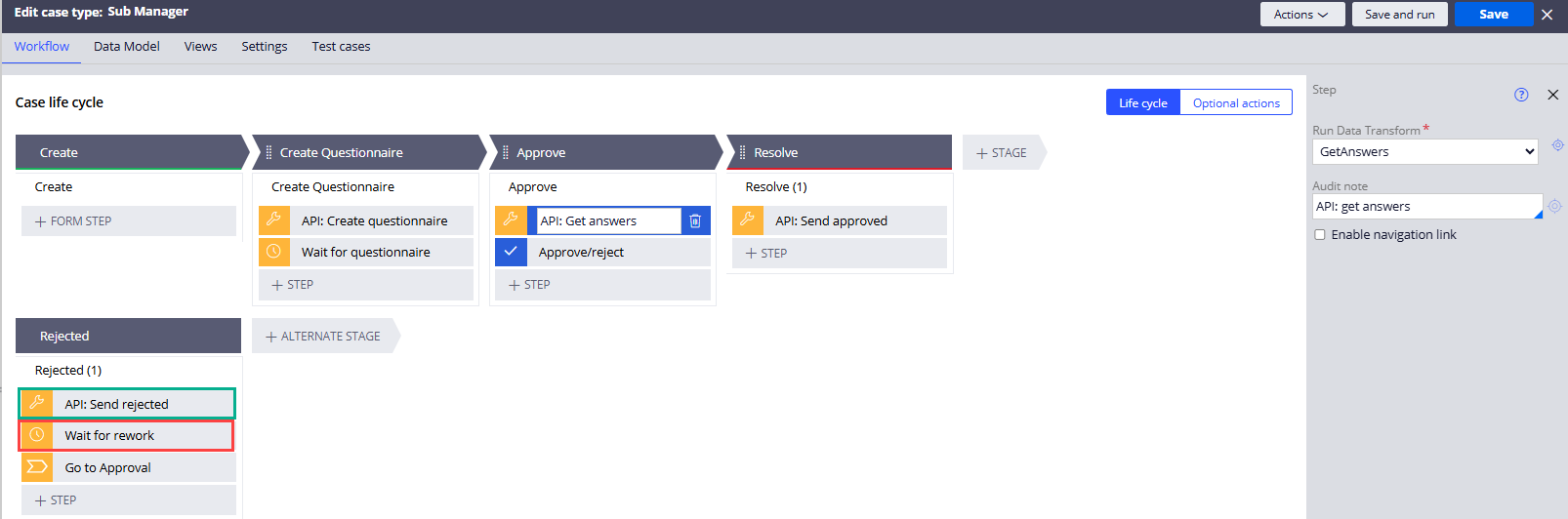
Step 7 (Constellation) - QM-177 resumes the workflow and jumps to the Rejection alternate stage to reopen and reassign the questionnaire case (S-29565) to '[email protected]' and pause on the Wait shape (until the questionnaire child case is completed again).
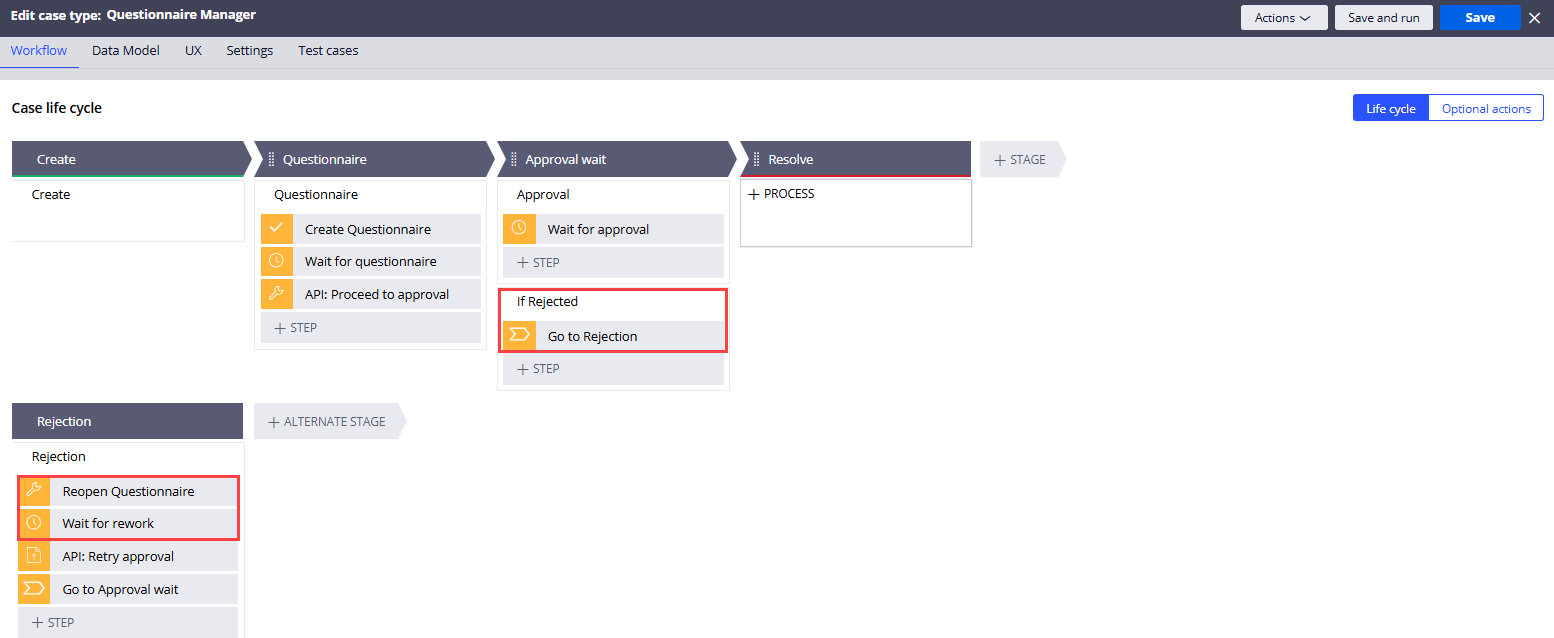
As shown below, QM-177 case reopened the S-29565 questionnaire case and reassigned it to '[email protected]' and paused on the 'Wait for rework' step. Notice that the reject reason was also passed from the UI-Kit application for a clear instruction.
Step 8 (Constellation) - '[email protected]' logs in and finds the reopened questionnaire case.
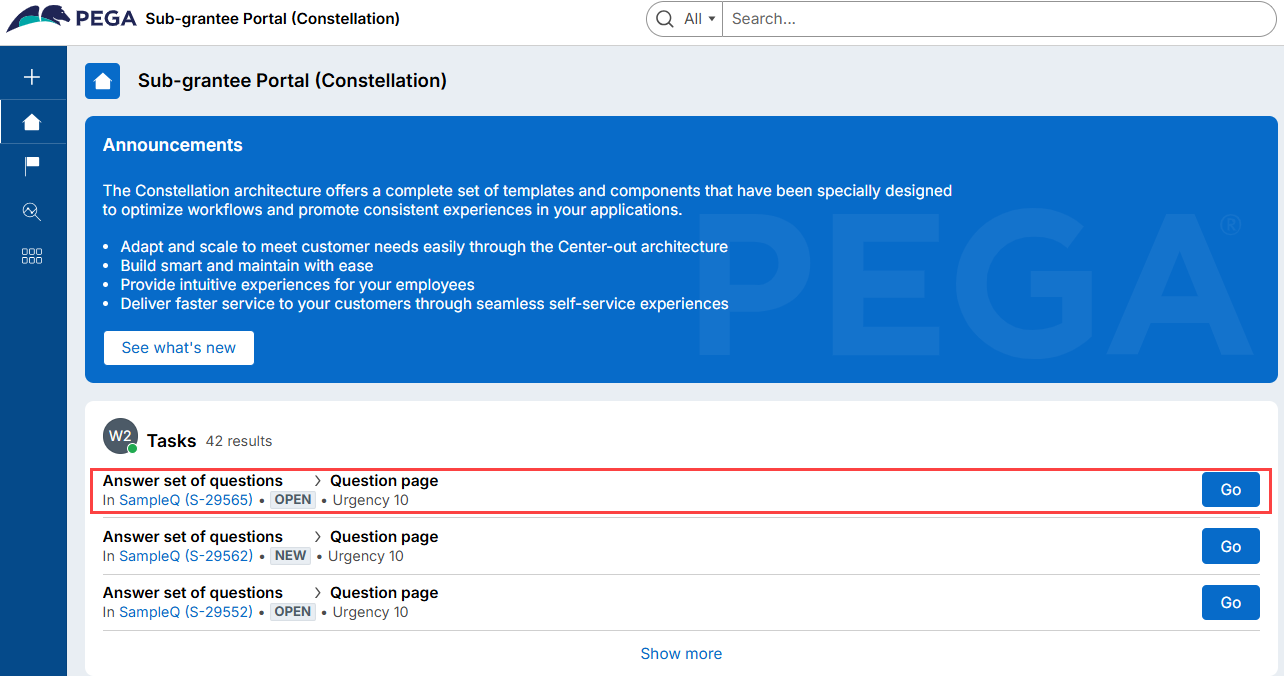
The user opens the questionnaire case and provides the requested information including a more detailed comment.
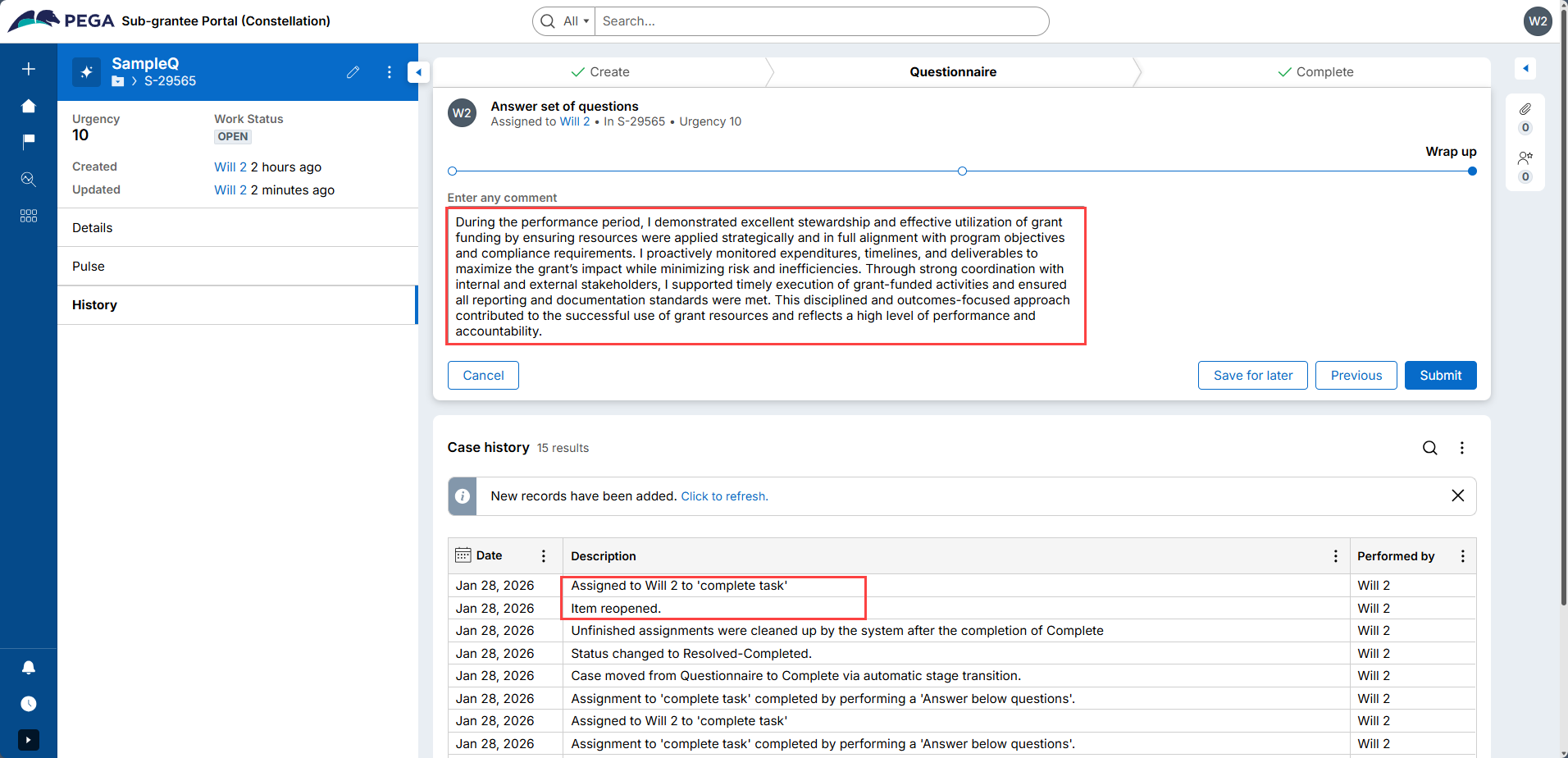
When the user submits the questionnaire case, QM-177 (parent) proceeds to invoke Pega API to route the SUB-192 (in UI-Kit) case back to the Approve stage. QM-177 then jumps back to the 'Wait for approval' step and pause.
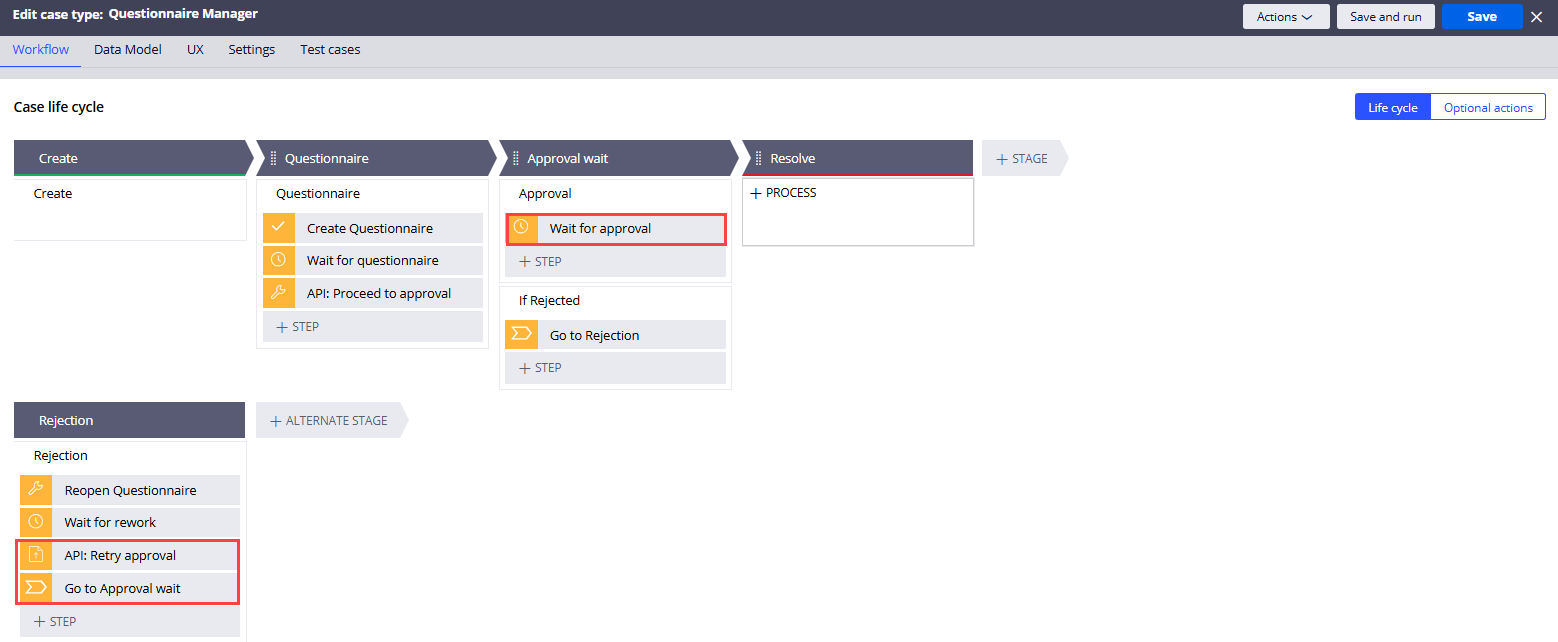
QM-177 case now waits on the 'Wait for approval' step.
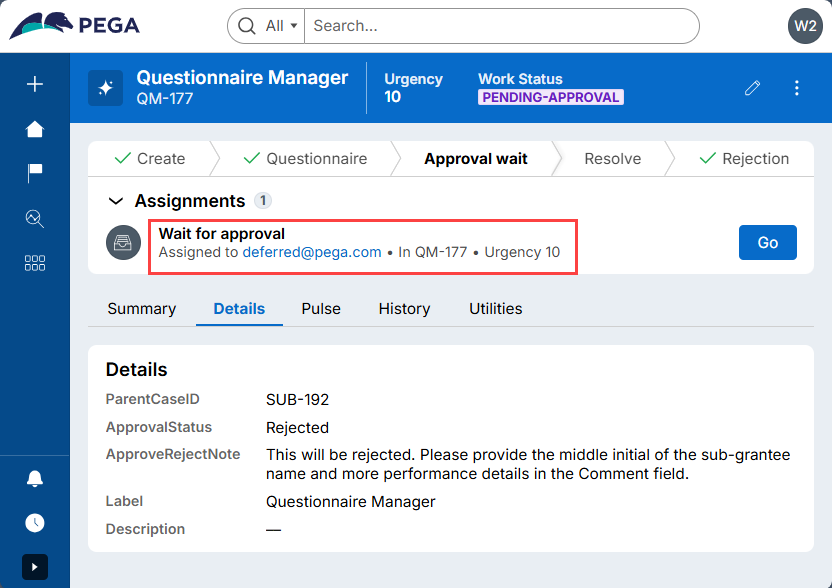
Step 9 (UI-Kit) - Verify that the SUB-192 case is now back to the Approve/Reject step with the updated answers.
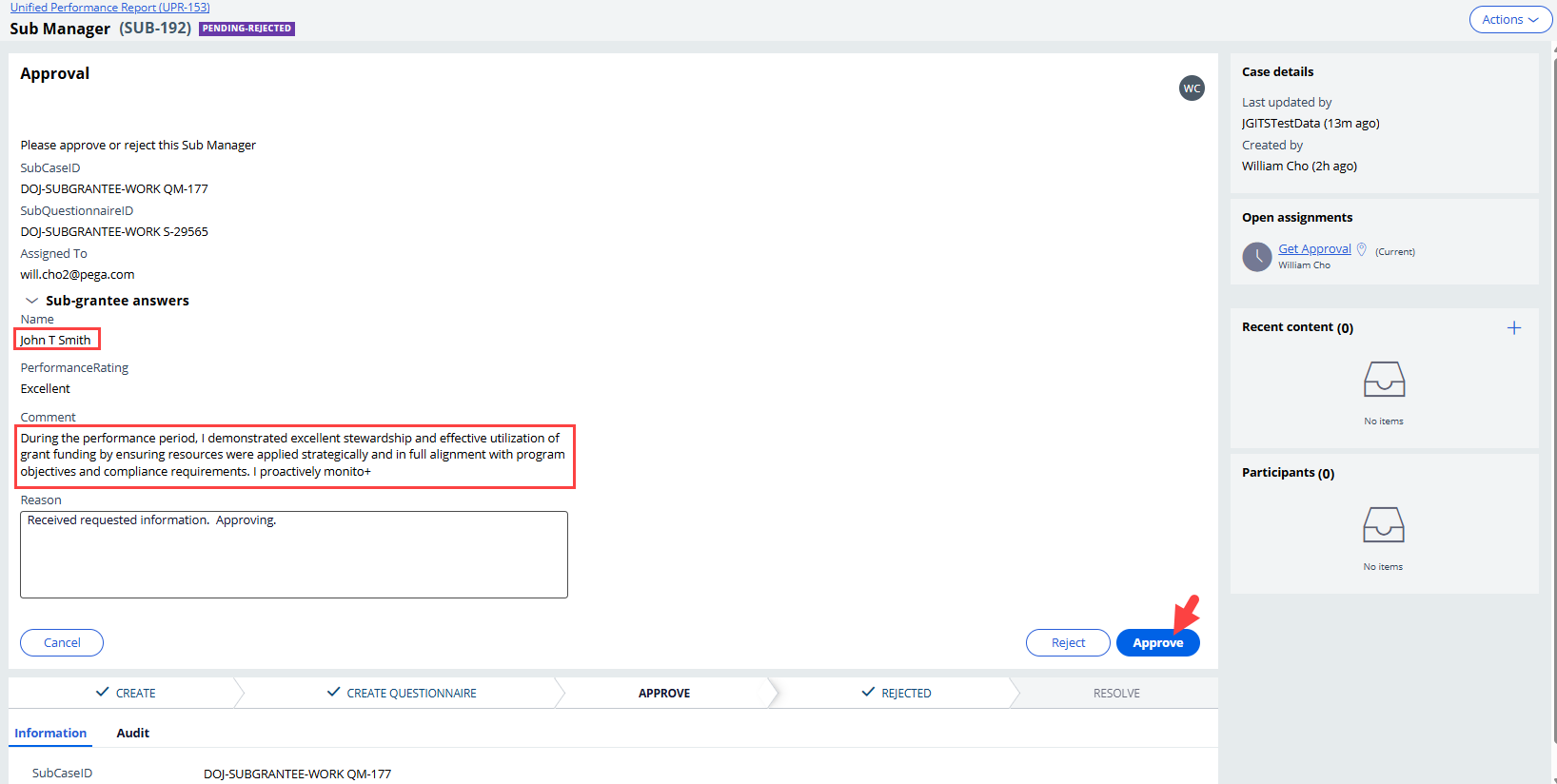
UI-Kit user opens the SUB-192 case, reviews the updated answers and approves.
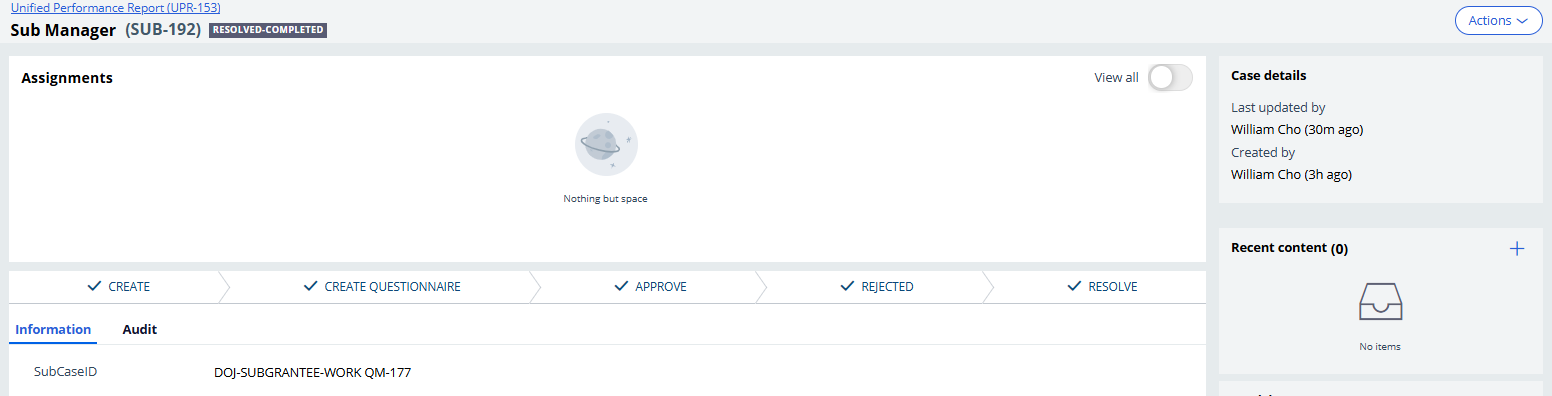
Step 10 - Verify that all cases are now resolved in both UI-Kit and Constellation applications.
- SUB-192 (UI-Kit): Resolved-Completed
- QM-1177 (Constellation): Resolved-Completed

- S-29565 (Constellation): Resolved-Completed

Additional information
-
I believe leveraging Pega APIs will allow more new Pega applications to be built using Constellation, because the OOTB REST APIs can enable them to cost effectively integrate with existing UI-Kit or Theme Cosmos applications without worrying about mixing up the two very different UI technologies.
-
In this example, we used traditional Pega APIs using basic authentication mainly for simplicity, but for actual production I would recommend considering DX APIs using OAuth 2.0 authentication if feasible.
-
We used Create REST integration wizard in Pega Platform to auto generate the REST connector & integration rule, data models, and data page used to invoke Pega API and parse the response. We still had to update the response data transform rule to include necessary response mappings.
-
Best practice (reuse): I would recommend to deploy the integration rules in the enterprise-level application for a broder reuse.
-
Best practice (data model): The API response should be mapped to your application-specific data models before using them in your work case (instead of using the raw response as is which can sometimes include hundreds of fields, of which many of them are irrelevant to your application).
-
- Troubleshoot: If you receive an SSL/TLS problem (Received close_notify during handshake) when invoking DX API, it likely indicates a TLS mismatch. Assuming it is set to TLS 1.3 (which I believe is the default), lower the "Lowest allowable SSL/TLS version" on your authentication profile to "TLS version 1.2" and test it gain.
Constellation 101 Series
Enjoyed this article? See more similar articles in Constellation 101 series.

Pegasystems Inc.
US
One question from my colleague: Is the UI kit case being actioned by a UI kit user in a ui kit portal?
Yes, and likewise, the Constellation case is being actioned by a Constellation user in a Constellation portal.