Creating a Batch Job Case to monitor a Batch Job progress
What problem does it solve?
This is an extension of the article about Batch Job Framework https://support.pega.com/discussion/creating-batch-job-framework-pega
In the article mentioned above, it has been presented how to implement the Batch Job framework to change or update multiple cases or data records and how to keep track of all these changes. In this article, we discuss
This document describes the implementation and management of a Batch Job Case framework designed to monitor and control batch job progress efficiently. It outlines the stages, actions, and parameters that enable users to execute, track, and adjust batch jobs while maintaining performance through a dedicated Tracker table.
Implementing Batch Job Case is mentioned in ‘Future considerations’ part of the above-mentioned article.
Overview
Batch Job Case Type was implemented to monitor the progress of the Batch Job in a user-friendly manner. By creating individual Case, users can trigger the specific Batch Job’s execution. Users activate the Batch Job by providing the parameters. Users can also stop, complete or cancel the Batch Job Case. Additionally, using the Batch Job Case, users can change the Batch Job configurations, such as number of queued items or the hours during which the Batch Job should not be running.
Creating a new Batch Job
When creating a new Batch Job, it is required to create some rules and optional source table:
- New abstract class ABC-Data-BatchJobTracker-JobID where JobID is the unique ID of the Batch Job
- New Activity BatchProcessExtn – created in the new class- containing the logic for processing each record/case
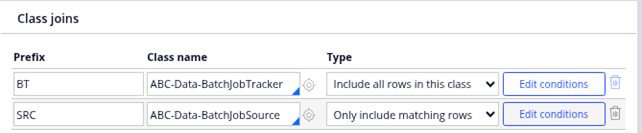
- New Report BatchReportForJobID - this report must have Join to Tracker Table ABC-Data-BatchJobTracker (where JobID is the unique ID of the Batch Job)
- Optional Source table ABC-Data-BatchJobSource- the items to be processed can be either selected based on the Report Definition conditions, or if we want to process only specific Cases/records, then we can list them in the Source table and join the Report Definition to the Source table
Below an example of Joins in the Report Definition, where ‘BT’ is abbreviation for Batch Tracker table and ‘SRC’ is abbreviation for Source table
Batch Job Case Stages
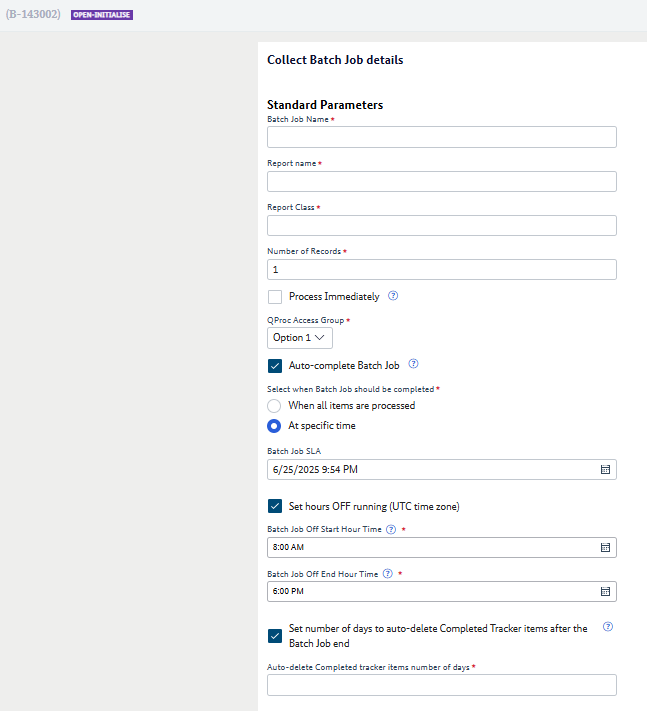
- Collecting data- Batch Job case status ‘Open-Initialise’. In this step User can set all required and optional parameters.
- Batch Job Name
- Report Name
- Report Class
- Number of Records
- Process Immediately- should be selected if locking case is not required- executed without Queue Processor
- QProc Access Group
- Auto-complete Batch Job
- When all items are processed
- At specific time
- Set hours OFF running- this can be useful if we do not want the Batch job to run during peak hours, or we want it to run only at night hours
- Set number of days to auto-delete Completed Tracker items after the Batch Job end
- Activate- Batch Job Case status ‘Pending-Activation’
- Run - Batch Job Case status ‘Open-Active’- Job scheduler will only process the batch execution cases in this status
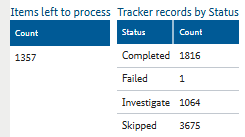
Users can monitor in real time the progress of the Batch Job execution
- Finalise- Batch Job Case status ‘Pending-Completion’
- Resolved-Completed- ‘Completed’ records from Tracker table are deleted after the number of days set in parameter ‘Set number of days to auto-delete Completed Tracker items…’ (or the default number of days if parameter value is missing)
Batch Job Case actions
- Stop –possible if Batch Job Case status is ‘Open-Active’. Changes Batch Job Case status to ‘Open-Stopped’. Used if User wants to stop the execution e.g. in order to make some changes in parameters
- Change- possible if Batch Job Case status is ‘Open-Stopped’ and User wants to change some parameters e.g. Number of records (Note: the basic parameters like Report Name cannot be changed)
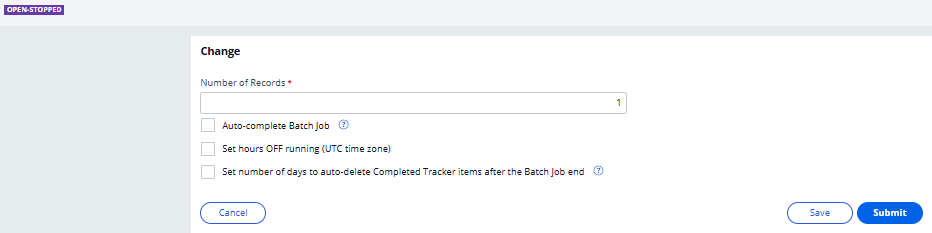
- Reactivate- possible if Batch Job Case status is ‘Open-Stopped’ and User wants to make it active again
- Cancel- changes Batch Job Case status to ‘Resolved-Cancelled’. Should be possible at every stage of the Case
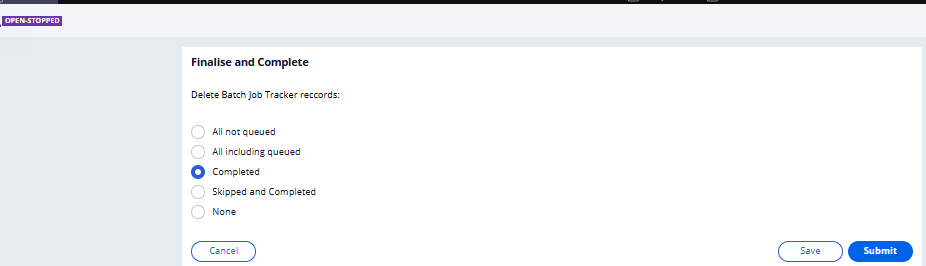
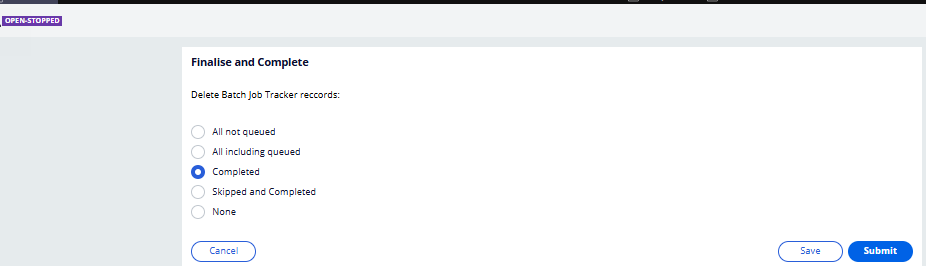
- Finalise And Complete– possible if Batch Job Case status is ‘Open-Stopped’ or ‘Pending-Completion’. Changes Batch Job Case status to ‘Resolved-Completed’. Used if User does not want to wait for auto-finalizing of Batch Job and wants to decide manually which Tracker records should be deleted
How it works
A Job Scheduler runs periodically and picks up only ‘Open-Active’ Batch Job Cases. The Job Scheduler queues activity ‘QueueBatchJob’, which in turn calls activity ‘BatchJob’ (described in detail in another article mentioned at the beginning of this article)
How it works- parameter ‘Number of Records’
In the ‘QueueBatchJob’ activity, we are checking how many ‘Queued’ records there are in the Tracker table for the specific Batch Job Name. We deduct ‘Queued’ records from the ‘Number of Records’ value provided by User. As an example, if User provided ‘100’ as ‘Number of Records’ but there are already 40 ‘Queued’ records in Tracker for this Batch Job, only 60 new Objects will be processed. Thanks to that, we avoid scenario that we queue hundreds or thousands of objects to be processed.
How it works- parameter ‘Auto-complete Batch Job’
If checkbox ‘AutoComplete’ is selected and option ‘At specific time’ is selected, User needs to provide DateTime when the Batch Job should be completed. This is implemented by Decision Shape and Assignment with SLA.
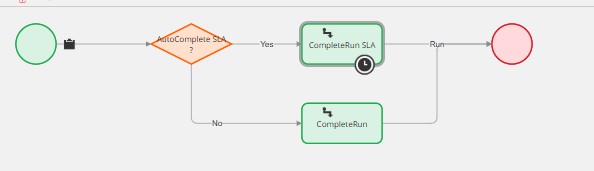
If checkbox ‘Auto-complete Batch Job’ is selected and option ‘When all items are processed’ is selected, the flow of Batch Job Case is resumed in activity ‘QueueBatchJob’.
How it works- ‘Set hours OFF running’ parameter
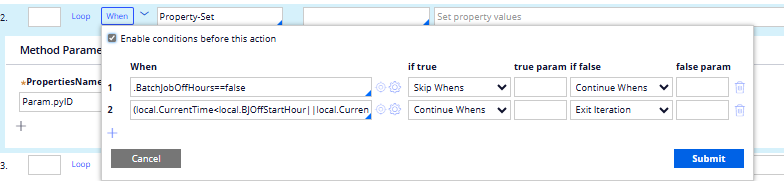
In the main activity of Job Scheduler, when looping through all ‘Open-Active’ Batch Job Cases, if checkbox ‘Set hours OFF running’ was selected, additional condition should be implemented , checking if the current hour is not included between OFF hours. If the current time is within OFF hours, the iteration should be skipped
Tracker table
Recording status of every item in Tracker table
There is a Tracker Table ABC-Data-BatchJobTracker to keep track of all processed records. In activity ‘QueueBatch’ a new page of Tracker class is created and populated with new record in status ‘Queued’. This status can be overwritten by BatchProcessExtn activity. Possible statuses are: ‘Completed‘, ‘Skipped‘ (Case or data record does not meet business requirements), ‘Failed‘ (technical error), ‘Investigate‘ (marking record for further analysis). Below an example of columns in Tracker table.

Cleaning Tracker table for better performance
If Batch Jobs deal with thousands of records, the Tracker table will quickly become filled with a lot of data. This is why it is important to make sure that old Tracker records are deleted. This can be achieved by using parameter ‘Set number of days to auto-delete Completed Tracker items after the Batch Job end’ where User can provide the number of days after which, all Tracker items in status ‘Completed’ for the specific Batch Job will be removed. This is done by Assignment with SLA in Case type stage ‘Finalise’. The SLA value can be calculated in the Data Transform. If parameter ‘Set number of days to auto-delete Completed Tracker items after the Batch Job end’ is not provided by User, then SLA is calculated with default value of number of days set in Dynamic System Setting.

There is also alternative way to delete Tracker records by selecting case wide action ‘Finalise And Complete’. It can be selected if User does not want to wait for auto-finalizing of Batch Job and wants to decide manually which Tracker records should be deleted