

Issue
Data Page is not displayed in the Explore Data landing page when multiple queryable Data Pages exist for the same class.
Symptoms and Impact
When a new Data Page is created for a class that already has one or more queryable Data Pages, the new Data Page does not appear in the Explore Data landing page when attempting to add a new Data Object via the portal. No error message is displayed — the Data Page is simply absent from the list despite being correctly configured.
This occurs in the following scenarios:
- A new Data Page is created using a Report Definition as its source, with a valid Object Type (e.g., Data-Admin-Operator-ID).
- The Data Page appears correctly configured: List structure, queryable, no parameters.
Steps to reproduce
- Create a new Report Definition in class Data-Admin-Operator-ID with the .pyUserIdentifier column.
- Use this Report Definition as the data source for a new Data Page with Object Type Data-Admin-Operator-ID.
- Navigate to the User Portal.
- Edit the Explore Data landing page and click . Result: The newly created Data Page does not appear in the available list. No error message is displayed — the Data Page is silently missing from the list.
Root Cause
This is an expected behavior in Pega Platform.
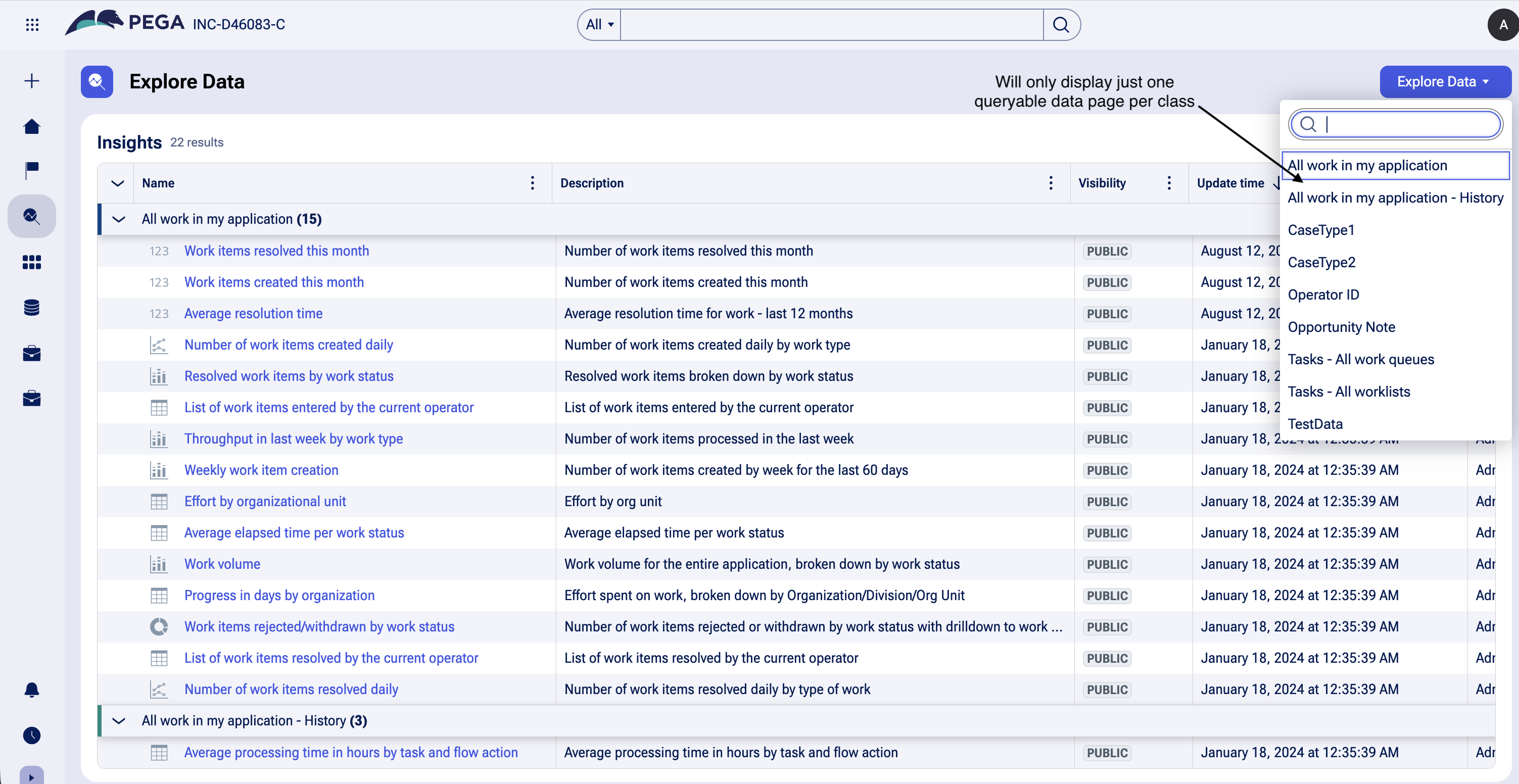
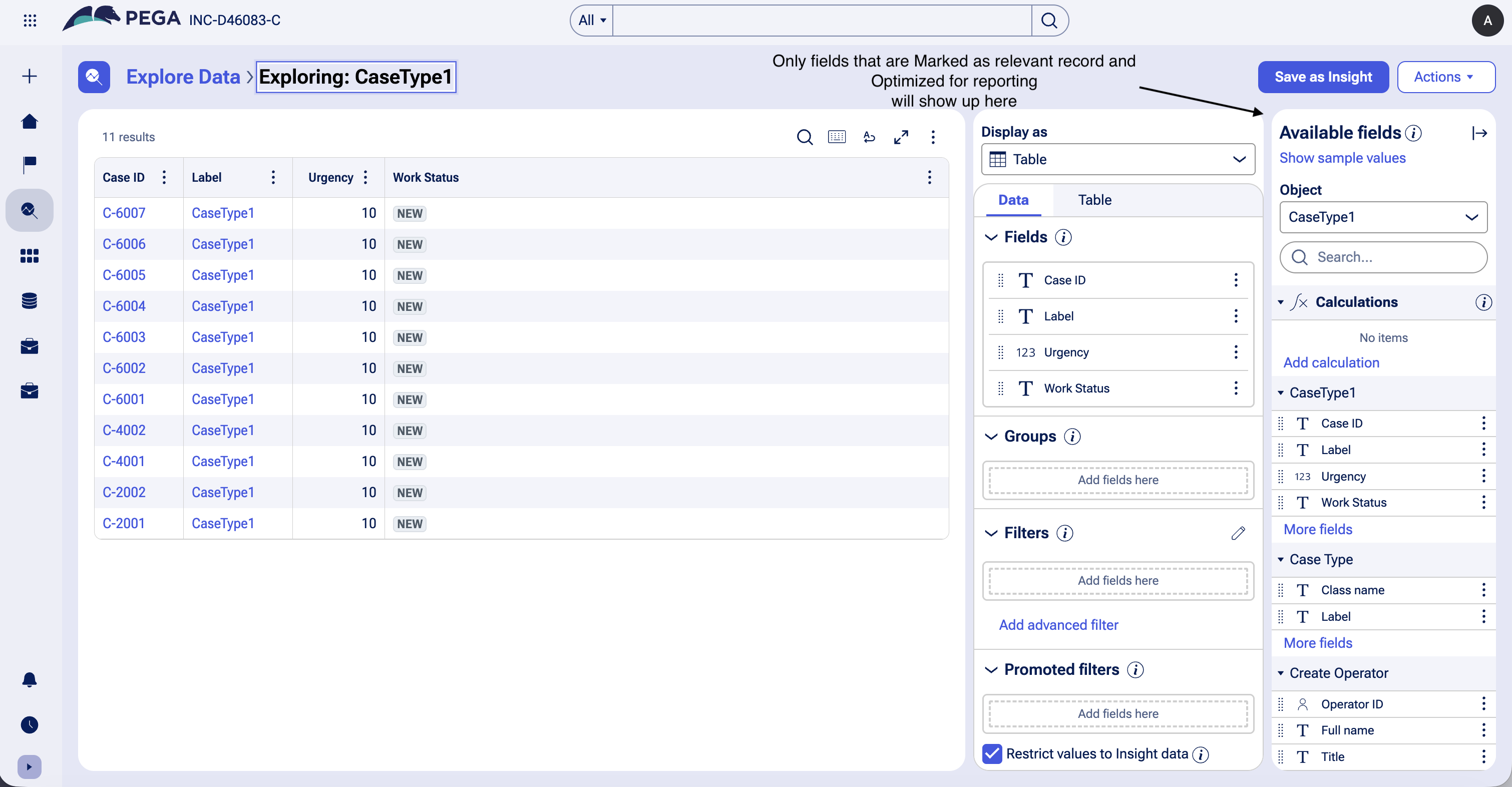
The Explore Data and Insights landing page is designed to surface one queryable Data Page per class. When multiple queryable Data Pages exist for the same class, the platform uses an internal algorithm to automatically select one eligible Data Page and suppresses the remaining ones from the list.
The newly created Data Page — even if fully valid and correctly configured — will not appear if another eligible Data Page for the same class is already present.
Solution
Option 1 — Manually select the preferred Data Page via Portal Configuration
Use this when you want to keep multiple Data Pages for the same class but explicitly control which one surfaces in Explore Data:
- Navigate to and open the relevant portal for editing.
- Select in the left navigation panel.
- Click the button.
- Locate the relevant class (e.g., Data-Admin-Operator-ID) in the list.
- Click the gear icon next to the class entry.
- From the presented options, manually select the specific Data Page you want to surface in Explore Data.
- Save the configuration.
This overrides the platform's automatic selection and pins your preferred Data Page for that class.
Option 2 — Consolidate to a single queryable Data Page per class
Use this when only one Data Page per class is needed in Explore Data:
- Review all existing Data Pages for the affected class.
- Identify and retain the single Data Page that should be surfaced.
- For all other Data Pages on the same class that should not appear, either:
- Uncheck the "Allow querying any column" option, or
- Remove the queryable configuration to exclude them from eligibility.
- The single remaining queryable Data Page will now automatically appear in Explore Data.
Standard Eligibility Criteria for a Data Page to Appear in Explore Data
For reference, a Data Page must satisfy all of the following to be eligible:
- It has a List structure.
- It has no parameters, or all parameters have default values.
- For built-on applications, the Status is set to "API".
- It uses a single Report Definition as its data source.
- The "Allow querying any column" checkbox is selected.
- It has no response data transform (recommended).
Meeting all criteria above does not guarantee visibility if another qualifying Data Page already exists for the same class. In that case, manual configuration (Option 1) is required.
References
Troubleshooting missing data objects in Explore Data
Understanding how properties are mapped within the Explore Data feature
Adding Data Pages/Report Definition rules to Explore Data in Pega Constellation