

Issue
While creating an Insight, users may not be able to locate a specific field in the section.
Symptoms and Imact
While creating an Insight, users may not be able to locate a specific field in the section.
Steps to Reproduce
- Depending on the portal in which you want to create Insights, perform one of the following actions:
- To create an Insight from Pega Infinity Studio, in the header of Pega Infinity Studio, click Configure > Reporting > Configure Insights.
- To create an Insight in your application, in the navigation pane of your application, click Explore Data.
- Once inside the Insight editor, look at the right panel Available fields.
- Browse or search for the field you want to add
- Note: If Your Field Doesn't Appear in "Available Fields":
- The field must be exposed in the underlying data source. To check:
- Go to Data > Data model
- Locate your case type or data object
- Verify the field exists and is included in the Report Definition
- If the field is missing, you'll need to add it to your Data Model first, then refresh your Insight
- The field must be exposed in the underlying data source. To check:
- Note: If Your Field Doesn't Appear in "Available Fields":
-
Search for the field from the Available fields section to drag it into the Fields area (for table Insights) or Dimensions/Measures area (for chart Insights). Expected: The Data Model field appears. Actual: The field does not appear.
Root Cause
The required field belongs to a different object type than the one currently selected in the Object dropdown.
When building an Insight using Explore Data, it is important to first identify the source of the field that you want to display in the Insight. The available fields are organized based on their associated object type, such as a Data Type, Case Type, or All Work in My Application.
Selecting the correct object type ensures that the required fields are available for reporting and visualization.
Solution
Before adding fields to an Insight, determine where the field is defined:
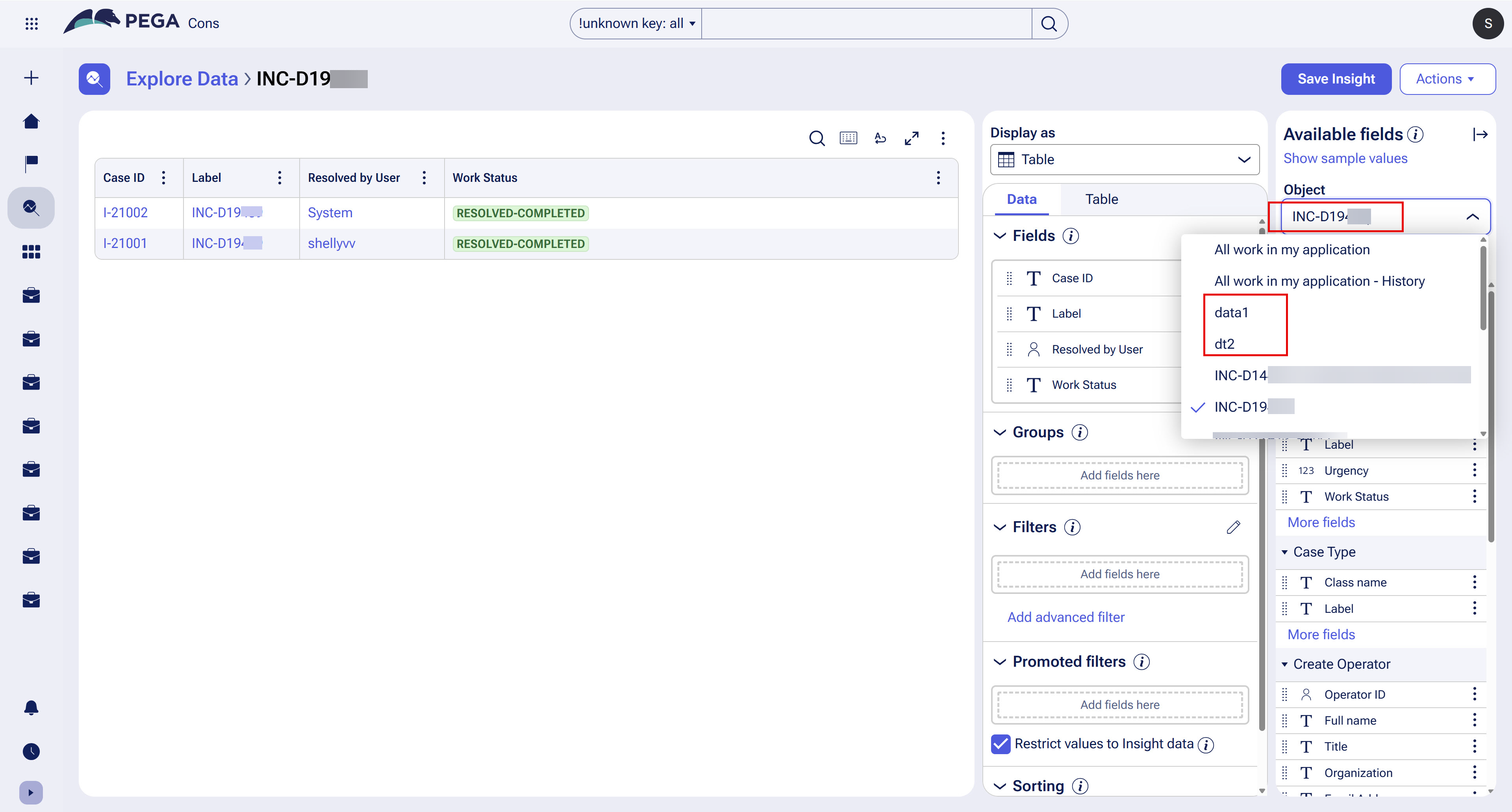
Scenario 1: Field belongs to a Data Type
If the field is part of a Data Type, select the corresponding Data Type from the Object dropdown list.
Example:
- Field belongs to Data Type Data1
- Select Data1 from the Object dropdown
- The Data Type fields will then become available for use in the Insight
Scenario 2: Field belongs to a Case Type
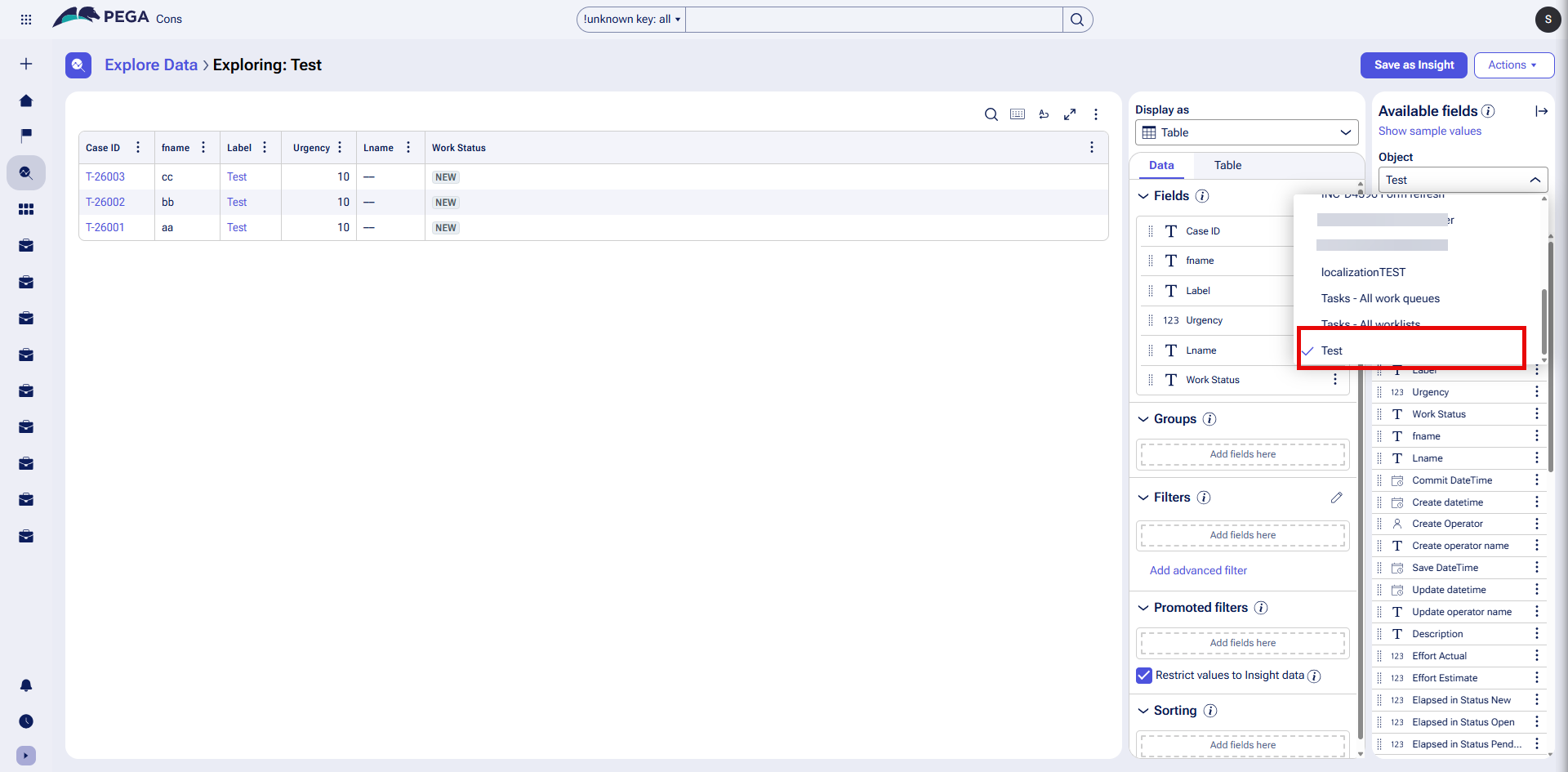
If the field is defined on a Case Type, select the appropriate Case Type from the Object dropdown.
Example:
- Field belongs to Case Type Test
- Select Test from the Object dropdown
- The associated case fields will be displayed in the section
Scenario 3: Field belongs to Work Objects Across the Application
If the required field is available at the application work level, select from the Object dropdown.
This option provides access to fields that are common across work objects within the application.
Steps to Identify the Correct Object
- Open Explore Data.
- Navigate to the Available Fields panel.
- Review the field that needs to be added to the Insight.
- Determine whether the field belongs to:
- A Data Type
- A Case Type
- All application work objects
- Select the corresponding value from the Object dropdown.
- Add the required field to the Insight.
Example
The screenshot shows the Object dropdown in Explore Data. The dropdown contains:
- All work in my application
- Data Types such as data1 and dt2
- Case Types such as Test
Select the appropriate object according to where the target field is defined.
If a field is not visible in the Available Fields list, verify that the correct Object is selected. The object selection controls which fields are exposed to the Insight and must match the source where the field is defined.
References
Troubleshooting missing data objects in Explore Data