

Issue
In Pega Platform™ '25.1.2 the Advanced Search landing page presents Status and Case Type filter options in the left-side filter panel of the Constellation UI.
Users want to update this landing page with custom filters.
Symptoms and Impact
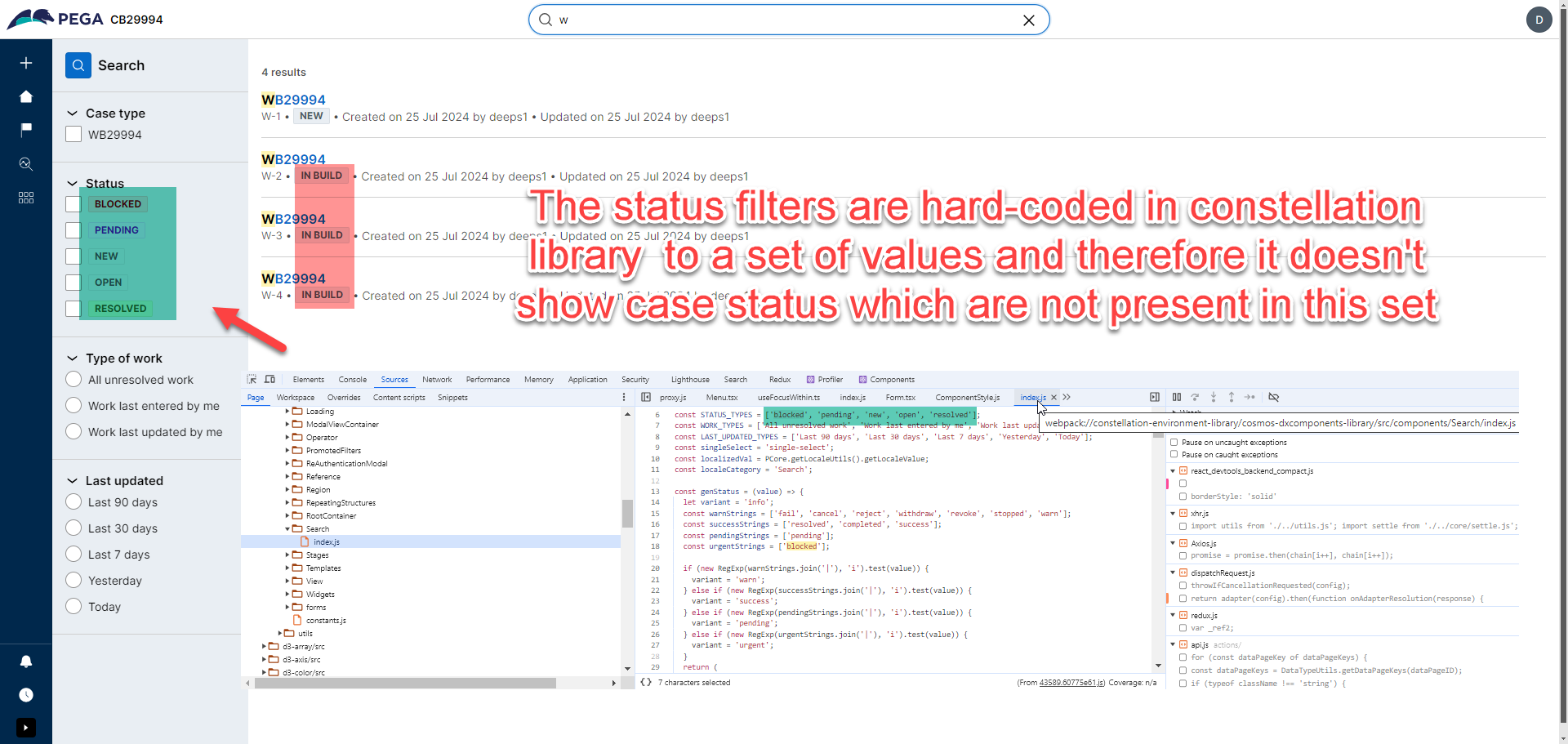
- The Status filter checkboxes show only hardcoded OOTB status values. Application-specific custom statuses do not appear.
- The Case Type filter cannot be modified to show specific case types.
Steps to reproduce
- Launch a Pega Constellation™ application that uses custom case statuses or custom case types.
- Click the icon in the portal.
- Enter any case-related search term.
- Click the Advanced Search link.
- The Advanced Search landing page loads with a results list and a left-side filter panel.
- The Status filter checkboxes display only hardcoded values that do not match the application's custom statuses.
- The Case Type filter provides an option to limit the case types that can be searched.
Root Cause
This is a known platform limitation in Pega Platform Constellation UI.
The Status filter values displayed on the Advanced Search landing page are hardcoded within the Constellation framework and are not driven by the application's configured case statuses. There is no OOTB extension point in this version to replace or augment these values with application-specific status data.
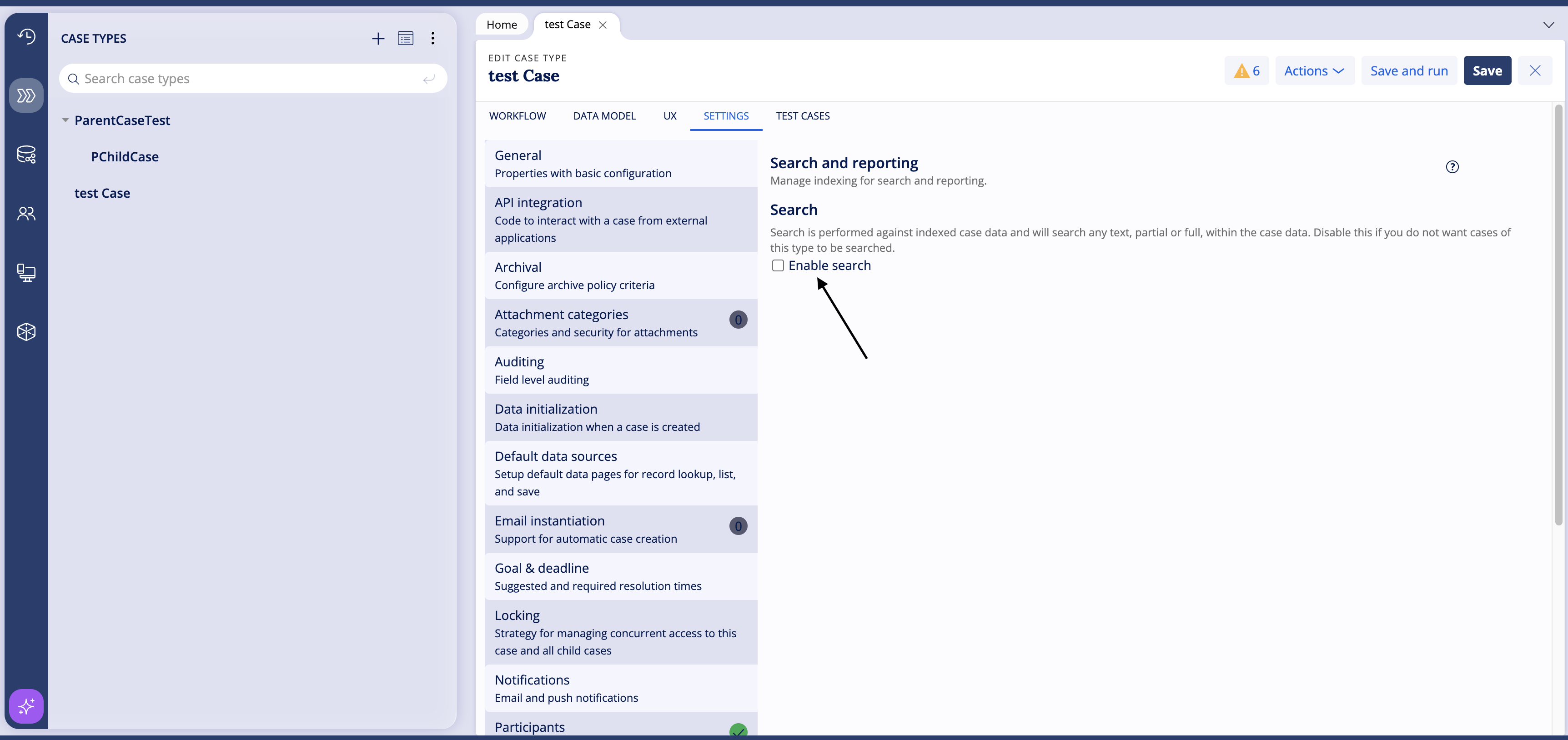
When the Enable Search in case designer setting is active for a Case Type, the Constellation Advanced Search filter panel will expose the Case Type as a filter option. As such, this setting can be used to decide whether a case type can be filtered and searched in Constellation.
Solution
The filter options for Advanced Search cannot be changed in Constellation except for Case types filter.
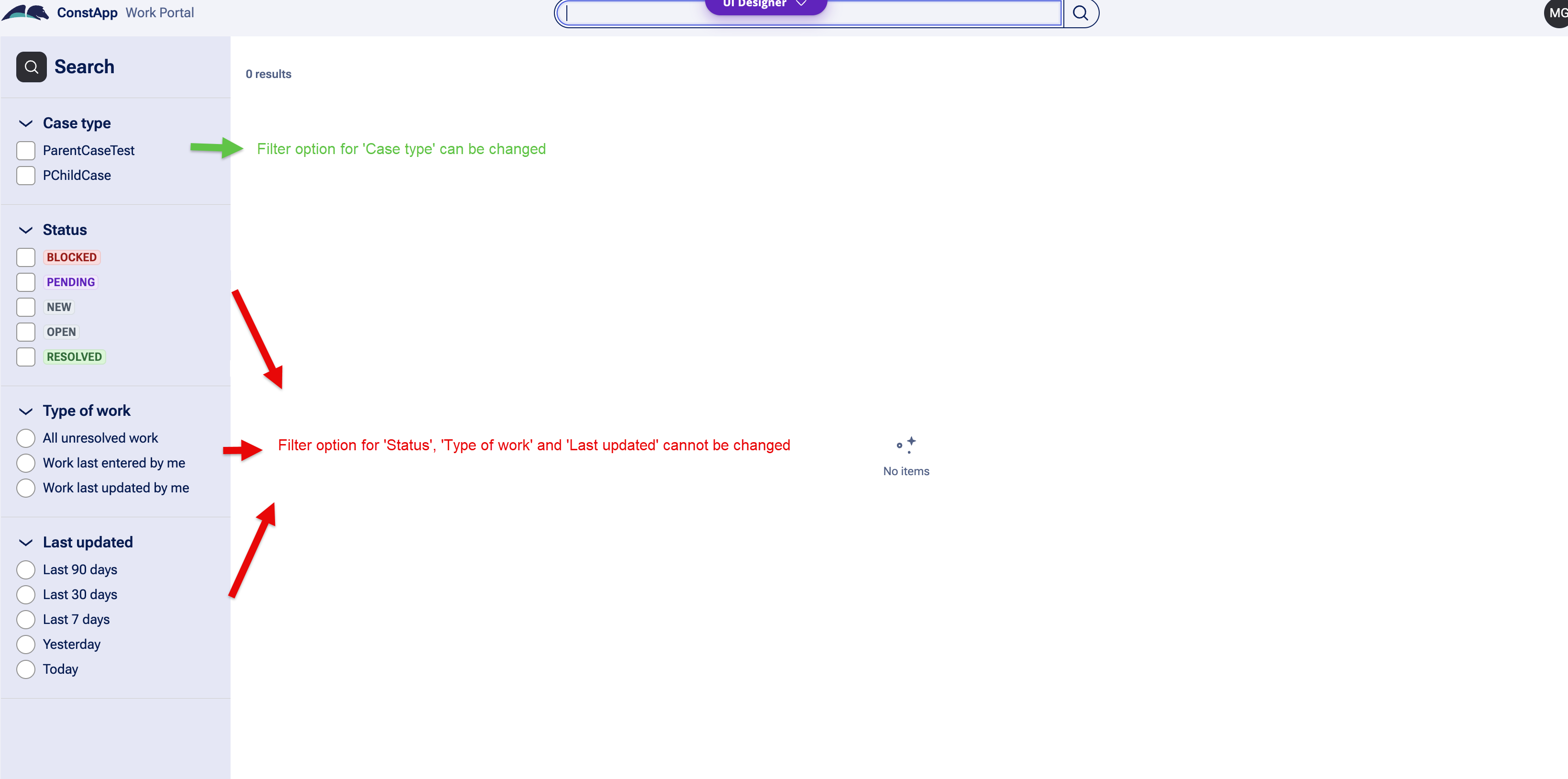
If the use case is to hide or show a Case Type as a filter option, then in Case Designer, on the Search and Reporting tab, select the Enable Search option.
An enhancement request exists to allow the configuration of Advanced Search.
Local change for Case Type filter customization:
- In Dev Studio, navigate to the case type you want to customize in search.
- Open the case type settings and locate the “Enable Search in case designer” option.
- Uncheck (disable) the “Enable Search in case designer” setting for that case type.
- Save the change.
This allows the Case Type filter to be customized according to your requirements.
Note: Disabling "Enable Search in case designer" may affect search indexing behavior for that case type. Evaluate the impact on your application's search configuration before applying this change in production.
There is currently no supported workaround to add custom status values to the Advanced Search Status filter in Constellation '25.1.2. The values are hardcoded and not configurable through App Studio or Dev Studio in this release.
References
Including indexed data during Case search
Visibility conditions for Case Pages
Customize the OOTB Portal Search result display in Constellation – pega forum
Custom Search In Constellation – pega forum