

Issue
Users experience performance degradation when opening and modifying Skin rules in Dev Studio.
Symptoms and Impact
Existing customer-specific skin customizations are not honored as expected.
Users experience UI inconsistencies and Java OutOfMemory (OOM) exceptions.
How to identify this issue
Client-Side
- Severe browser performance degradation while opening or editing Skin rules
- Excessive memory consumption in the browser
- Browser crashes due to out-of-memory conditions
Server-Side
- java.lang.OutOfMemoryError: Java heap space
- OOM errors during:
- Skin rule edit
- Save
- Check-in
- Check-out operations
The conditions under which it occurs
This occurs when certain formats within a Skin rule contain corrupted color styles without valid HEX values, typically originating from overridden or “Save As” formats based on OOTB skins.
The issue is observed consistently in Traditional UI, across both Cosmos and pyEndUser skins.
Steps to reproduce
- Login to the Dev Studio.
- Open a Skin rule.
- Edit the Button component in the Skin rule - Strong style.
- In the Disabled Color field, manually set an RGBA value rather than selecting a standard hex color from the color-picker UI.
- Save the Skin rule. The RGBA value is incorrectly re‑serialized and appended with additional hex data.
- Click any of the following menus, and the generated CSS grows exponentially:
- Save
- Preview
- Check‑in
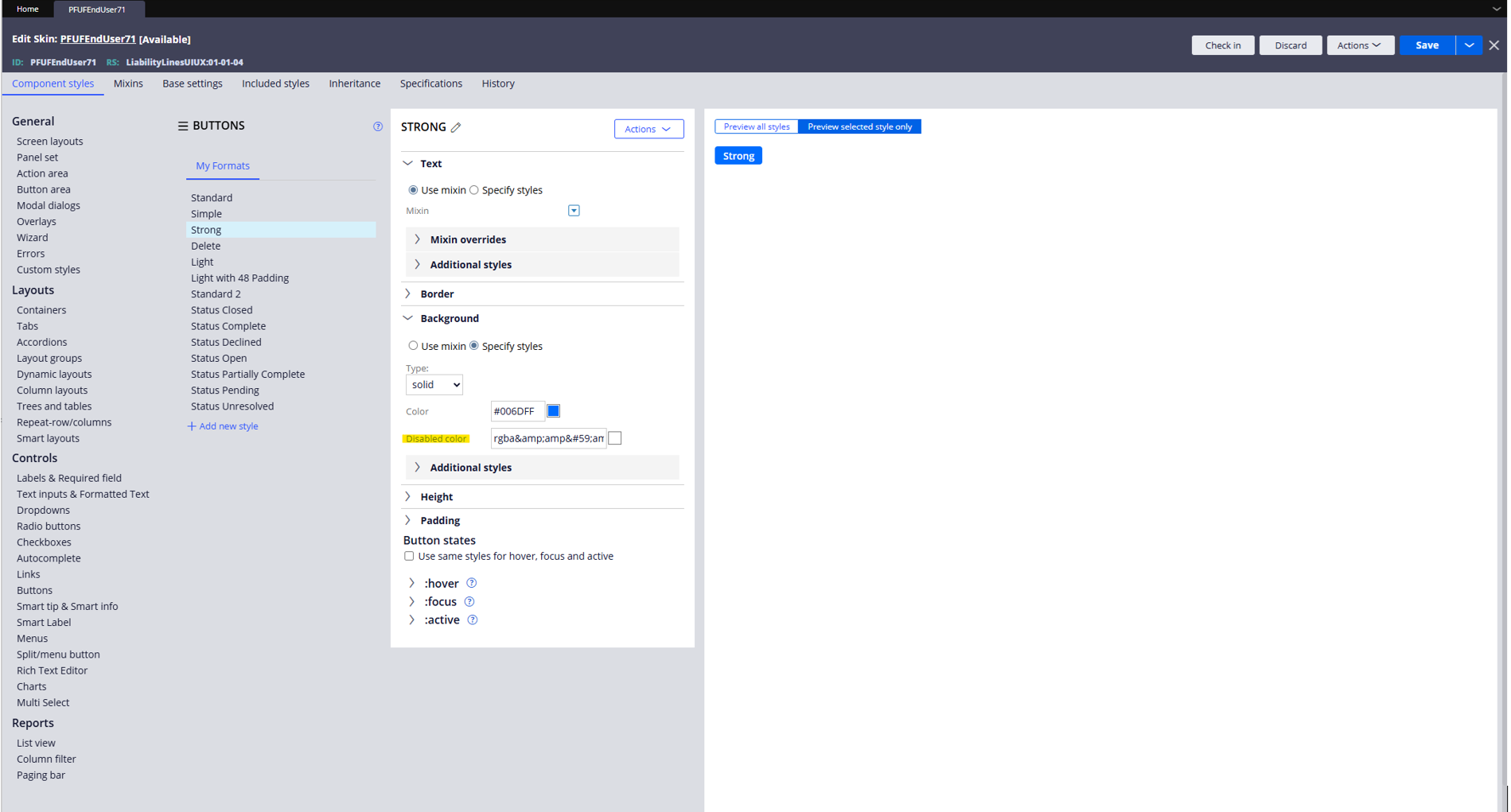
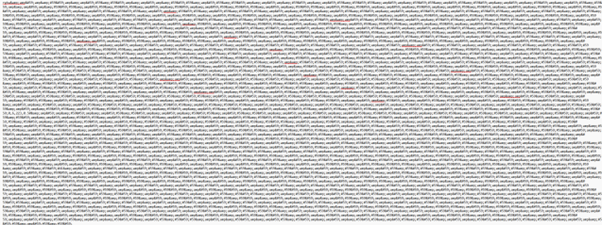
Disabled Color value (when pasted into Notepad)
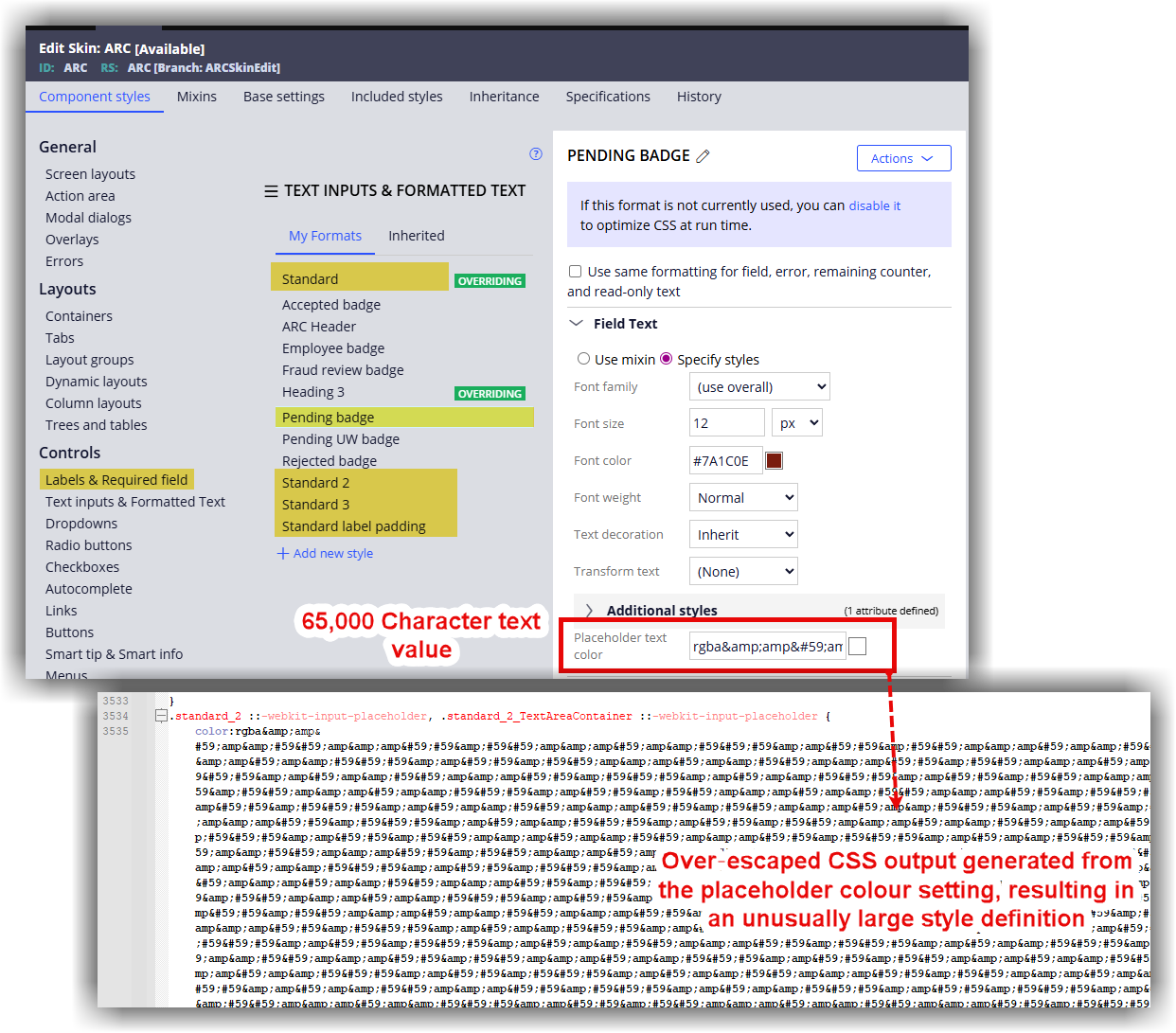
Other Examples
The placeholder text color fields for several formats have been found to contain extremely large, malformed values (exceeding 65,000 characters). Scenarios were seen in Standard, Standard 2, Standard 3, Standard label padding, Pending badge, and an overridden Standard format.
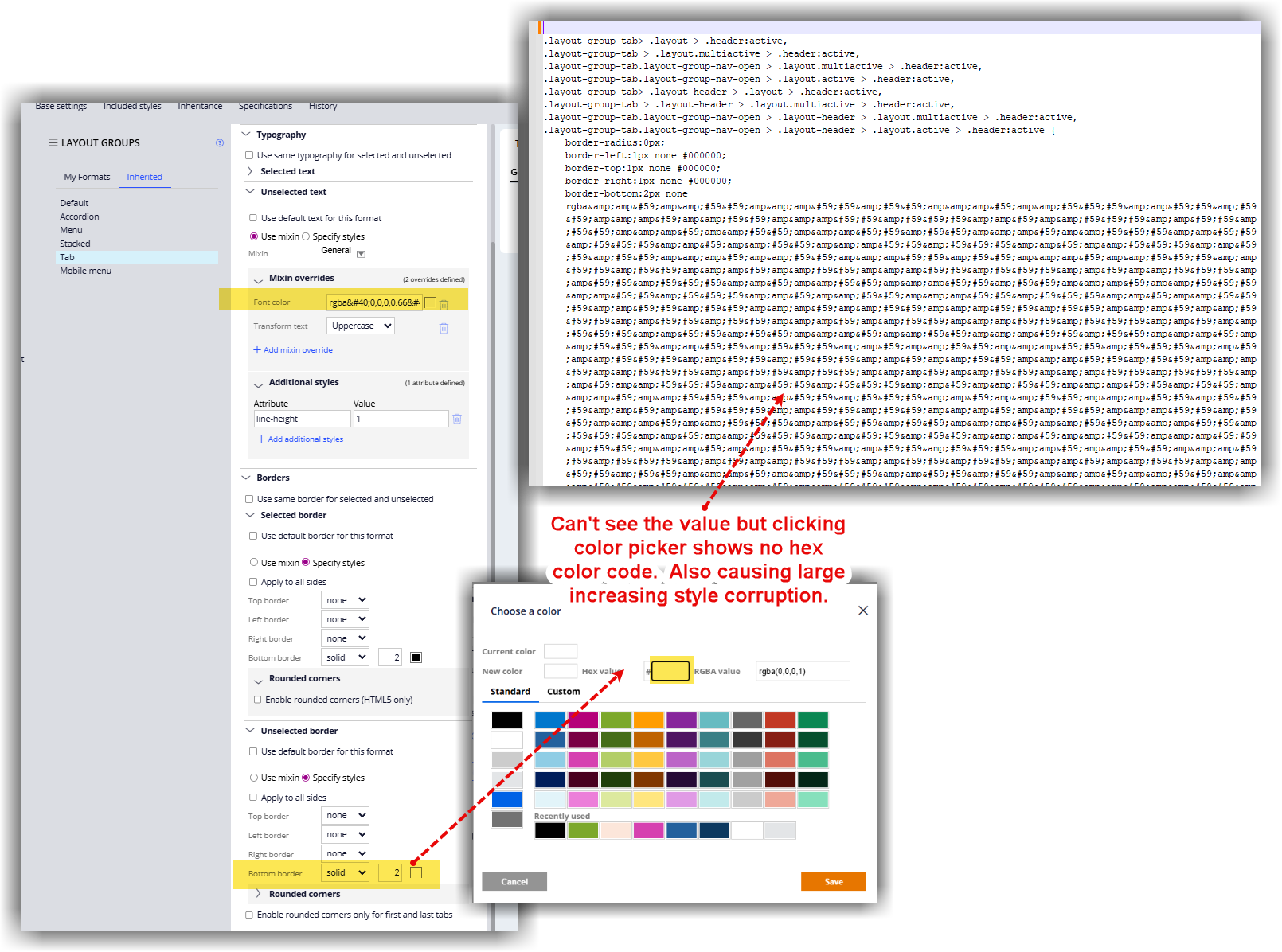
These values appear to be an over‑escaped representation of an RGBA color string, stored across multiple style fields. This happens when data passes through database → HTML → template engine → UI and each layer escapes it again. During Skin processing, these values are repeatedly expanded into the generated CSS.
What it might look like
Black is denoted as rgba(0,0,0,0.70) within the four channels: Red (R), Green (G), Blue (B), Alpha (A)
R=0, G=0, B=0 and A=0.70 → 70% opacity.
Instead of:
rgba(0,0,0,0.70)
you might see it as HTML‑encoded text combined with entity separators and double HTML encoding:
rgba(0&#59;0&#59;0&#59;0.70)
Root Cause
The issue is caused by recent code changes relating to the color picker for XSS scripting.
When selecting new color codes in the Skin rule, the previous values for RGB color values are not being properly cleared from Java heap memory. Instead, they are being appended, eventually leading to memory issues and system slowdown.
Solution
Avoid using RGB values in the color picker.
For existing scenarios, correct the malformed placeholder text color values in the affected Skin formats. Resetting these values to valid color definitions prevents excessive CSS generation and avoids the memory exhaustion observed during Skin save, preview, and check‑in/out actions.
Critical Hotfixes
There are two available hotfixes which will restore the RGBA value that was present before the value was corrupted in the skin rules:
-
HFIX-D1084 for 24.2.4
-
HFIX-D1085 for 25.1.2
There are two stages to completing the fix:
-
Remove the corrupt value from the color picker.
-
Restore the correct original rgba value in the skin rule.
Instructions
1. Install the relevant hotfix for your Pega Platform release.
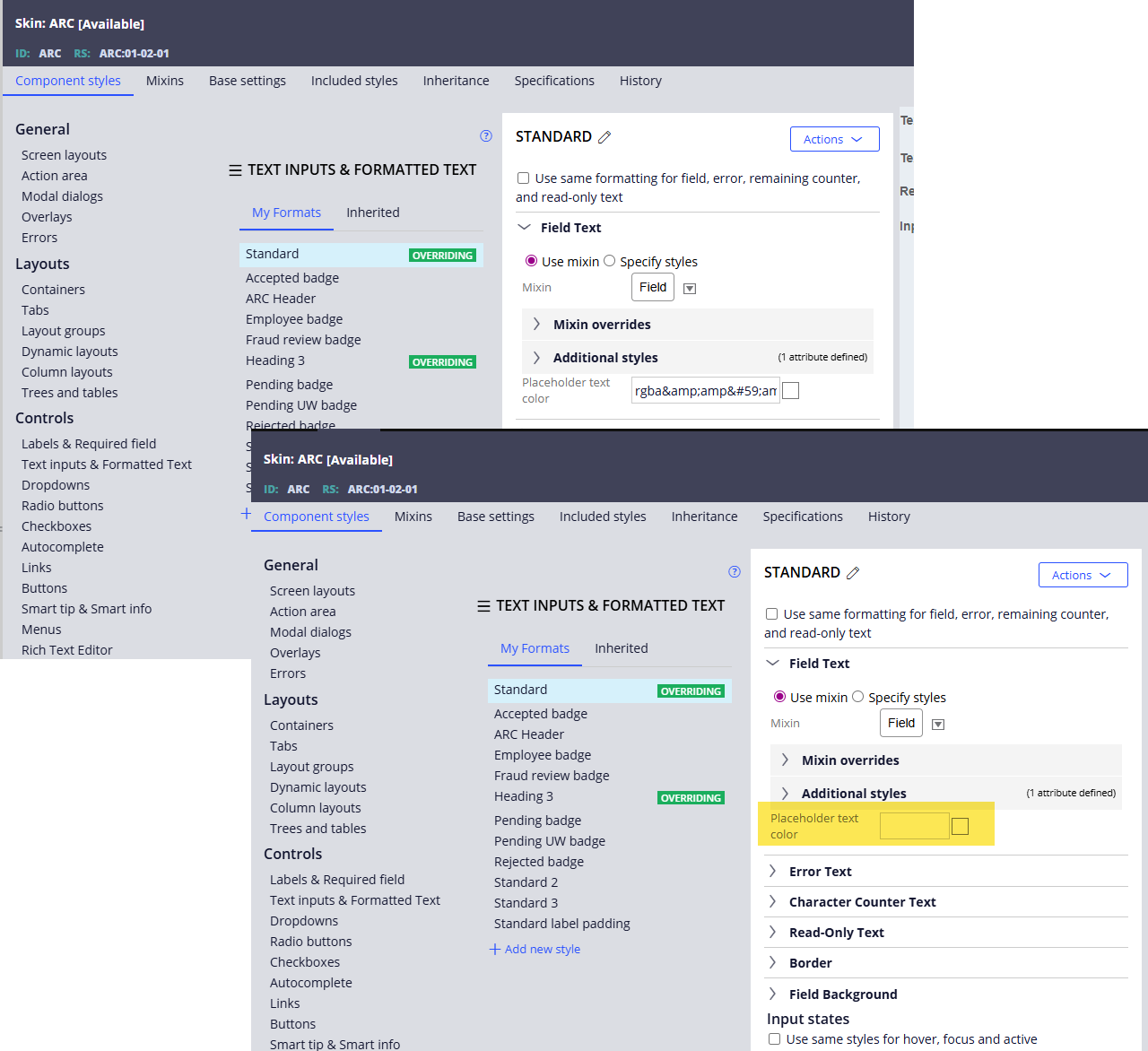
2. Run the activity pySkinRgbaSanitizer and pass the skin name parameter. This step restores the original correct value of the rgba for the skin rule.
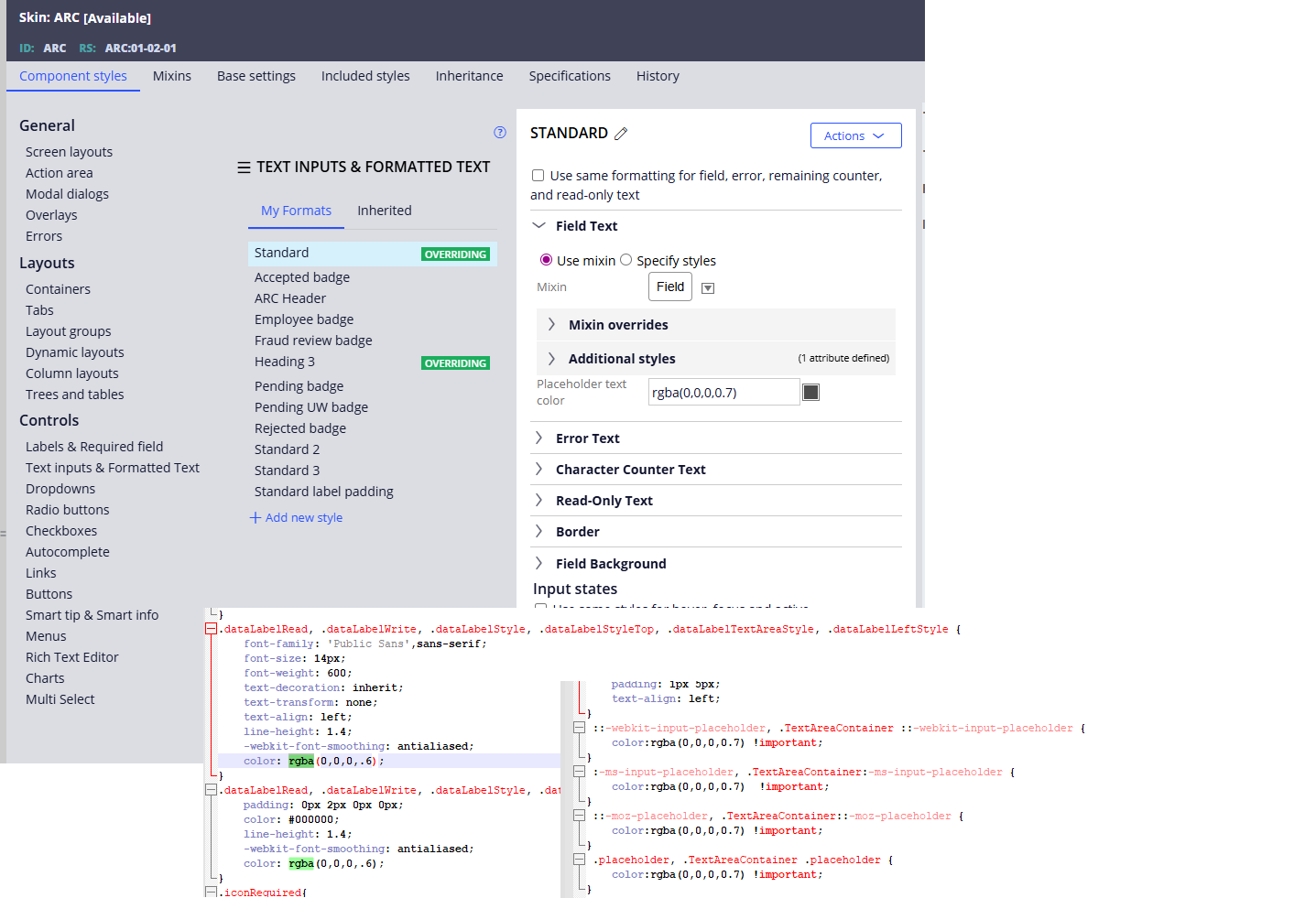
This issue is addressed in Pega Platform 24.2.5, 25.1.3, and 26.1.
The fix prevents future Skin CSS growth issues caused by invalid color style values.