

Issue
Column-level filtering, sorting, and grouping do not work for tables or list views when the underlying source is a data page backed by a REST connector with advanced query options enabled.
Symptoms and Impact
-
Column filters, sorting, or grouping options are visible in the UI but do not produce expected results.
-
The table might refresh repeatedly without applying any filter or sorting logic.
-
Data displayed remains unchanged despite user actions.
Explanation
When a data page is sourced from a REST connector and advanced query options or Allow querying any column are enabled, Pega Platform does not handle filtering, sorting, or grouping. Instead, it passes a query structure (through pyQueryPage) to the REST connector. The external REST service must process these parameters and return the results; otherwise, the UI actions appear available but have no effect.
This behavior is expected by design and not a product defect. Currently, there is no supported configuration to selectively hide or disable column‑level filtering, sorting, or grouping actions for REST‑sourced data pages using advanced query options.
Steps to Reproduce
-
Configure a data page sourced from a REST connector.
-
Enable advanced query options (for example, Allow querying any column).
-
Use the Data Page in a table or list View with column filtering or sorting enabled.
-
Apply a column filter or sorting action in the UI.
Result: The table refreshes, but filtering or sorting is not applied.
Example workaround
In the following example, sorting does not work for a table backed by a REST endpoint with advanced query options enabled. The following steps show how to support sorting by mapping query parameters from Pega to the REST endpoint.
- Ensure that the REST endpoint supports query parameters for filtering and sorting (for example, sortBy, order). These parameters determine which field the data is sorted on and the sort direction (ascending or descending):
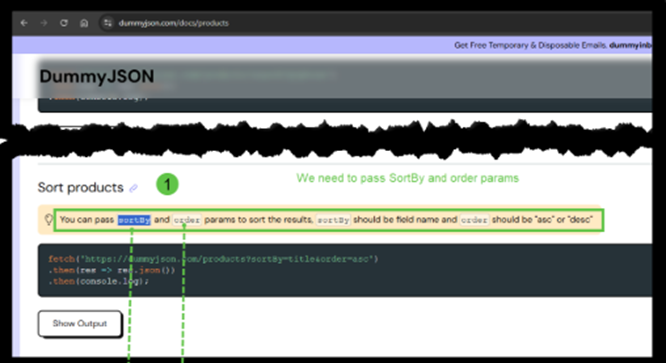
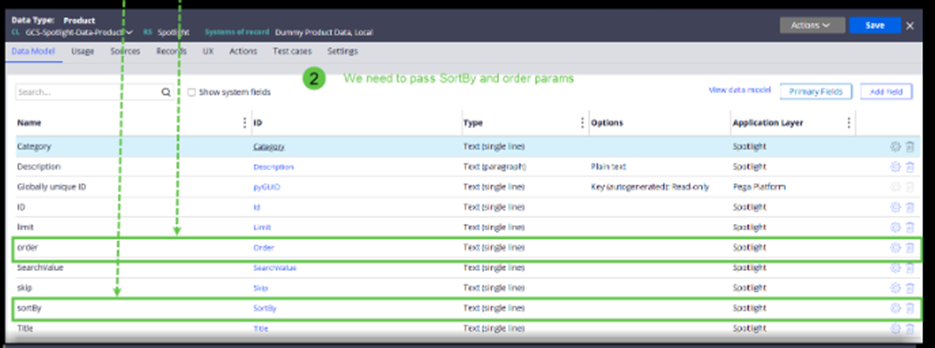
2. Define properties in the data or integration model to hold these parameters. These properties act as placeholders for values extracted from the platform-generated query structure and passed to the REST service.
3. Map these properties to the REST connector request, as shown in the following image:
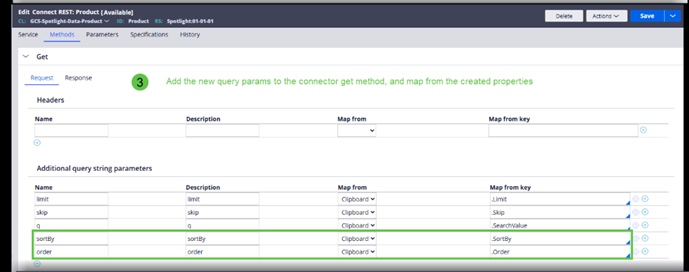
4. In the REST connector’s request data transform, extract filter and sort values from pyQueryPage. Then, assign the values to the mapped properties:
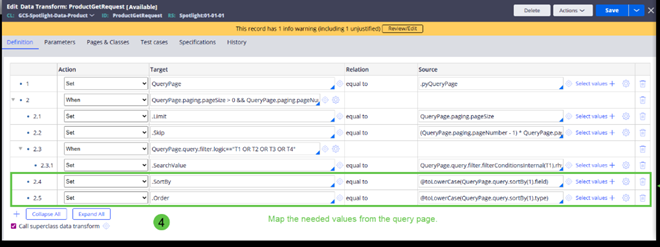
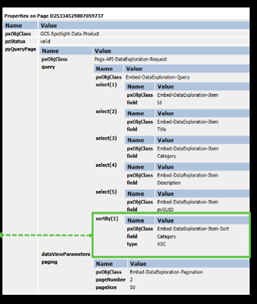
5. With the above configuration, the correct query parameters are passed to the REST service, the data page receives a pre‑filtered and sorted response, and the table renders the data correctly, allowing column sorting to work as expected.