

Issue
When client data contains special or non-ASCII characters and the data is exported as a CSV file, these characters appear corrupted or unreadable when the file is directly opened in Microsoft Excel. Subsequently, during import, these files are read using the incorrect encoding, leading to corruption of special characters within Pega Platform™.
Root Cause
When working with CSV files containing special characters (accented letters, symbols, non-ASCII characters from languages like French, Spanish, Japanese, Chinese etc.), proper encoding handling is critical to prevent data corruption during import/export operations in Pega Platform.
Pega Platform encodes the CSV file in UTF-8, but when opened or modified using external tools (e.g. Microsoft Excel), the encoding is automatically converted to ANSI (or ISO-8859-1).
Microsoft Excel's default behavior when opening CSV files uses system locale encoding (often ANSI) rather than UTF-8, causing special characters to display incorrectly or be replaced with the Unicode replacement "?" symbols.
Affected Products/Features:
| Product | Feature | Considerations |
|---|---|---|
| Pega Platform | Data Import |
Validate encoding before importing Test with a small sample first Check for "?" characters as corruption indicators |
| Business Intelligence Exchange (BIX) | BIX Export |
BIX correctly exports in UTF-8 format Issues occur when using Direct CVS opening in Microsoft Excel Use the Excel import wizard for proper viewing |
| Pega Knowledge | Import Content |
Use the Excel import wizard before updating the template Validate file encording before importing |
| Customer Decision Hub (CDH) | Decision Data |
Use UNICODE UTF-8 encoding when saving in Excel Alternative: For editing large CSV files, use applications that support UNICODE UTF-8 encoding by default (for example, Notepad ++ or VSCode using special plugins) |
UTF-8 Encoding Requirements
Pega product documentation describes the use of UTF-8 encoded string text, that the Pega Platform database supports the UTF-8 or UTF-16 Unicode character sets, and that system locale language settings must be set to UTF-8. To avoid errors during the import process, prepare your files and your Data Model before import.
For more information, see Character Sets and Best practices for preparing your files and Data Model for import.
The following require UTF-8 encoding:
Language-Specific Considerations
European Languages (French, Spanish, German)
- Common characters: á, é, í, ñ, ü, ¿, ¡, ç
Asian Languages (Japanese, Chinese, Korean)
- Excel is particularly problematic with these character sets
- For editing CSV files, use applications that support UNICODE UTF-8 encoding by default (for example, Notepad ++ or VSCode with the necessary plugins).
Special Symbols
- Registered marks (®), trademarks (™)
- Currency symbols (€, £, ¥)
- Mathematical symbols
Character encoding troubleshooting
Scenario 1: CSV file displays corrupted characters when viewed in Excel
CSV files display Latin characters (for example "C with cedilla" - ç) with a question mark, causing validation failures against values stored in the database
Steps to Reproduce:
1. Create or export a Data Set in Pega that contains special characters (Datatype or Decision Data Component).
2. Export the data using the option.
3. Open the CSV file in Notepad++ and verify that the characters display correctly, confirming the file is UTF-8.
4. Open the exported CSV file directly to Microsoft Excel.
5. Observe that special characters are displayed incorrectly (�) or appear as corrupt symbols (characters like –, “).
Root Cause
Pega is exporting the file correctly in UTF-8 encoding (validated by opening the exported file in Notepad++).
The issue lies with Excel, which often defaults to ANSI encoding when a CSV file is opened directly, by double-clicking the file. This results in special characters like dashes (—) and curly quotes (“”) being replaced with characters like â€, “, etc.
Solution
To avoid issues, ensure proper UTF-8 file encoding before file import.
Check original file encoding:
Using Notepad++ (Primary Recommendation)
1. Download and install Notepad++.
2. Open your CSV file in Notepad++.
3. Go to Encoding menu → Select UTF-8.
4. Save the file.
5. Import the file into Pega.
Using Excel:
To safely view the exported file in Excel without modifying the encoding:
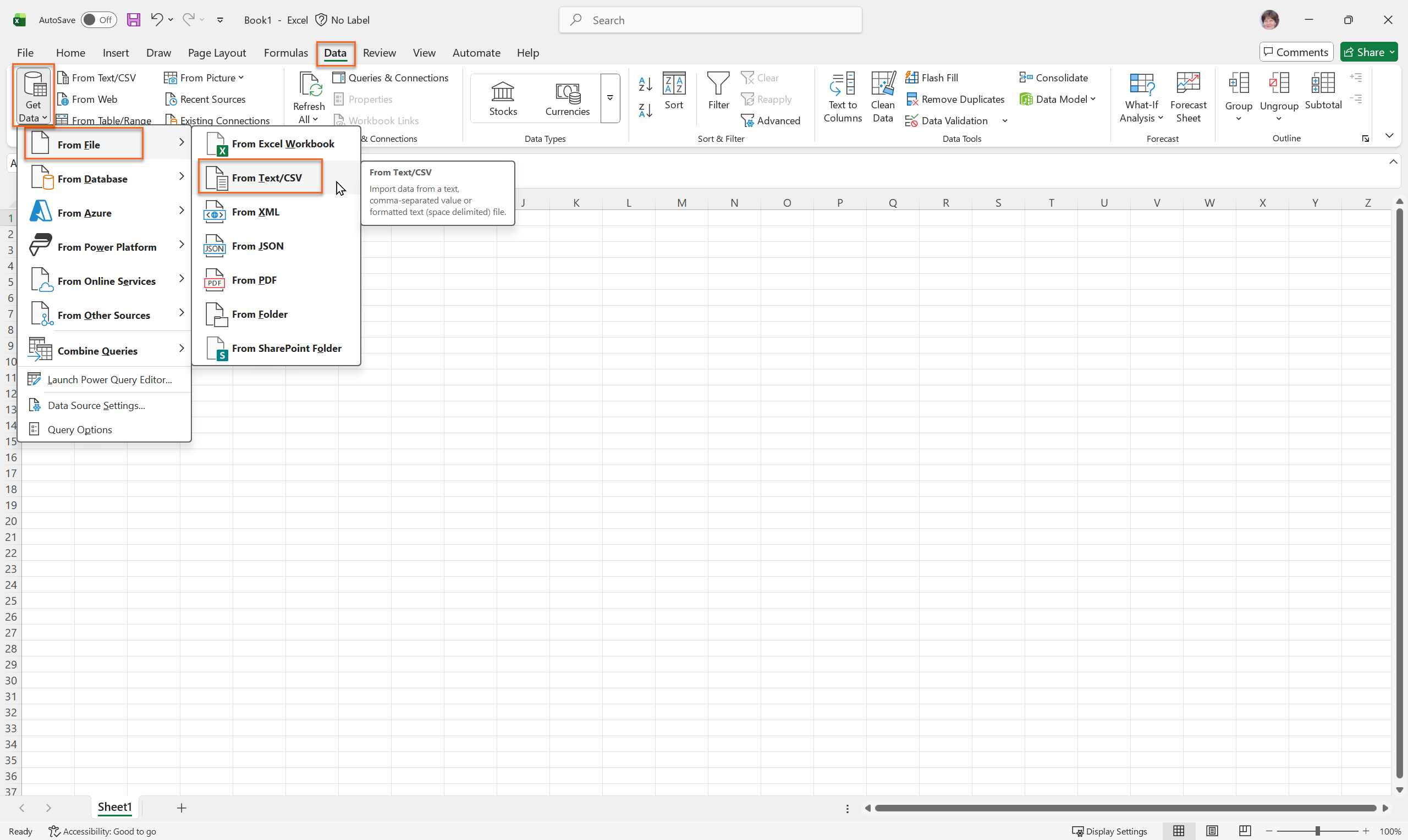
1. Open Excel and navigate to the Data tab.
2. Click on Get Data → From File → From Text/CSV.
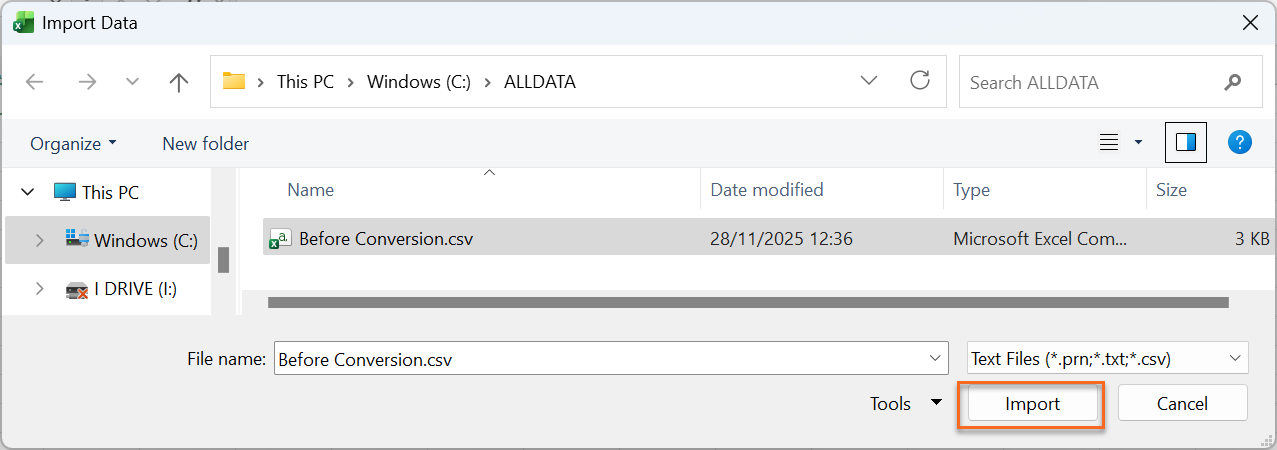
3. When prompted by the Import Wizard, select the exported CSV file.
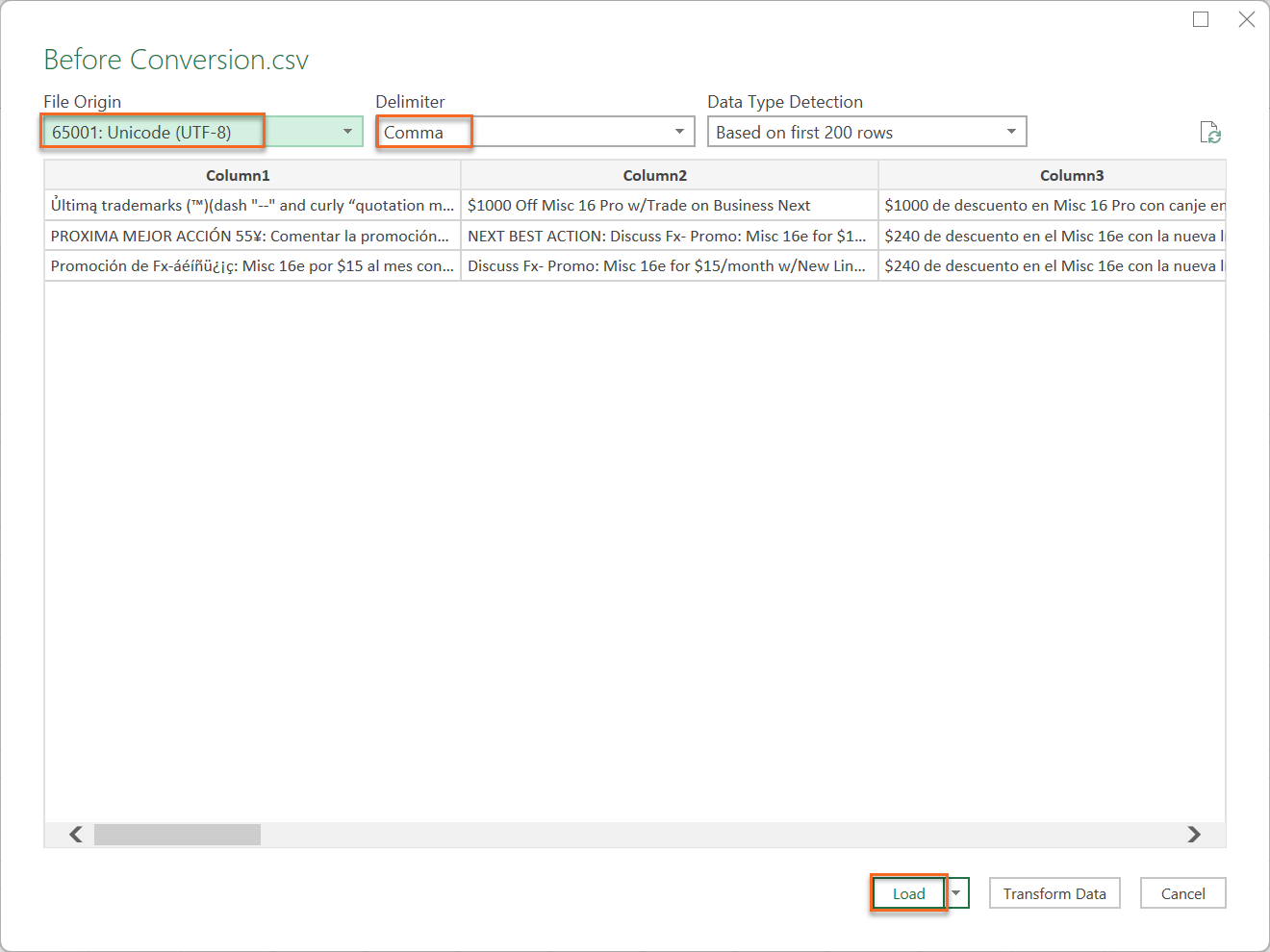
4. Ensure the File Origin is set to 65001: Unicode (UTF-8) and the Delimiter is set to Comma.
5. Click Load to open the file. The data should now appear correctly in Excel.

Scenario 2: Bix output CSV extract does not display Hebrew letters
A BIX output CSV file does not display Hebrew, Chinese, Japanese characters properly, and instead it contains special characters.
Solution
Save the CSV file downloaded from Pega to Unicode UTF-8 Encoding in Notepad or Excel.
Unicode is an international standard that includes support for most foreign alphabets. Excel does not provide a Unicode option for saving Japanese data to the CSV or delimited text formats. Users should first convert the file to UTF-8 format before opening. Use the solution from Scenario 1.
Summary
| Issue | Solution |
|---|---|
| Special characters (for example, ç, ñ, é) appear corrupted when opening a CSV in Microsoft Excel | Open the CSV file in applications that support UNICODE UTF-8 encoding by default, change encoding to UTF-8, save, and then import or open with compatible software |
| CSV file uploads fail validation due to encoding mismatches | Ensure the CSV file is saved in UTF-8 encoding before uploading it to Pega Platform |
| Data exported from Pega displays correctly in text editors but not in Excel | Use a text editor or online CSV tool that supports UTF-8 or import the CSV into Excel using the "From Text/CSV" import option and select UTF-8 encoding |
| Question marks or other symbols replace special characters after file import | Double-check the encoding of the original CSV and repeat the save-as-UTF-8 process before re-importing |
References
Internationalization and localization
Enabling Unicode character support for object names
Best practices for preparing your files and Data Model for import
Updating Data Records in bulk from a filemodel
Creating a File Data Set record for embedded files
Creating a File Data Set record for files on repositories
Supported Amazon SageMaker models
Accessing text analytics resources
Accessing information about text analytics models
Adding a custom import purpose
Adding custom localizations in Web Messaging
Importing data by using an API
Importing content (Pega Knowledge)
Exporting content (Pega Knowledge)
Using the Export and import utility
Configuring language translation
Adding MIME types through dynamic system settings
Determining the emotional tone of text