

Issue
The favicon configured in the pyPortalIcon HTML fragment Rule does not display for the user Portal in Pega Infinity™ '24.2 and later releases.
Background
A favicon (short for favorite icon) is a small icon associated with a website or web application.
It is displayed by browsers in:
-
The browser tab
-
Bookmarks / favorites
-
Browser history
What does a favicon do?
-
Visual identification of an application
-
Improves usability (easy to spot tab among many) and branding (company or environment recognition)
How favicons work in Pega Platform
In Pega, the favicon is served as a static web resource and referenced by the Pega UI at runtime.
-
Browser loads a Pega application URL
-
Browser automatically requests: /favicon.ico (default behavior)
-
Pega responds with the configured favicon file
-
Browser caches and displays it in the tab
Problem Scenario
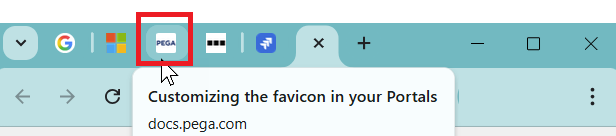
Users can choose to customize the favicon, and can follow the instructions on how to do this in our documentation: Customizing the favicon in your Portals
When launching the user Portal, users on Constellation releases after Pega Infinity release 24.1 find that the favicon works only on Dev and App Studio, not on the user Portal.
Symptoms can vary depending on the browser used:
-
In Google Chrome users can see the default Pega Icon.
-
In Internet Explorer users can see a Globe icon.
Explanation
This is a Product Defect.
The issue with the favicon not being applied in the end user portals can be attributed to a harness mismatch.
By following the steps in the documentation, when the icon is fetched after the URL change, the relative URL does not work. Specifically, when the client lands on the screen flow page, the outer and inner harness are changing to TabScreenFlow7, which causes the custom favicon to be overridden by Pega's default favicon.
Solution
The issue has been resolved in the following releases:
- Pega Infinity '24.2.5
- Pega Infinity '25.1.3
- Pega Infinity '26.1
The latest update prevents favicon and Apple touch icon URLs that are defined as relative paths from breaking after history.pushState updates the page URL.
Local change for earlier releases
A local change is required to load the shortcut icon. Leverage the pega:reference JSP tag and pxThread.pxReqBaseURI clipboard property to generate an absolute URL of the binary image file with the access group hash included.
Instructions
1. Upload the necessary images as binary files
2. Use the following code in pyPortalIcon HTML fragment Rule:
<pega:choose> <pega:when test='pyIsMobile'> </pega:when> <pega:otherwise> <pega:onlyonce name="pzPortalIcon"> <link rel="shortcut icon" href="<pega:reference name='pxThread.pxReqBaseURI'/>/webwb/IMAGE_NAME.png"></pega:onlyonce></pega:otherwise></pega:choose>
References
Customizing the favicon in your Portals
Defining a logo for an application
How to Customizing the favicon in Portals (forum)