
Issue
and still display after modifying When conditions in pyDisplayAuthScreenSelector.
Symptoms and Impact
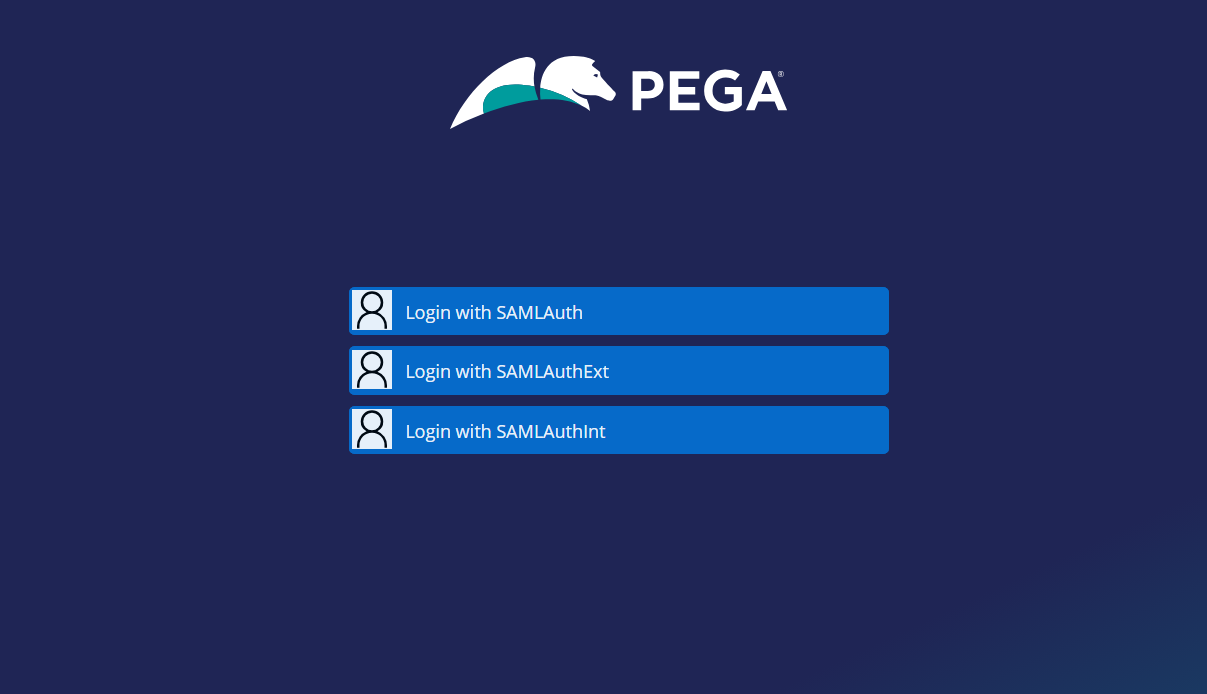
After modifying the pega:when conditions in a copy of the pyDisplayAuthScreenSelector HTML rule to hide specific SAML SSO authentication buttons (such as and ), all SSO buttons continue to be displayed on the Pega login screen.
Steps to Reproduce
Prerequisite: The environment has two or more SAML authentication services configured (for example, and ), all of which are active.
- In the navigation pane of Pega Infinity™ Studio, click App, and then click the Records tab, and then navigate to Technical > HTML.
- In the Stream name column, click the Search icon.
- In the Search Text field, enter pyDisplayAuthScreenSelector, and then click Apply.
- Click the row containing pyDisplayAuthScreenSelector.
- In the Rule form header, in the list next to the button, click to create a copy of the rule in your application ruleset.
- In the HTML source field, locate the pega:when conditions that control which authentication service buttons are rendered — these conditions evaluate the authentication service name or type to determine which buttons to display. Modify the conditions so that only the desired SSO service button is shown (for example, remove or set to false the conditions for and ).
- Click .
- Navigate to the Pega login screen (for example, https://<host>/prweb/PRAuth) and observe the result.
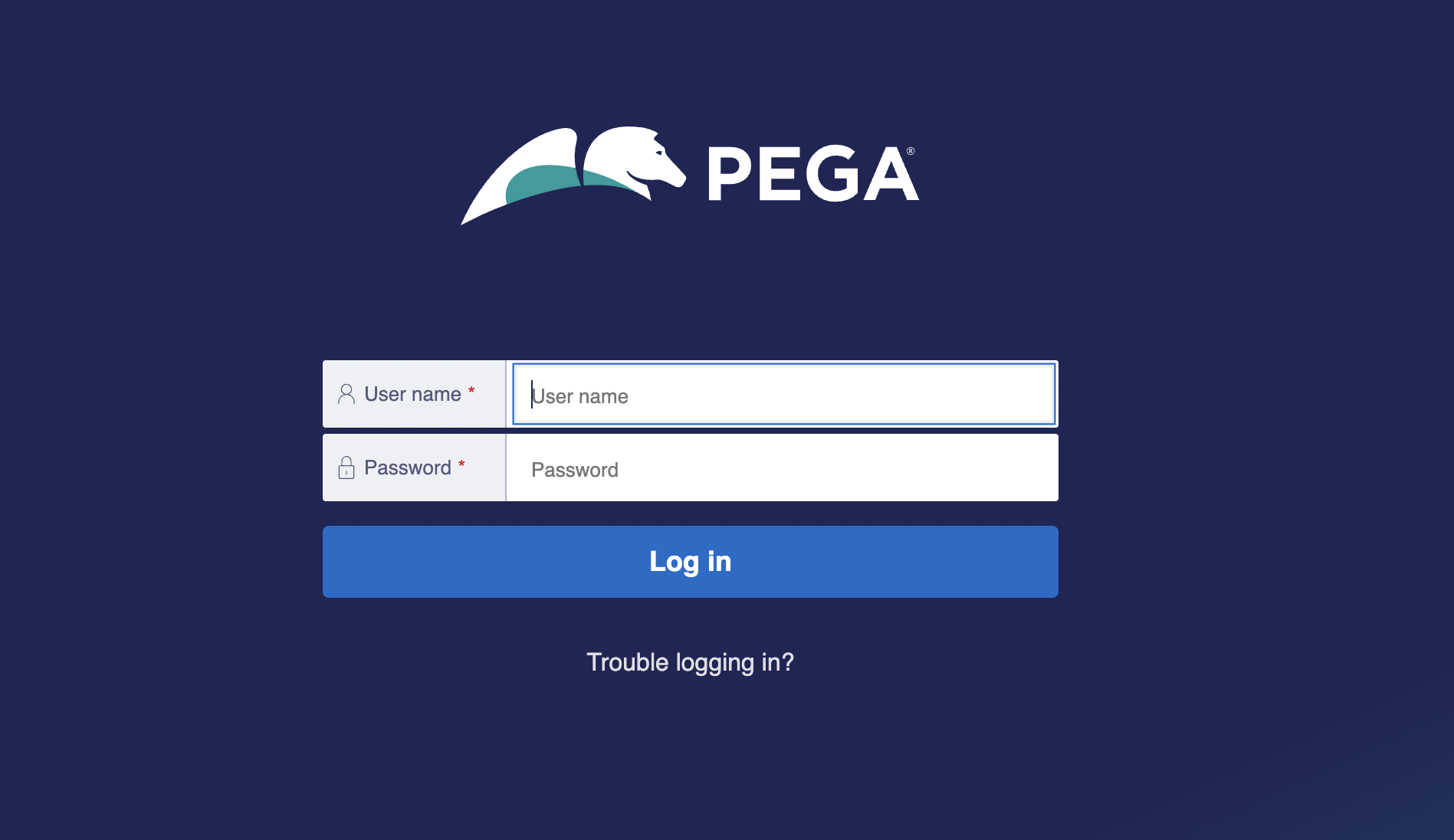
- Expected result: Only the SSO button for the permitted authentication service is displayed on the login screen.
- Actual result : All three SSO buttons continue to appear on the login screen. The HTML changes have no visible effect.
Root Cause
The pyDisplayAuthScreenSelector HTML rule is rendered during an unauthenticated session, which runs under the BROWSER requestor type. By default, the BROWSER requestor uses the PRPC:Unauthenticated Access Group. When you save a customized copy of pyDisplayAuthScreenSelector in your application ruleset, that ruleset is not accessible to PRPC:Unauthenticated at runtime. Rule resolution therefore falls back to the base OOTB rule in Pega-Desktop, which renders all active authentication service buttons regardless of the pega:when conditions in your customized version.
Solution
The fix requires creating a dedicated Unauthenticated Access Group, associating it with a dedicated unauthenticated ruleset that contains the customized rule, and then pointing the BROWSER requestor to that Access Group — as documented in Configuring the browser requestor.
Make the customized pyDisplayAuthScreenSelector rule accessible at login time
Follow the steps in Configuring the browser requestor, with the exception of Step 6 (updating the OAuth 2.0 service package).
The procedure consists of the following high-level tasks, sourced directly from the Pega documentation:
Step 1 — Create an Access Group for unauthenticated users:
- In the navigation pane of Infinity Studio, click Records > Security > Access Group.
- In the Access Group Name column, click the Filter icon.
- In the Search Text field, enter PRPC:Unauthenticated, and then click the resulting row.
- In the Rule form header, in the list next to the button, click .
- On the Save Access Group As form, enter a short description and a name for the Access Group — for example, Unauthenticated.
- Click .
- In the Application section of the Access Group Rule form, enter the Name and Version of the application that you want to customize.
- In the Available Portals section, select the portal for which you want to customize the login screen HTML and CSS.
- Click .
Step 2 — Create a dedicated unauthenticated ruleset:
- In the header of Pega Infinity Studio, click Create > SysAdmin > Ruleset.
- On the Create Ruleset Version form, enter the following information: a. A ruleset name — include a hyphen (-) and unauthenticated after the ruleset name, for example <MyCorpSplash>-unauthenticated. b. The ruleset version, for example 01-01-01. c. A description for the ruleset.
- Note: For security reasons, do not use an existing ruleset that contains other parts of your application to hold the rules for unauthenticated users.
- Note the unauthenticated ruleset name and version for future use.
- Click Create and open, and then click Save.
Step 3 — Add the unauthenticated ruleset to the unauthenticated Access Group:
- In the navigation pane of Infinity Studio, click Records > Security > Access Group.
- On the Access Group tab, select your unauthenticated Access Group by clicking the Access Group name.
- On the Advanced tab of the selected Access Group form, in the Run time configuration section, in the Production Rulesets setting, add the ruleset that you created.
- Click .
Step 4 — Add the unauthenticated ruleset to your application:
- In the header of Infinity Studio, select Configure > Application > Structure > Ruleset Stack.
- Select your application by clicking the application name.
- On the Definition tab of the application, click .
- Add the unauthenticated ruleset that you created, and then click .
Step 5 — Update the BROWSER requestor type to use the unauthenticated Access Group:
- In the header of Pega Infinity Studio, select Configure > System > General > Requestors.
- In the Requestors list, select the BROWSER requestor type that is associated with your system name.
- In the Access Group Name field, enter the Access Group that you created.
- Click .
Ensure that the copy of pyDisplayAuthScreenSelector containing your modified pega:when conditions is saved into the unauthenticated ruleset created in Step 2 above. This is the step that makes the customized rule accessible to the BROWSER requestor at login time.
After completing these steps, clear your browser cache and test the login screen using a private/incognito browser window to confirm that only the intended SSO button is displayed.
Restart the application server if cached rules need to be refreshed.
References
Configuring the browser requestor
Customizing authentication screens in your Pega application
Customizing authentication screens in your Pega application
Theme Cosmos — Customizing login and error screens