
Question

Avanthi Institute Of Engineering and Technology
IN
Last activity: 19 Jan 2026 6:56 EST
This item has limited configuration access. Switch to extended authoring mode to access all configuration capabilities.
This item has limited configuration access.
Switch to extended authoring mode to access all configuration capabilities.
getting this in validations.
Updated: 19 Mar 2025 11:19 EDT

Pegasystems Inc.
GB
@SillaL17161359 The message "This item has limited configuration access. Switch to extended authoring mode to access all configuration capabilities." indicates that you need to switch to extended authoring mode to access full configuration options. To do this, navigate to the section or rule in Dev Studio and enable extended authoring mode. This will allow you to configure advanced validation settings that are not available in the standard mode.
⚠ This is a GenAI-powered tool. All generated answers require validation against the provided references.
Layout item not available in App Studio
Sainsbury's Argos
GB
This answer was of no help at all.
FWIW
App tab>[CaseType]>Process>FlowAction>[StepName]

Pegasystems Inc.
US
Hi @PhilipG1165,
I just want to confirm that the full error message you received in validations is this:
This item has limited configuration access.
Switch to extended authoring mode to access all configuration capabilities.
If so, are you needing help with switching to the extended authoring mode?
Becton Dickinson
US
@MarissaRogers
yes, could you help where I find this setting.

HCA Healthcare
US
@SillaL17161359
This message usually comes when you are trying to configure a rule or item in App Studio where only limited options are available. To unlock the full set of configurations, you need to switch from App Studio to Dev Studio, which is called extended authoring mode. Once you open the same rule in Dev Studio, you will see all advanced configuration options including validations, conditions, and technical settings. If you only stay in App Studio, some technical features are hidden to keep it business-friendly. So, the fix is simple: open the item in Dev Studio, edit the validation or configuration as needed, save it, and then you can still use it back in App Studio for normal case design.
Updated: 16 Jan 2026 12:10 EST

Amdocs
BR
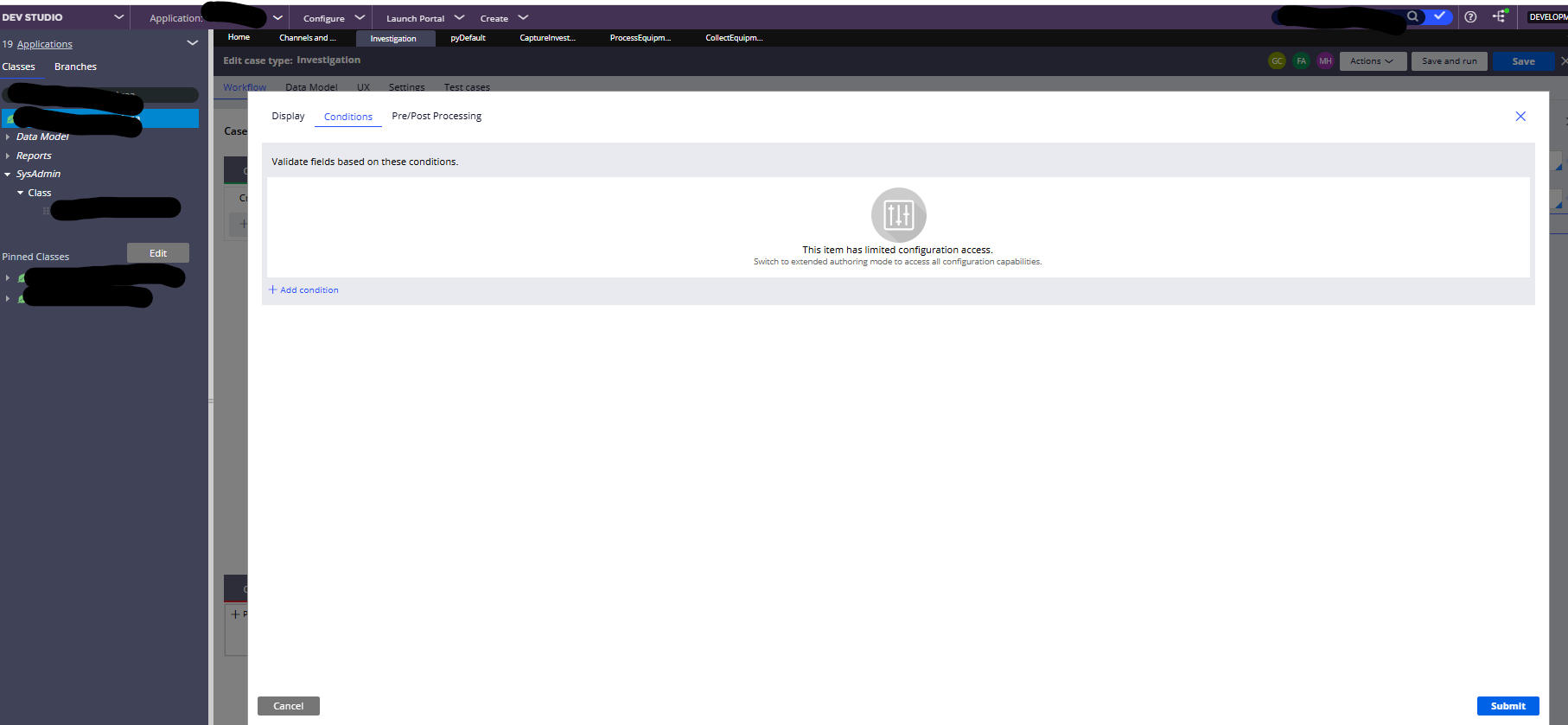
Pegasystems Inc.
GB
@FabioA35 @GouthamR3090 some more info:
What This Error Means
This error typically occurs when:
1. Portal/Access Context Issues: You're accessing the system through a specific portal or context that has limited configuration capabilities
2. Delegated Rules: The rule you're trying to modify is a delegated rule that requires specific access permissions
3. Authentication Context: The way you accessed the system (direct login vs. link-based access) affects your configuration capabilities
How to Switch to Extended Authoring Mode
Based on the bug reports and typical Pega behavior, here are the solutions to try:
1. Access Through the Correct Portal
- Instead of accessing through a direct link or embedded portal, log in through the main Pega portal
- Navigate to Dev Studio directly rather than through embedded interfaces
- Use the standard login process (username/password or SSO) rather than link-based access
2. Check Your Access Group
@FabioA35 @GouthamR3090 some more info:
What This Error Means
This error typically occurs when:
1. Portal/Access Context Issues: You're accessing the system through a specific portal or context that has limited configuration capabilities
2. Delegated Rules: The rule you're trying to modify is a delegated rule that requires specific access permissions
3. Authentication Context: The way you accessed the system (direct login vs. link-based access) affects your configuration capabilities
How to Switch to Extended Authoring Mode
Based on the bug reports and typical Pega behavior, here are the solutions to try:
1. Access Through the Correct Portal
- Instead of accessing through a direct link or embedded portal, log in through the main Pega portal
- Navigate to Dev Studio directly rather than through embedded interfaces
- Use the standard login process (username/password or SSO) rather than link-based access
2. Check Your Access Group
- Verify that your access group has the necessary privileges for rule modification
- Ensure you have PegaRULES:SysAdm4 or appropriate development access group
- Check that your access group includes the necessary rulesets for modification
3. Use Dev Studio Instead of App Studio
- If you're in App Studio, try switching to Dev Studio
- In Dev Studio, navigate to the rule directly through the App Explorer
- Open the flow action rule directly rather than through the case type interface
4. Clear Browser Cache and Session
- Clear your browser cache and cookies
- Log out completely and log back in
- Try using an incognito/private browser window
5. Check Rule Checkout Status
- Ensure the rule is not checked out by another user
- If it's checked out to you, try checking it in and then checking it out again
- Verify you have an unlocked ruleset version available
Workaround Steps
1. Navigate to Dev Studio
2. Go to App Explorer → [Your Application] → Process → Flow Action
3. Find your specific flow action and open it directly
4. Check out the rule if it's not already checked out to you
5. Make your changes in the standard rule form
Additional Troubleshooting
If the above doesn't work:
- Check your operator privileges - ensure you have development access
- Verify ruleset access - make sure you can modify rules in the target ruleset
- Contact your system administrator to verify your access group configuration
- Try accessing from a different browser or device to rule out local issues