

Issue
Users encounter problems sourcing a picklist property in the Data class using a parameterized Data page from the work class in Pega Constellation.
Symptoms and Impact
Users are unable to pass parameters from pyWorkPage to Data page using Picklists in Constellation.
-
References like pyWorkPage.property do not work.
-
Only properties from the embedded page class are displayed.
This issue is displayed in applications that have migrated from Pega UI Kit to Constellation.
Steps to reproduce
1. Create a View in a work class.
2. Create a Data object in an embedded page class.
3. Create a Picklist property in the Data class sourced by a Data page that takes input parameters from pyWorkPage.
4. On the Data page configure the source as Report Definition which fetches the results based on the parameter. Expected: Results fetched are based on the work-level property. Actual: The parameter mapping UI only displays properties from the Data Object class, not from the Work class (pyWorkPage).
Root Cause
This is a known limitation in Constellation.
Referencing pyWorkPage.property in the parameter configuration fails at runtime for these reasons:
-
Constellation operates stateless and does not maintain clipboard pages like pyWorkPage.
-
The embedded table context is isolated to the data object being edited.
Constellation does not maintain clipboard pages like pyWorkPage, and the parameter-mapping UI only shows properties from the Data Object class, not the Work class.
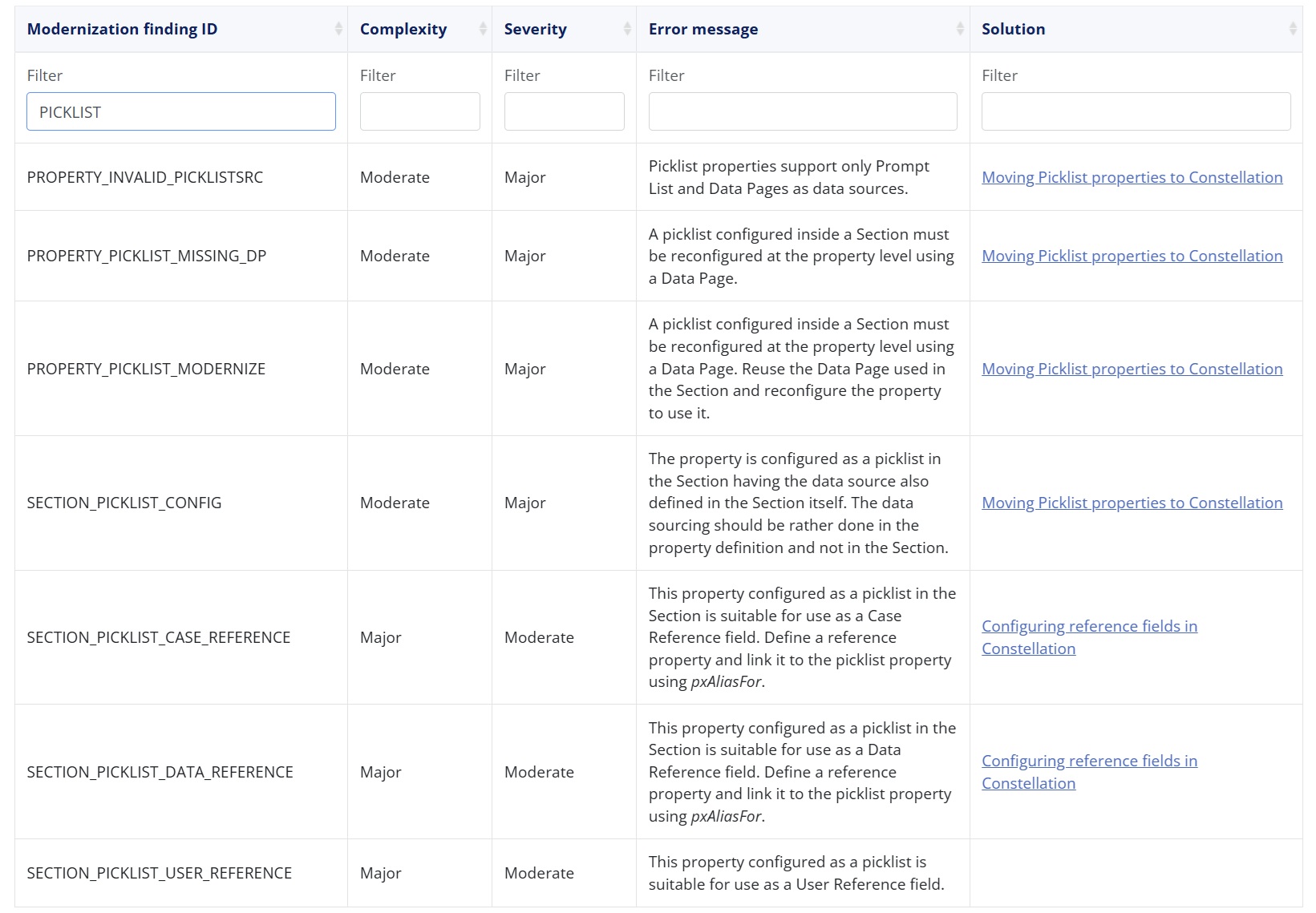
This is documented in Migration findings and Moving Picklist properties to Constellation.
Solution
To address this limitation, we recommend using a Declare Expression (Calculated field).
-
Create a Calculated Column in your Data Type: In your Data Type, create a new column that is marked as Calculated (which refers to a Declare Expression). This column will not be submitted to the database.
-
Configure the Declare Expression: In this Declare Expression, set the column value to reference pyWorkPage.YourFieldForParameter.
-
Define Pages and Classes: Create an entry in the Pages and Classes section of your Declare Expression to define the class for pyWorkPage. This will populate your read-only column with data from pyWorkPage.
-
Use as Parameter: Finally, pass this calculated column/field as the parameter to your Picklist Data Page.
This approach provides an alternative to directly passing parameters from the case context and aligns with Constellation's architecture while meeting your business requirement.
This issue is planned to be addressed in a future Pega Platform release, where the request is to support "top.myprop" and "parent.myprop" in the configuration of the parameter value. Issues are prioritized based on impact, severity, and capacity. The specific release for the fix has not yet been determined. This section will be updated with release details when the fix for this issue is available.