

Issue
Images referenced as binary files in correspondence templates fail to display after saving.
Symptoms and Impact
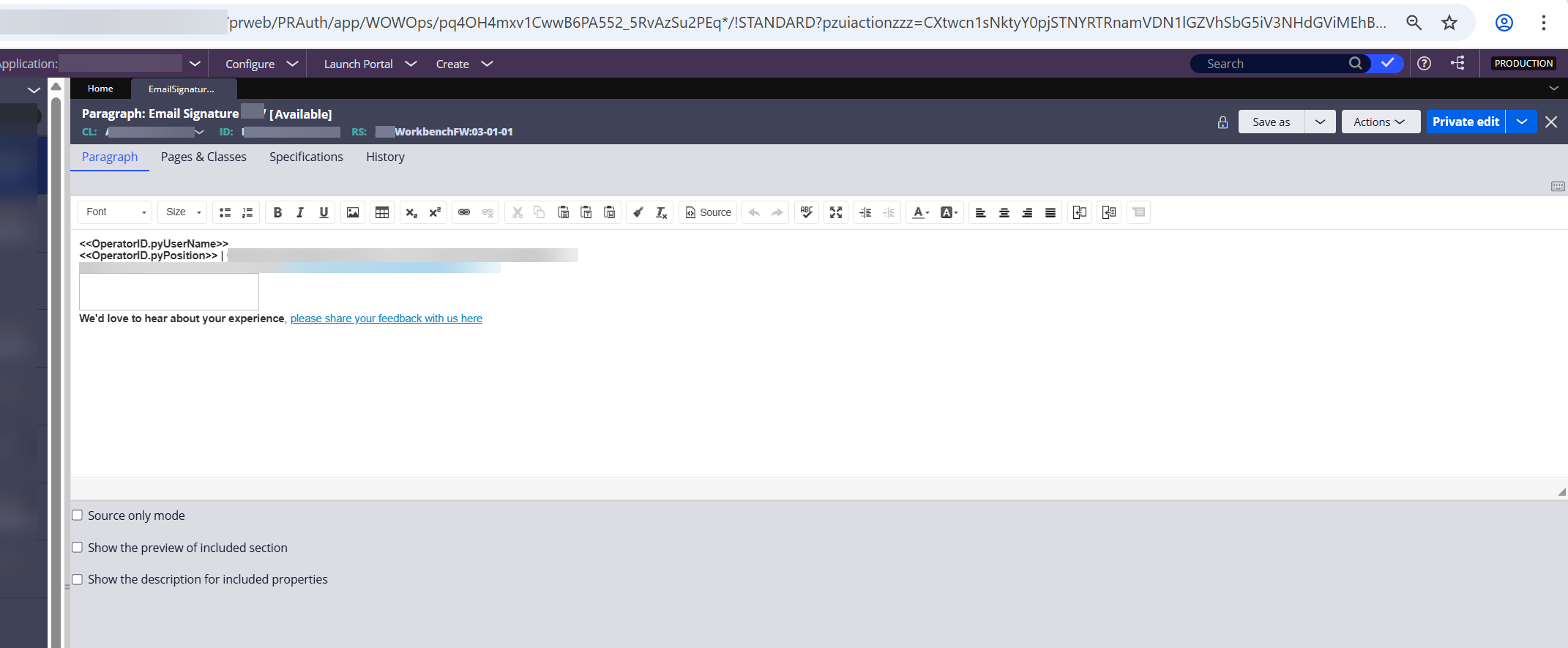
Correspondence templates using binary files as image sources lose the src attribute after saving, preventing images from displaying.
Steps to Reproduce
Steps to create a binary file as an image:
1. In the header of Dev Studio, click > > .
2. On the Rule form, in the Label field, enter a name for your Rule.
3. In the field, enter the name of the destination web server directory for this file when the system extracts the file from the database.For example: To use a subdirectory on the application server, enter webwb.
4. In the File Type (extension) field, enter the file extension.For example: To upload a graphics file, enter jpg.
5. Optional: To change the Application Layer in which to store the binary file Rule, in the Context field, select another built-on application. By default, the system stores the Rule in your current Application Layer.
6. In the Add to Ruleset list, select a Ruleset and a Ruleset version in which to store the Rule.
7. Optional: To override the default work item that your application associates with this development change, in the Work item to associate field, press the Down arrow key, and then select a work item.
8. Click .
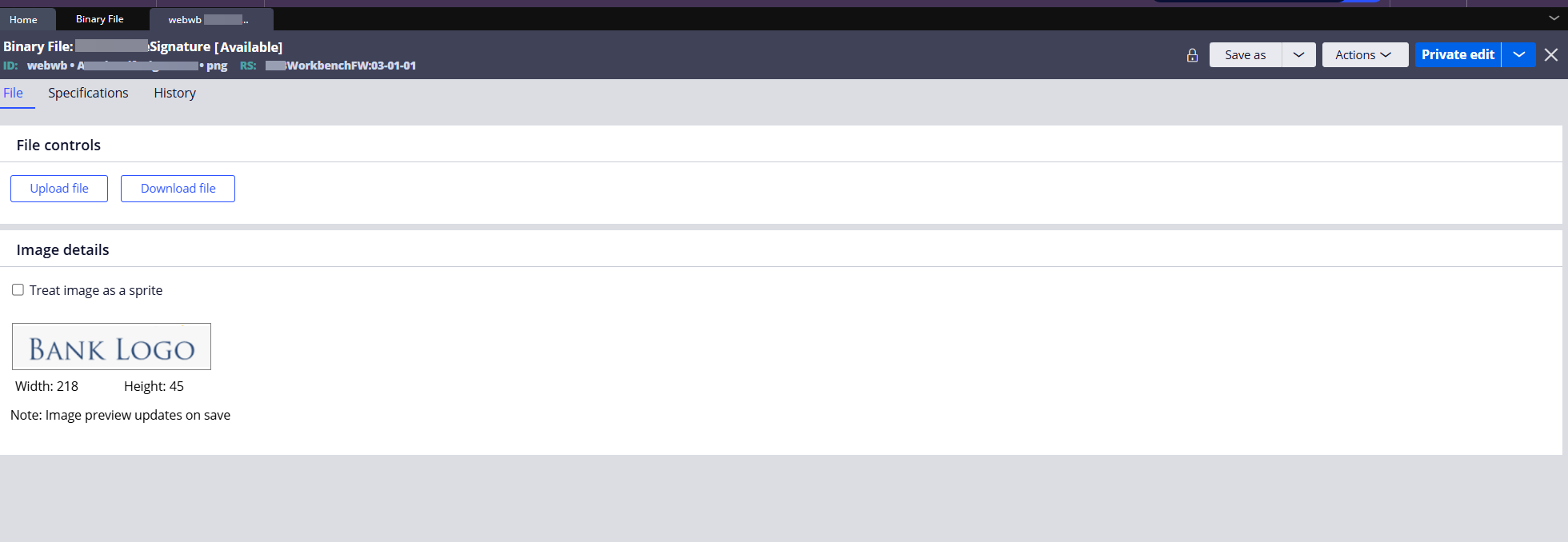
9. the rule and open it in the Paragraph rule. Observe that the image is not rendered, and the src attribute is missing in the source code.
Root Cause
The issue is caused by a new security enhancement in Pega Infinity™ '25.1.2 that enables the DOMPurify HTML sanitization library by default.
DOMPurify enforces strict validation on URLs embedded in HTML content, including those used in correspondence templates and rich text editor controls. Images uploaded from the local device display the correct file path, and server-side image uploads stored in the webwb directory are also functioning as expected.
Binary file images referenced with relative paths lacking proper notation do not conform to the expected URL format. During the conversion of the image to HTML, the src attribute is being sanitized, which results in certain characters being removed or modified.
Solution
There are two solutions that allow the images to render correctly while maintaining compatibility with the new security features in Pega Infinity release 25.1.2.
-
Update image references to compliant URL formats (Safe workaround): Modify existing image paths to include proper relative path notation (for example changing 'webwb/Testrte.png' to './webwb/Testrte.png').
This approach is generally safe for Constellation applications. However, please note that Constellation relies on a different static content delivery mechanism than Traditional UI, so image path behavior may vary. We recommend validating image rendering in your Constellation UI before go-live.
-
Turn off the 'Allow sanitization' option in the RTE control: If DOM sanitization is not required for your application use case, it can be disabled by adding the following snippet to the UserWorkForm rule and save it to your application rulset:
<script>
  window.disableDomPurifier = true;
</script>
This flag is designed for Traditional UI (Theme Cosmos / UI Kit) and has minimal direct impact on native Constellation applications. Constellation uses a React-based architecture with strict CSP compliance that does not rely on the same client-side DOM manipulation, and sanitization for Constellation views is largely handled server-side.
We recommend the first approach to maintaining security standards. While images from the webwb directory function correctly, review your templates and update any non-compliant image references accordingly.