

Issue
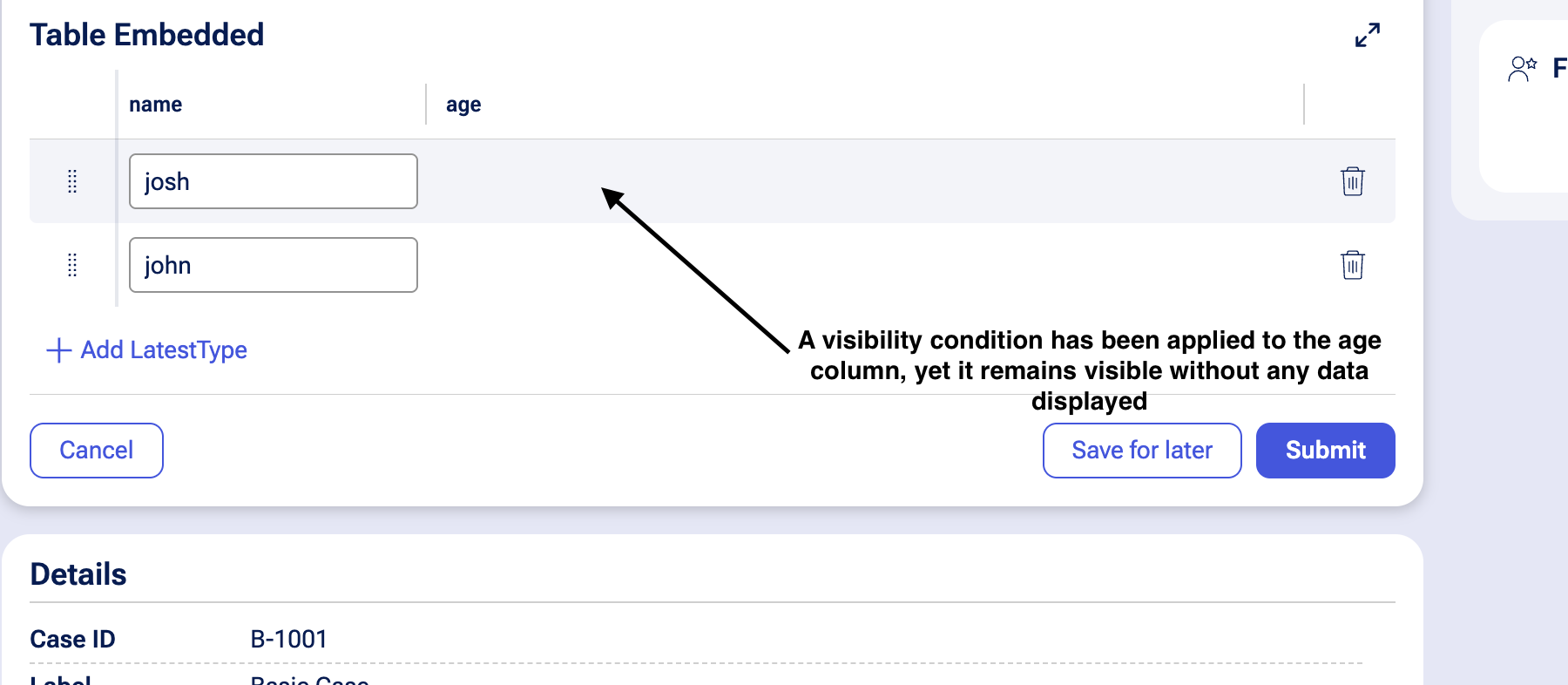
When a visibility condition is set on a column, the column remains visible, but the individual cell content may be hidden dependent on the return value of the condition.
Symptoms and Impact
- When applying a "Visible When" condition to a table column in Constellation UI, the column header remains visible.
- Only the cell values within the column are hidden based on the condition.
- Users expect the entire column (header and cells) to be hidden when the visibility condition evaluates to false.
Steps to Reproduce
- Create an Embedded Data (list of records) field, e.g. "Table Embedded"
- Add the field to a view and set "Display As" to Table.
- Under Columns, add a column "name".
- Click the gear icon next to "name" and, under Visibility dropdown, select Always.
- In the same table, add a column "age."
- Click the gear icon next to "age" and under Visibility setting, apply a custom condition or When Rule that evaluates to false.
- Submit the property pane and Save the view.
- Expected result: the entire age column — both header and data cells — should be hidden when the visibility condition evaluates to false.
- Actual result: the age column header remains visible, with an empty data area underneath, instead of the column being hidden entirely.
Root Cause
This is a current platform limitation. In Constellation UI, visibility conditions applied at the table column level operate at the cell level rather than controlling the entire column's display (header + cells).
The platform controls visibility at the cell level within columns rather than the entire column. The feature works at the table level but lacks native support for dynamic conditional visibility at the column level.
Solution
For any use case relating to column visibility restrictions, use a local change by creating separate tables, one including the sensitive column and one excluding it, and control visibility at the Embedded Data field level.
A product enhancement request has been logged to support conditional column visibility natively in future updates.
Local Change
Workaround: Use Multiple Table Configurations
To achieve column visibility based on visibility conditions, create separate table configurations and control visibility at the Embedded Data field level:
Steps:
- Create two table configurations:
- Table A: Includes all columns (for example, with age column for authorized users)
- Table B: Excludes sensitive columns (for example, without age column for general users)
- Apply visibility conditions at the Embedded Data field level:
- Open the view containing the Embedded Data field used to show the table.
- Click the gear icon next to the field name.
- Apply a visibility condition using a Custom Condition or When Rule by picking one of the options from the dropdown next to Visibility. column
See known issue Incorrect functioning of When rule-based read-only conditions and Pega Platform 25.1.2 Patch Resolved Issues for Title “Check added to update 'when' triggered for embedded table”.
References
Enabling the table columns visibility toggle
Dynamic attributes for UI elements
Configuring conditional visibility in Constellation Views (Pega Academy)
Column Visibility option not available table grid in Pega constellation (Pega Forum)
Incorrect functioning of When rule-based read-only conditions