If system information and related data is missing in Pega Diagnostic Center (PDC), the corresponding job scheduler in Admin Studio might be disabled. Many PDC metrics and system insights rely on job schedulers to collect and push data from your application to PDC. The following sections explain how to identify the affected job scheduler and re-enable it in Admin Studio.
| Missing Data | Job schedulers to restart |
|---|---|
| Interactions and Interactions per Node data under Usage Metrics* |
|
| Change History data |
|
|
Database details under System Resources |
|
| Nodes details under System Resources |
|
| Resource Utilization details under System Resources |
|
| Search Information details under System Resources |
|
| DSS Settings details under System Resources |
|
| Agents data under Background Processing |
|
| Agent Queues data under Background Processing |
|
| Listeners data under Background Processing |
|
| Queue Processors data under Background Processing |
|
| Index information |
|
| Enterprise data |
|
Checking job scheduler status
- Navigate to PDC Home.
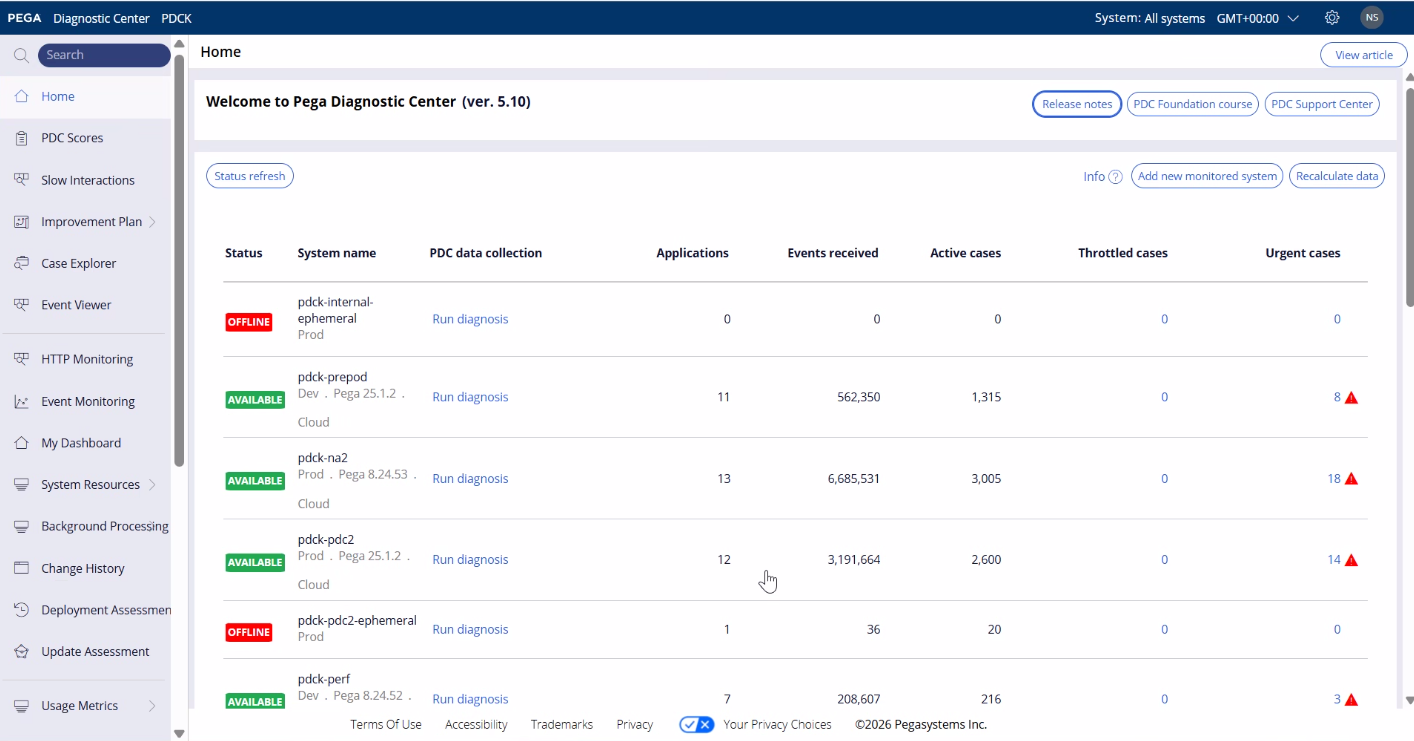
- Check the status of the affected system.
- If the status of the system is AVAILABLE click Run diagnosis.
- Check the status of the job schedulers corresponding to the problem you are observing from the table above.
- If any job scheduler is not in the ENABLED status, restart it in Admin Studio.
Restarting a job scheduler in Admin Studio
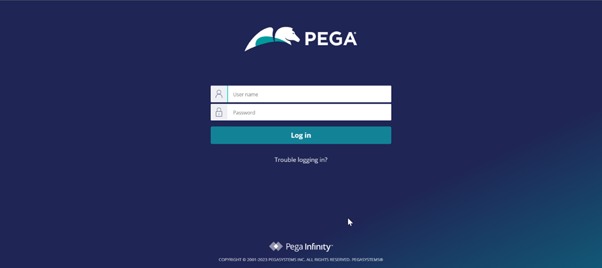
- Log in to the Pega Client Application.
- Switch to Admin Studio
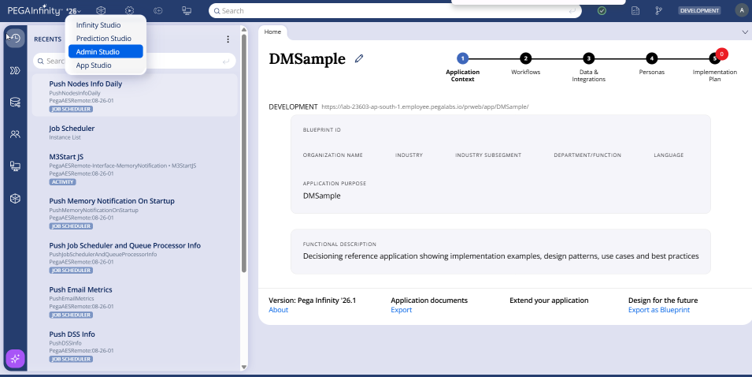
- Click Jobs.
- Select the affected job scheduler from the list. If the job scheduler is disabled, click Revert to re-enable it.
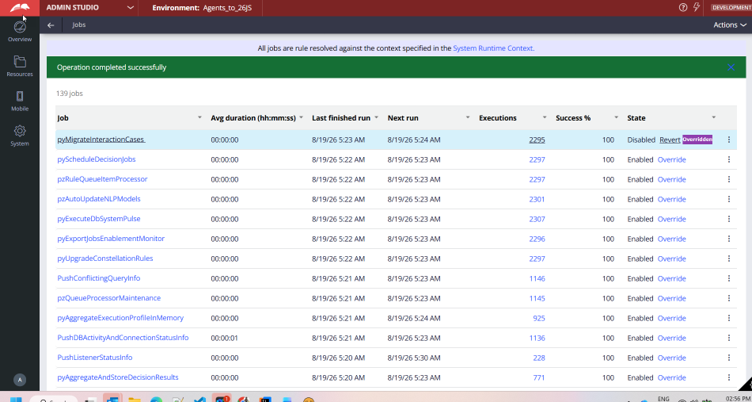
*Special instructions for missing Interactions and Interactions per Node data under Usage Metrics
If Interactions and Interactions per Node data is still missing after you re-enable the job scheduler, perform the following additional checks:
-
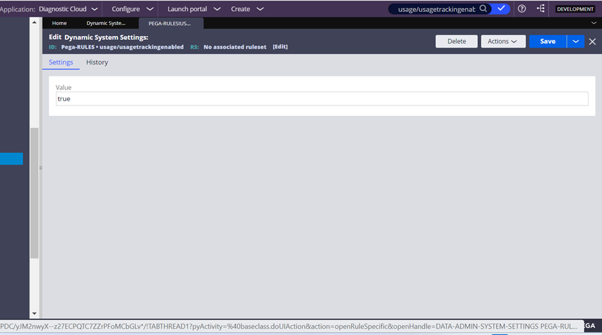
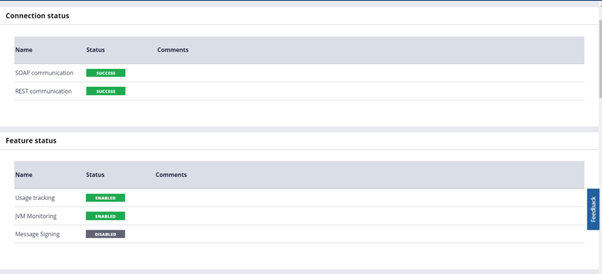
Check the Usage tracking status under the Feature status. If the Usage tracking is DISABLED, enable it by setting the DSS usage/usagetrackingenabled value.
- To set the DSS, log in to your Pega Client application and search for DSS usage/usagetrackingenabled
- Set the value to true and save the DSS.