

This Support Doc describes how the upcoming Genesys Cloud authentication change may affect Pega Call integrations and recommends configuring dedicatedLoginWindow=true in the Genesys Cloud CTI Link before support for displaying the Genesys Cloud login page within an embedded iframe is expected to be removed after February 4, 2027.
This setting opens the Genesys Cloud authentication page in a separate login window instead of within the embedded iframe, helping prevent potential authentication issues after the deprecation takes effect.
| Item | Details |
|---|---|
| Product | Pega Call |
| Affected integration | Genesys Cloud CTI |
| Expected timing | After February 4, 2027 |
| Customer action required | Yes. Configure dedicatedLoginWindow=true in the Genesys Cloud CTI Link |
| Applies to | Constellation and Traditional UI |
Summary
Genesys Cloud plans to remove support for displaying its login web application within an iframe after February 4, 2027. This change can affect Pega Call deployments that use the embedded iframe to authenticate agents with Genesys Cloud.
To minimize potential authentication issues, configure the following custom property in your existing Genesys Cloud CTI Link: dedicatedLoginWindow=true
This setting opens the Genesys Cloud authentication page in a separate login window instead of the embedded iframe.
Configure and validate this setting before February 4, 2027.
How does this change affect Pega Call?
Pega Call integrates with Genesys Cloud to provide CTI capabilities to agents. During authentication, the Genesys Cloud login page can currently open within an embedded iframe. Genesys Cloud is deprecating this iframe-based login behavior. After Genesys removes support, authentication that relies on displaying the login page within the iframe might no longer work as expected.
Setting dedicatedLoginWindow to true changes the authentication experience so that the Genesys Cloud login page opens in a separate window and does not depend on iframe-based authentication.
Configure the Genesys Cloud authentication in Constellation
- In the header of App Studio, click .
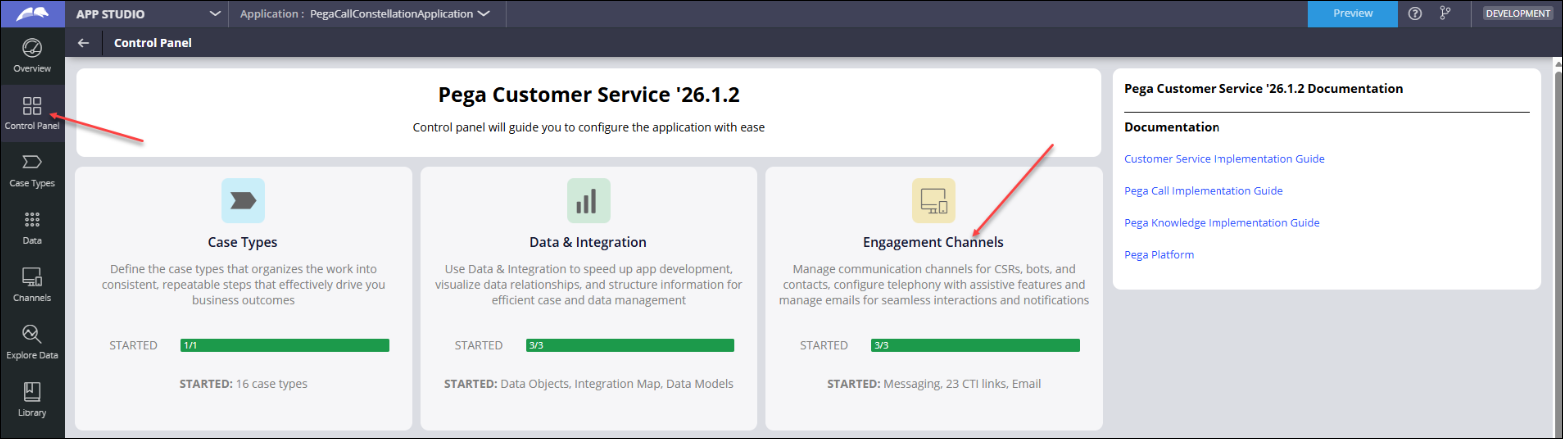
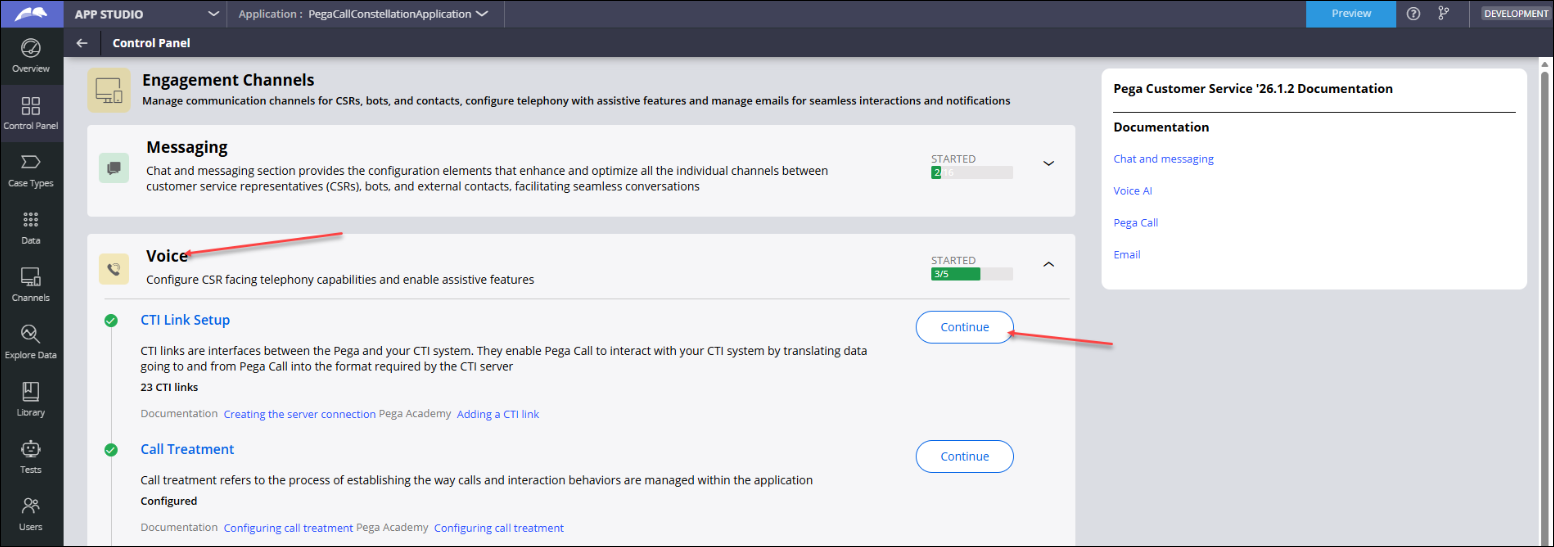
- Select the Genesys Cloud CTI links that you want to modify.
- On the Optional properties tab, click the button.
- In the Property field, enter
dedicatedLoginWindow. - In the Value field, enter
true.
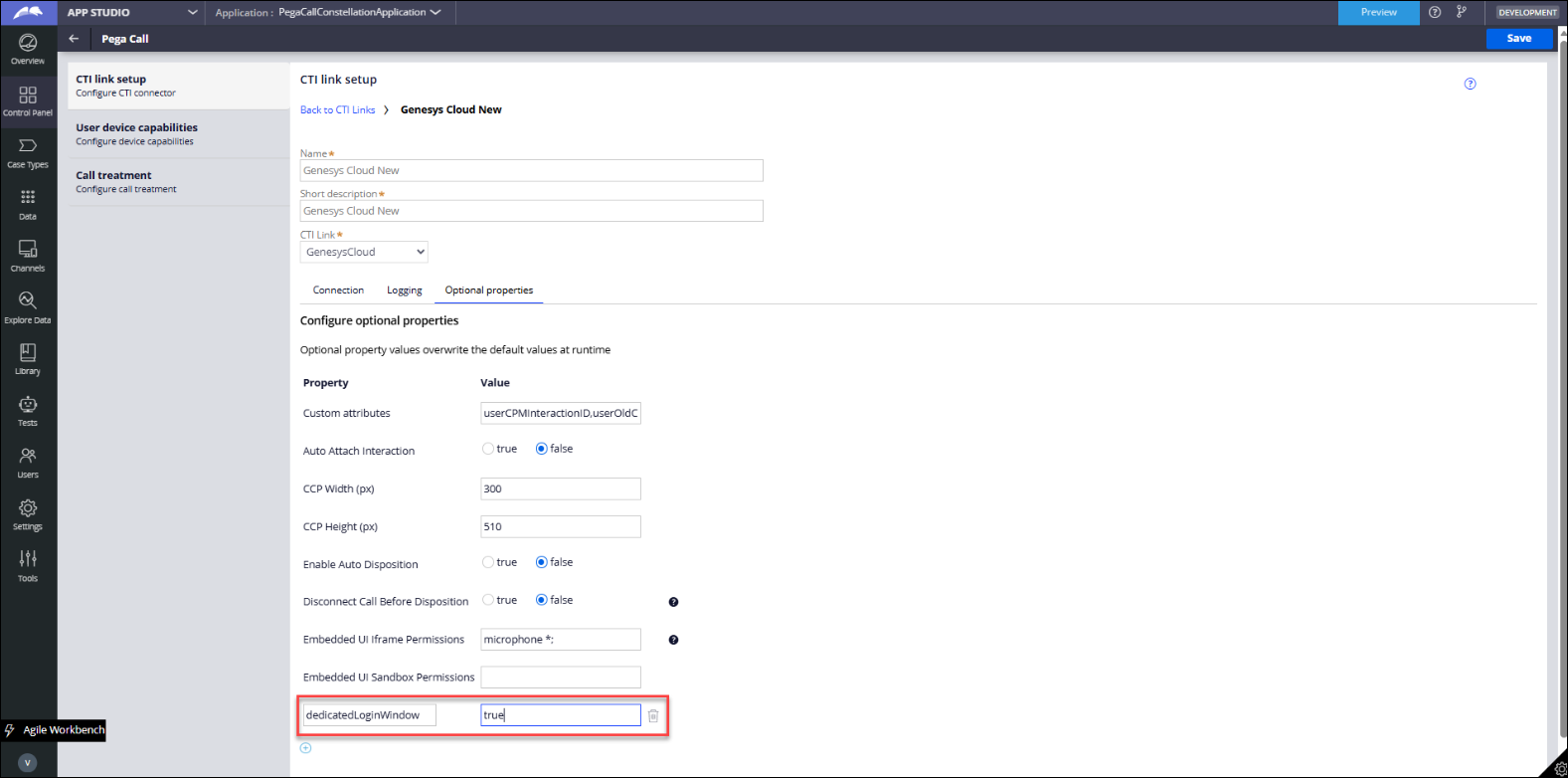
- Click .
Configure the Genesys Cloud authentication in Traditional UI
- In the header of Infinity Studio, click Configure > Channel Services > Pega Call > Administration & Configuration.
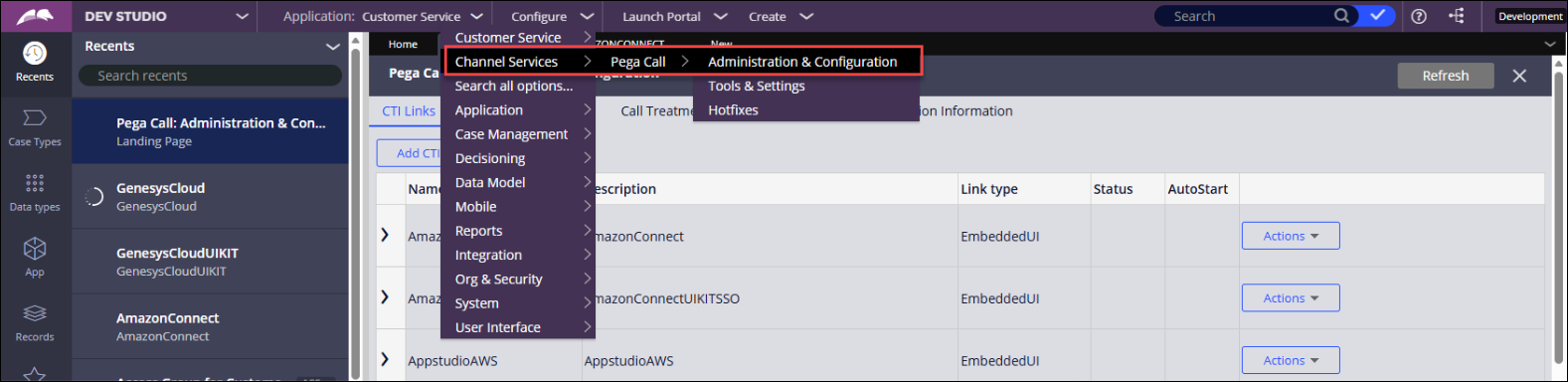
- Select the Genesys Cloud CTI links that you want to modify.
- On the Link configuration tab, click the button.
- In the Property field, enter
dedicatedLoginWindow. - In the Value field, enter
true.
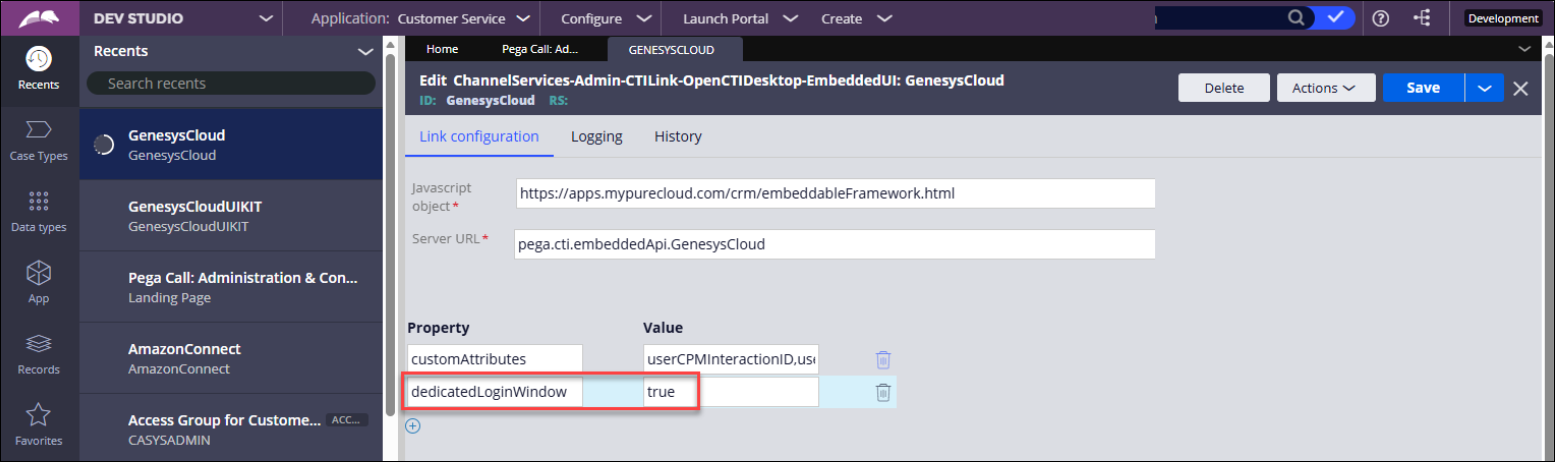
- Click .
References
Genesys documentation: Deprecation: Ability to embed the Genesys Cloud login web application within an iframe - Genesys Cloud Resource Center