

Issue
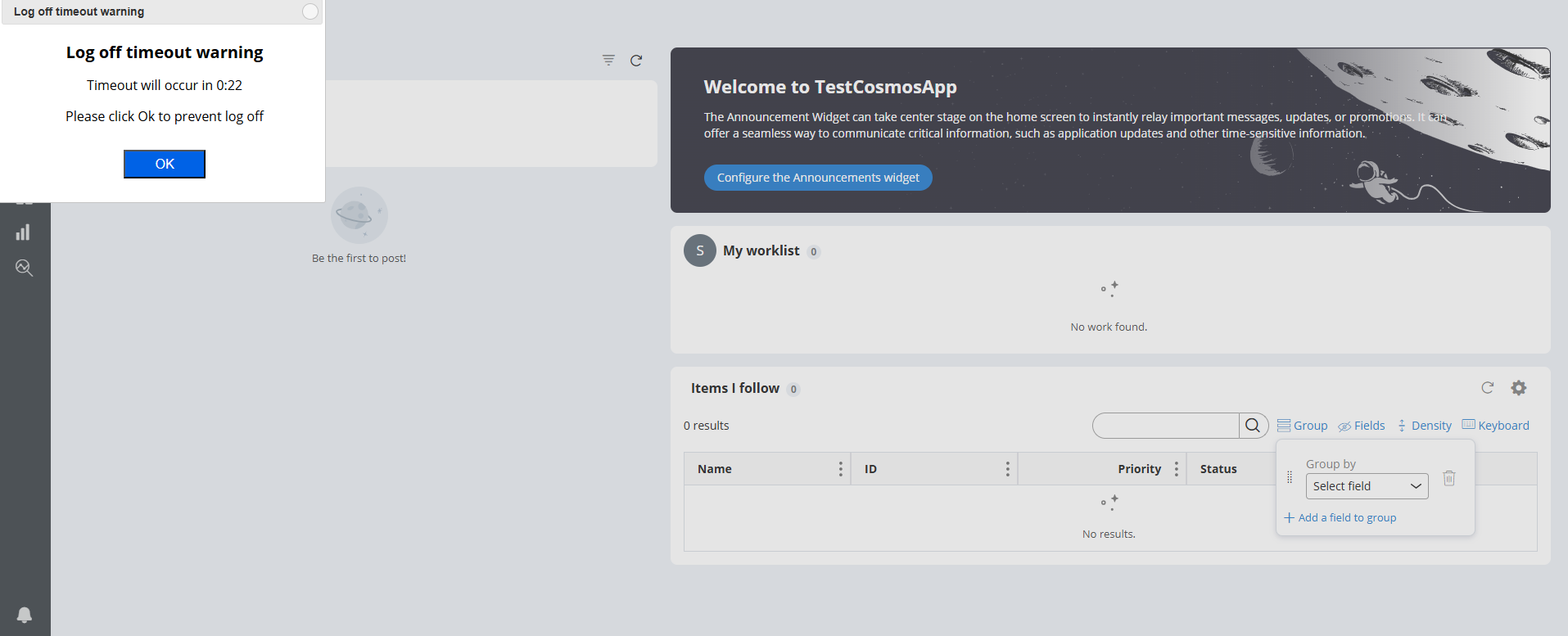
When a modal dialog is launched and screen is left idle, the session timer pop-up gets distorted.
Scenario 1
The Session timer modal displays in the top-left corner.
Scenario 2
The Close icon is not visible on the Session timer pop up.
Scenario 3
Clicking the Close icon closes the browser window instead of the modal dialog.
The following figure illustrates the distorted UI:
Steps to reproduce
1. Search for and open the harness rule of the User portal to which you want to add a Session timeout timer.
2. Add the pxSessionTimer section to your harness as an embedded section.
3. In your work area, in the header of the pxSessionTimer header, click the View properties icon.
4. In the Panel properties window, on the Parameters tab, specify the timeout settings:
a) In the Timeout After (mins) field, enter the time in minutes after which the application should require reauthentication.
b) In the Warning Window (mins) field, enter the time in minutes defining how long the warning message should display on the screen.
5. Click Submit.
6. Launch the User portal and navigate to the Home landing page. In the Followed cases Table, click the Group icon which opens a modal.
7. Leave the screen idle for some time. The SessionTimer modal launches with distorted UI.
Root Cause
The issue is caused by a defect in the product related to the openurl_in_modal JavaScript file. This occurs while switching to the jQuery dialog box, particularly when a popover overlay is present. This leads to incorrect positioning and missing functionality of the Session timer modal dialog.
Scenario 1 - The SessionTimer modal appearing in the top-left corner is caused by an incorrect position value specified in the jQuery modal parameter within the pzpega_openurl_in_modal.js file. Specifically, the modal is rendered with the position set to ['middle', 20], which leads to improper placement instead of the expected centered alignment.
Scenario 2 - The Close icon is not visible because the icon path is not found in the webwb folder, resulting in a 404 error. This issue was introduced due to recent changes made to the jQuery UI CSS file as part of bug changes, where the icon paths were modified. The updated paths were pointing to non-existing icon files, causing the Close icon to be missing in the dirty dialog box.
Scenario 3 - Clicking the Close icon closes the browser window instead of the modal dialog. This is due to a regression introduced by a bug. As part of this bug change, the condition event.target.id == 'container_close' was added; however, in the session timer scenario, this condition evaluates to null. This occurs because pzModalTemplate always returns null, while the jQuery modal does not return any value. This mismatch causes a conflict in event handling, resulting in the portal being closed instead of the modal dialog.
Solution
Scenario 1
Add the following code to the Userworkform:
.ui-widget.ui-widget-content {

border: 1px solid #c5c5c5;

position: fixed;

top: 50%;

left: 50%;

transform: translate(-50%, -50%);

padding: 0;

text-align: center;

}
Scenario 2
Add the following code to the Userworkform:
.ui-dialog .ui-dialog-titlebar-close {

background-image: url(webwb/pzpega-pi-close.svg);

}
Scenario 1, Scenario 2, and Scenario 3
This issue is planned to be addressed in a future Pega Platform release. Issues are prioritized based on impact, severity, and capacity. The specific release for the fix has not yet been determined. This section will be updated with release details when the fix for this issue is available.